How do I send an SMS or WhatsApp campaign?
Send a campaign by text message or WhatsApp to the same audience lists, with the same opt-outs and results as email.
With the Messaging app and a provider connected, a campaign's Channel can be SMS or WhatsApp. Everything else works as for email: the same audience lists, scheduling, suppression list and results. Messages go to each contact's phone number; contacts without one are skipped.
SMS
- Create a campaign and set Channel to SMS.
- In the Message tab, write the text under SMS Message. Merge fields such as {{ contact.name }} work here too.
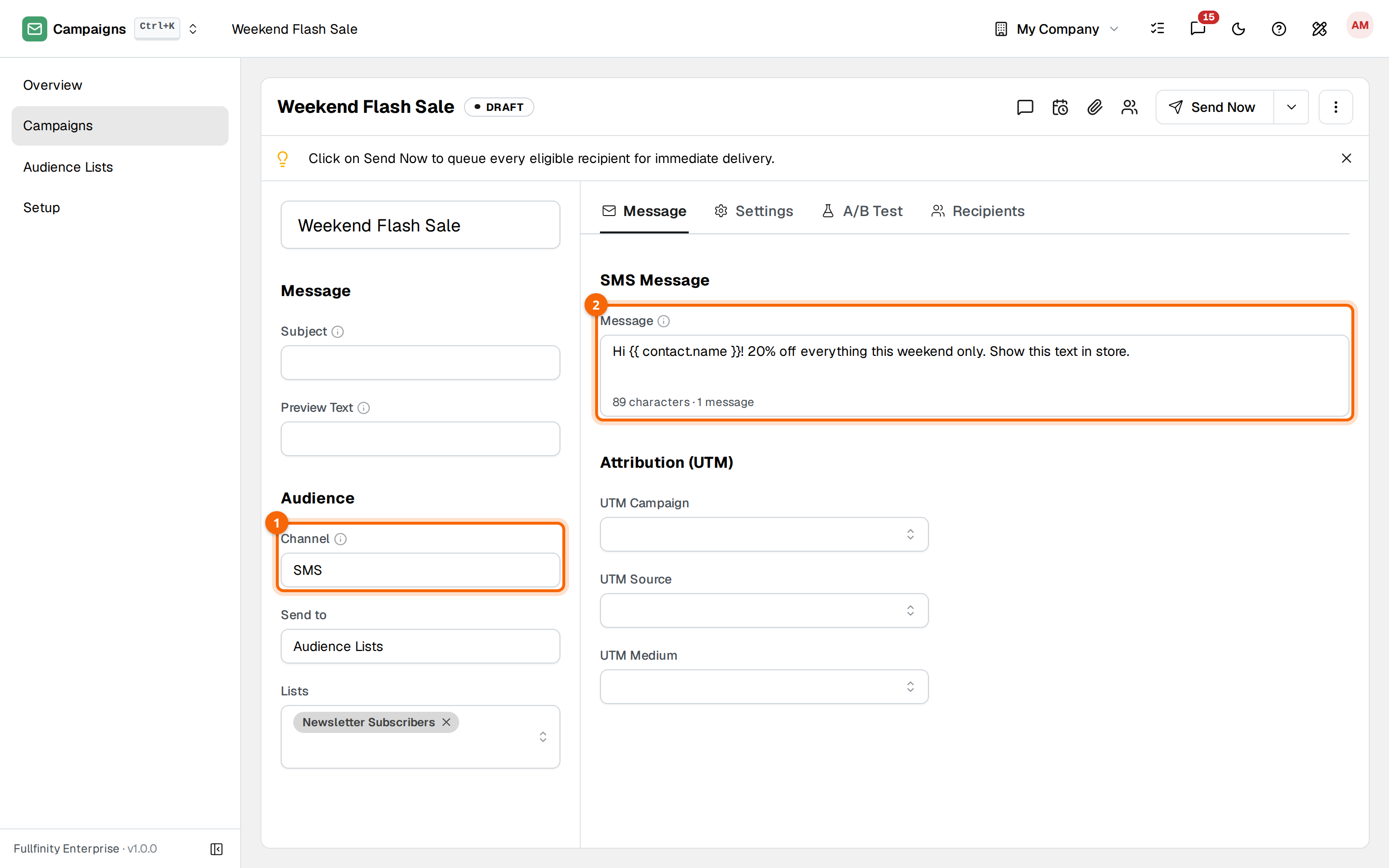
The counter under the box shows how many messages it takes: one SMS holds 160 characters, or 70 with an emoji or non-Latin letters; longer texts are sent, and billed, as several.
- Set Channel to WhatsApp.
- Under WhatsApp Template, choose the Approved Template.
- In Variable Mapping, fill each placeholder: key 1 with {{ contact.name }}, key 2 with a fixed text, and so on.
Without a template, a WhatsApp campaign only reaches people who wrote to you in the last 24 hours.
Send it
Use Send Test to text your own phone number (the one on your contact), then Send Now or Schedule — see How do I send or schedule a campaign?
On WhatsApp, a message that is read counts as opened. Text messages have no opens or clicks; their results show which were delivered and which failed.