How do I set up Campaigns?
Set the sender every new campaign starts with, how sign-ups are confirmed, and when bouncing addresses stop being mailed.
Campaigns sends email (and, with the Messaging app, SMS and WhatsApp) to lists of people. A few settings apply to every campaign; set them once before your first send. Campaign managers only.
Open the settings
Go to Campaigns → Setup. The Campaigns tab opens.
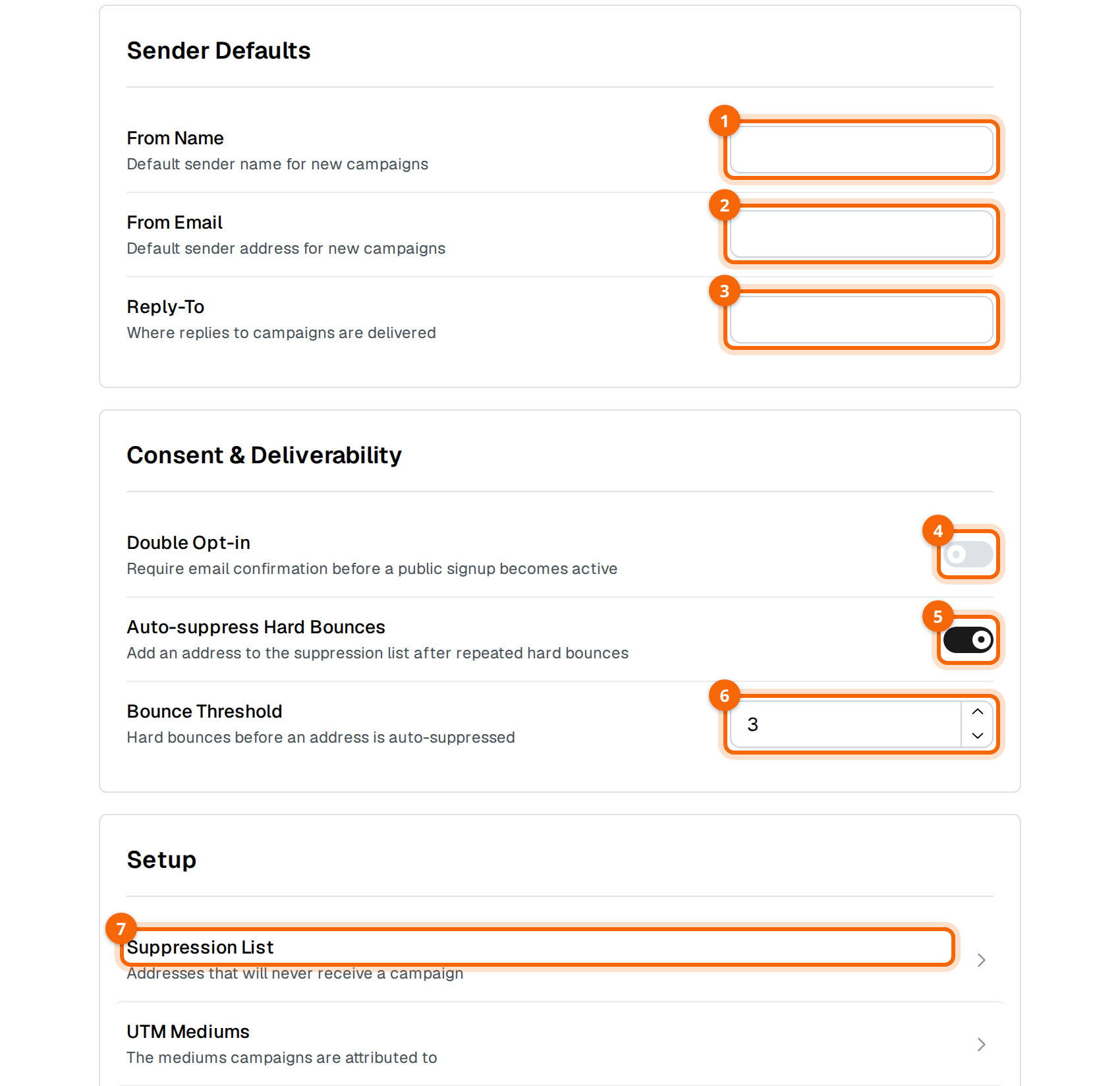
Sender Defaults
- From Name — the name people see the email come from, such as Acme News.
- From Email — the address it comes from. Use an address on a domain your outgoing mail server is allowed to send for, or it lands in spam.
- Reply-To — where replies go, if not to the From Email.
Every new campaign starts with these three filled in. You can change them on any campaign, in its Settings tab.
Consent & Deliverability
- Double Opt-in — when someone signs up through a form on your website, they are sent an email with a confirmation link, and only start receiving campaigns once they confirm. Until then their subscription is Pending. Contacts you add to a list yourself are confirmed straight away.
- Auto-suppress Hard Bounces — stop mailing an address that keeps bouncing.
- Bounce Threshold — how many campaign emails to an address must bounce before it is put on the suppression list (3 unless you change it). Bounces from every campaign count towards it.
Click Save.
The suppression list
- Suppression List opens the addresses and phone numbers that never receive a campaign: people who unsubscribed, addresses that bounced too often, and any you add yourself. See How do unsubscribes and the suppression list work?
➡️ Next: How do I build an audience list?
Was this article helpful?