How do I A/B test a campaign?
Try two or more subject lines on part of your audience, then send the one that did best to everyone else.
An A/B test sends different versions of a campaign to a sample of the audience, measures which is opened (or clicked) most, and sends the winner to everyone who hasn't received it yet.
1. Set up the test
On a draft campaign, open the A/B Test tab.
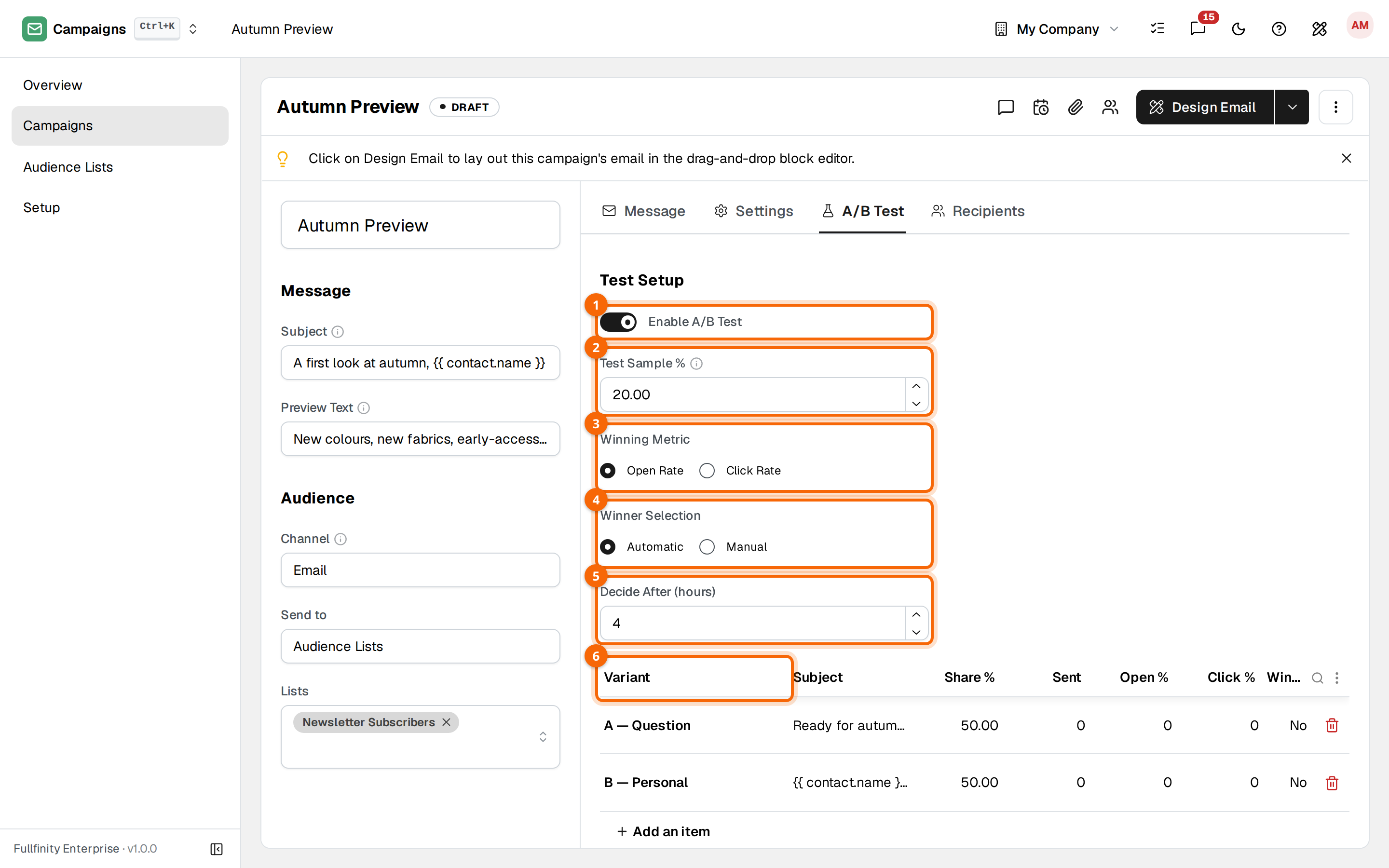
- Switch on Enable A/B Test.
- Test Sample % — how much of the audience takes part in the test (20% unless you change it). The rest wait for the winner.
- Winning Metric — Open Rate or Click Rate.
- Winner Selection — Automatic sends the winner by itself once the test has run; Manual waits for you.
- Decide After (hours) — how long the test runs before an automatic winner is picked.
- Add the versions in the list below — at least two. Give each a name in Variant, its own Subject, and its Share % of the test sample.
A variant tests its subject line; every variant uses the email you designed for the campaign.
2. Send it
Click Send Now (or schedule it). The campaign moves to Testing: the sample is chosen at random and split between the variants by their shares. Each variant's Sent, Open % and Click % fill in as people read their email.
3. Send the winner
- With Automatic, the variant with the best rate is sent to the rest of the audience once Decide After (hours) has passed.
- With Manual — or to finish early — click Send Winner. It sends the best-performing variant.
The winning variant is ticked Winner, named in Winner beside the test settings, and the campaign moves to Sending. Nobody receives the campaign twice.