How do I send or schedule a campaign?
Send a campaign now or at a set time, spread a large send over hours, and stop one that's going out.
When the email is ready, send it straight away or pick a time. Either way, Fullfinity works out who receives it at the moment it goes out — so people who joined the list or unsubscribed in the meantime are counted correctly.
Who receives it
Everyone on the campaign's lists whose subscription is Confirmed and not opted out, minus addresses on the suppression list, contacts with no email address, and anyone this campaign already reached. Each person gets it once, even if they are on several of its lists.
Send it now
Click Send Now. The campaign moves to Sending and its emails join your outgoing mail queue. When the last one has left, it becomes Sent — usually within minutes.
Send it later
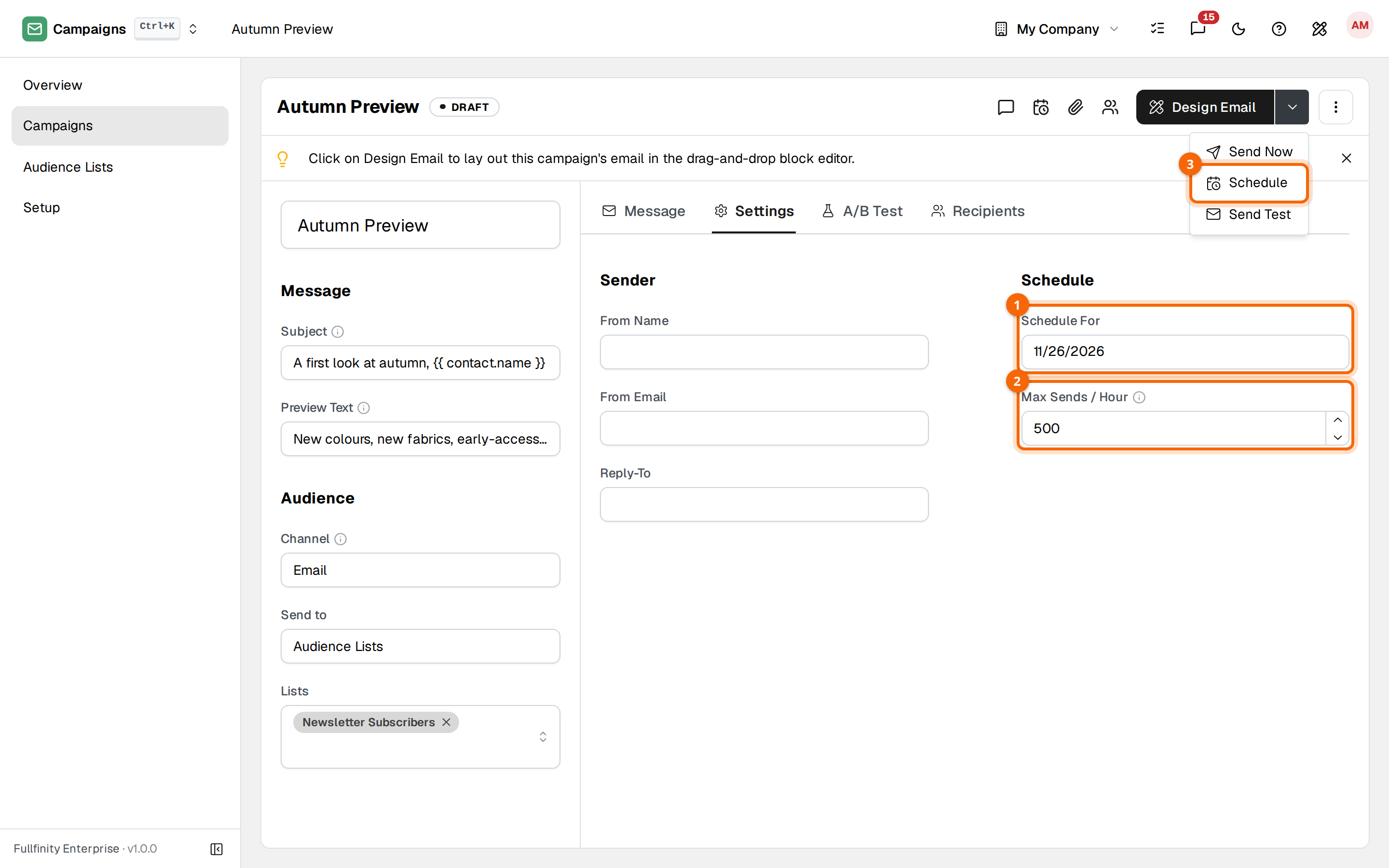
- Open the Settings tab and set Schedule For — the date and time to send.
- Optionally set Max Sends / Hour to spread a large send out, so it doesn't hold up your everyday email (0 sends as fast as possible).
- Click Schedule. The campaign moves to Scheduled and goes out by itself within a few minutes of that time.
A scheduled campaign can still be sent early with Send Now, or taken back to Draft with Cancel to change it.
Statuses
| Status | Meaning |
|---|---|
| Draft | Being prepared. Nothing has been sent. |
| Scheduled | Waiting for its Schedule For time. |
| Testing | An A/B test is running on part of the audience (see How do I A/B test a campaign?). |
| Sending | Emails are leaving the queue. |
| Sent | Every email has left. |
| Failed | It was cancelled while sending, or a scheduled send could not go out. |
Stop a campaign that is sending
Click Cancel. Emails still waiting in the queue are not sent and the campaign becomes Failed; emails already sent can't be recalled.
➡️ Related: How do I see how a campaign did? · Why didn't my campaign send?