How do I build an audience list?
Group the contacts a campaign goes to, let people subscribe themselves from your website, and see who has opted out.
An audience list is a group of contacts who agreed to hear from you — Newsletter Subscribers, VIP Customers. A campaign is sent to one or more lists, and each person on a list has their own consent: confirmed, waiting to confirm, or opted out.
1. Create the list
- Go to Campaigns → Audience Lists and click New.
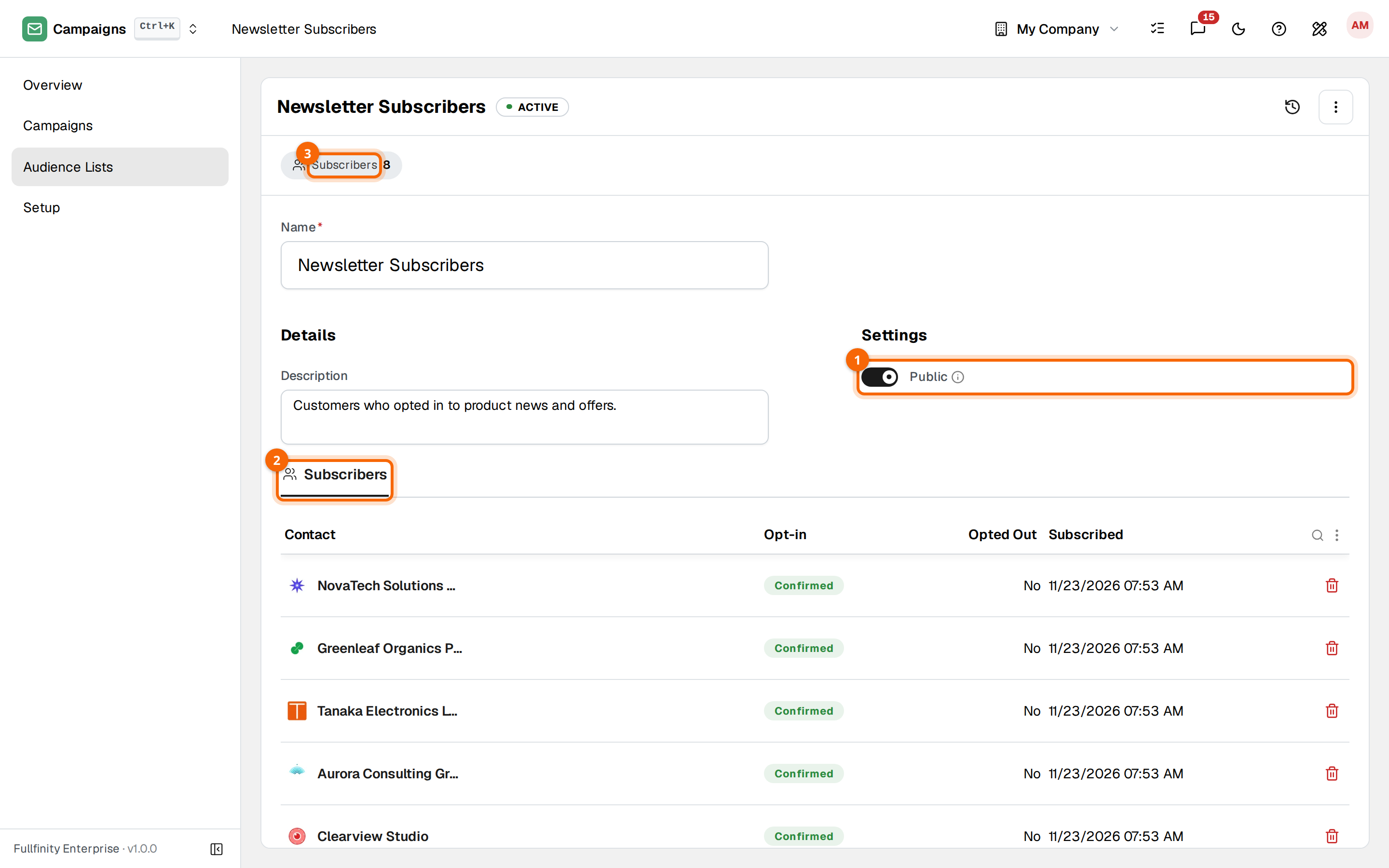
- Give it a name and a Description — the description is shown to subscribers on their preferences page.
- Switch on Public if people may subscribe to it themselves, or leave it off for a list only you manage.
2. Add subscribers
Open the Subscribers tab and add each contact. Every row shows the contact, their Opt-in state and whether they Opted Out:
| Opt-in | Receives campaigns? |
|---|---|
| Confirmed | Yes, unless they opted out. |
| Pending | No — they signed up on your website with Double Opt-in on and haven't clicked the confirmation link yet. |
The Subscribers and Opted Out counts at the top keep the totals.
Other ways people join a list
- From your website. In the page builder, add the Newsletter Signup section to a page. Visitors type their email and are added to the list you name in the section's Audience List ID setting (the number at the end of the list's address when you open it) — left blank, they join your first public list. With Double Opt-in on, they are Pending until they confirm.
- From their preferences page. Every campaign email links to a page where the reader ticks the public lists they want.
- From an automation, with an Add to List step (Enterprise). See How do I build a marketing automation?
Was this article helpful?