How do I text a customer from a record?
Send an SMS or WhatsApp message from any record's Send Message, see replies on the contact, and check delivery in the message log.
Once a provider is connected, the Send Message button on a record — an order, a lead, a ticket — can send a text instead of an email. The message is kept on the record, next to its emails.
Send a message
- On the record, click Send Message.
- Pick SMS or WhatsApp under Channel. The choices are the channels your enabled providers offer; with none, there is no channel choice and the message is an email.
- Type the message and send. It goes to the record's contact, at the phone number on their contact.
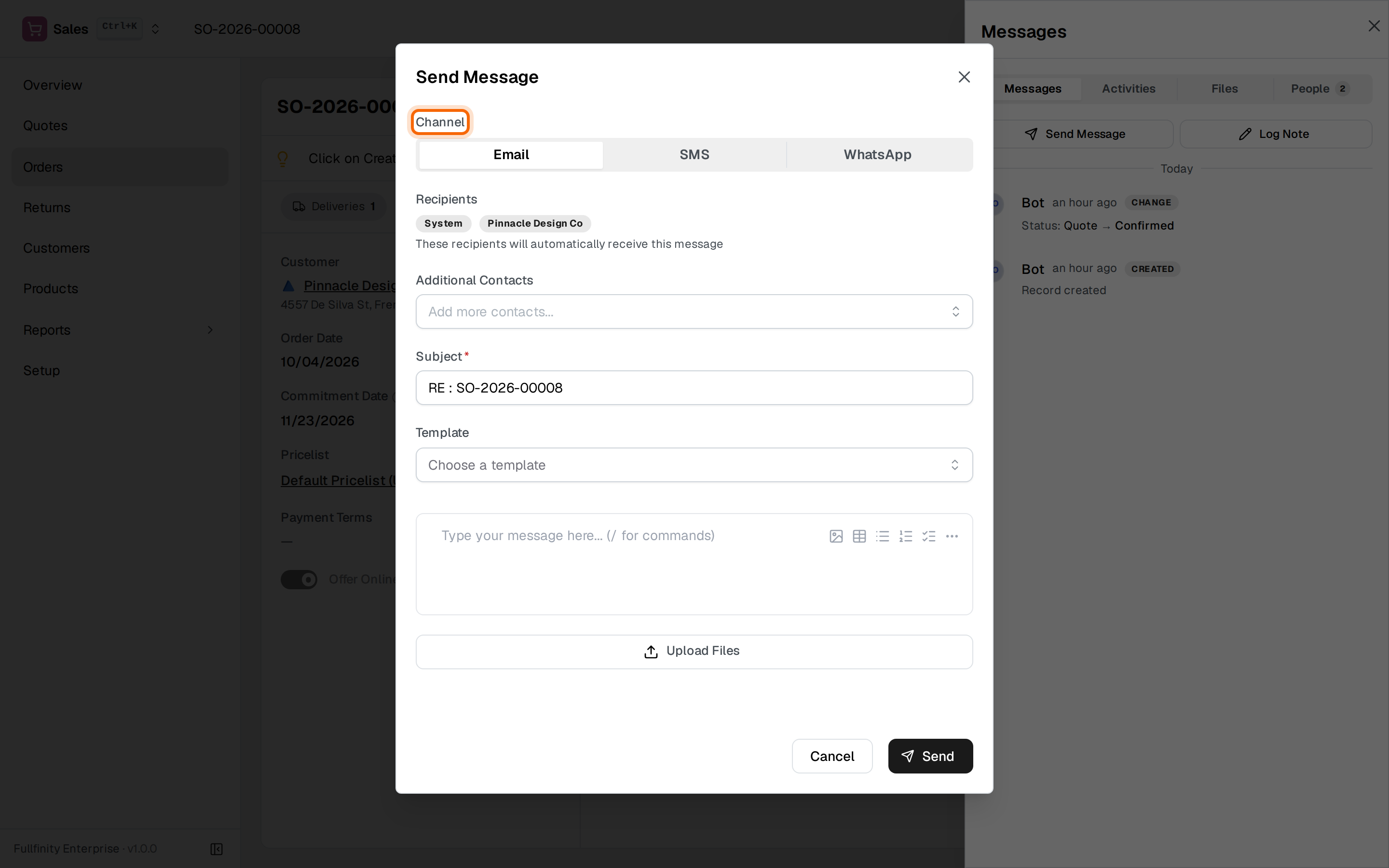
WhatsApp's 24-hour rule
WhatsApp only lets a business write freely to someone who messaged it in the last 24 hours. Outside that window the window shows No reply in the last 24h — WhatsApp requires an approved template. Choose an approved Template and fill in its values instead.
Replies
A reply is filed on the contact whose phone number it came from, so it appears in that contact's conversation. A reply from a number no contact has is still kept in the message log. A reply of just STOP puts the number on the Campaigns suppression list, and START takes it off (with the Campaigns app installed) — see How do unsubscribes and the suppression list work?
The message log
Go to Messaging → Messages.
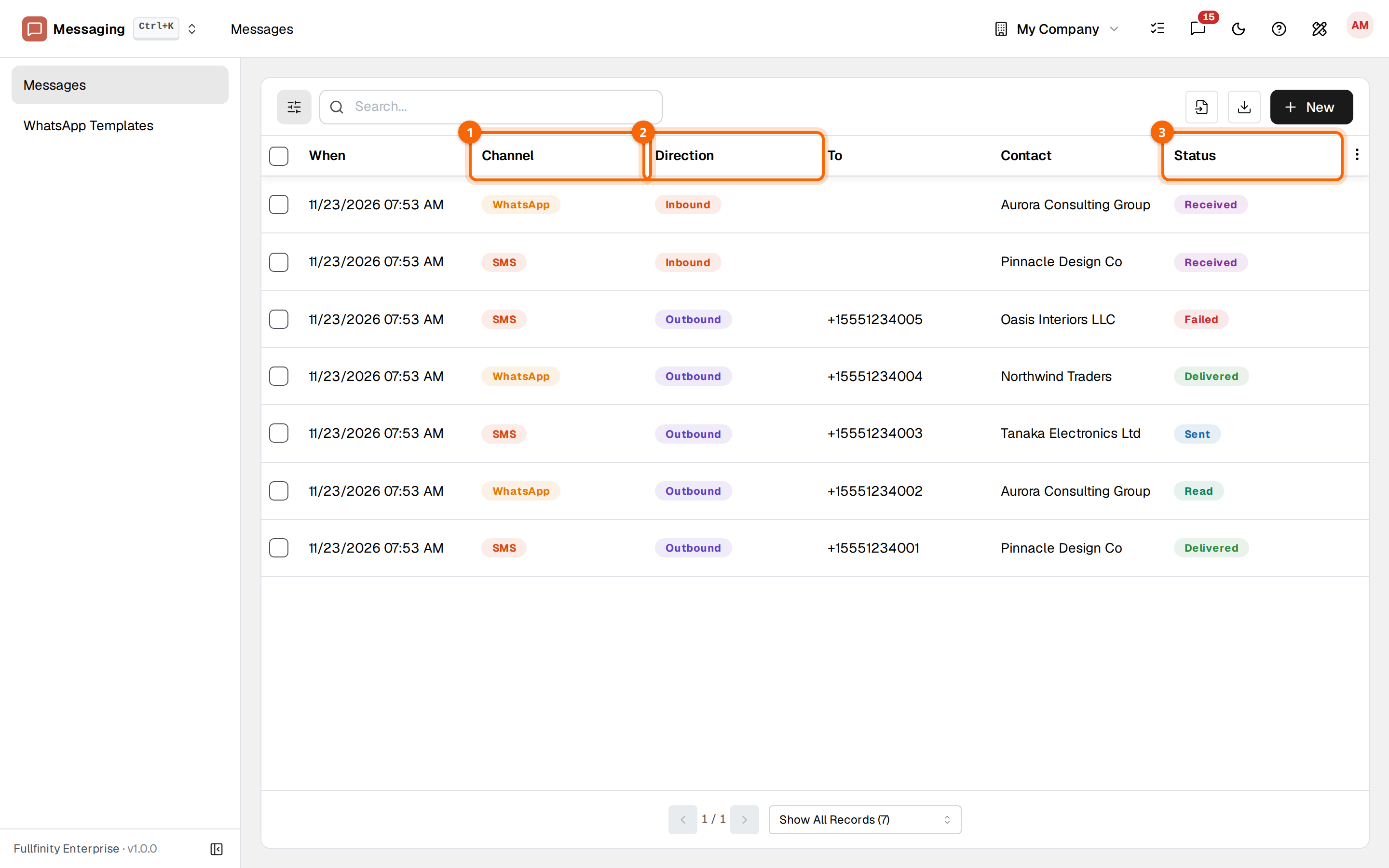
- Channel — SMS or WhatsApp.
- Direction — Outbound (you sent it) or Inbound (a reply).
- Status — Queued, Sending, Sent, Delivered, Read (WhatsApp), Received (a reply) or Failed.
Use the Failed filter to find messages that didn't go; open one to see the provider's reason under Delivery.