How do I build a marketing automation?
Choose who an automation enrols and how, then lay out its steps — emails, waits, branches and actions — on the flow canvas.
An automation is a journey that runs by itself: a welcome email when a lead arrives, a follow-up three days later, a different email to those who didn't open the first. People enter it when they match its audience, then move along its steps on schedule.
1. Create the automation
Go to Marketing → Automations and click New.
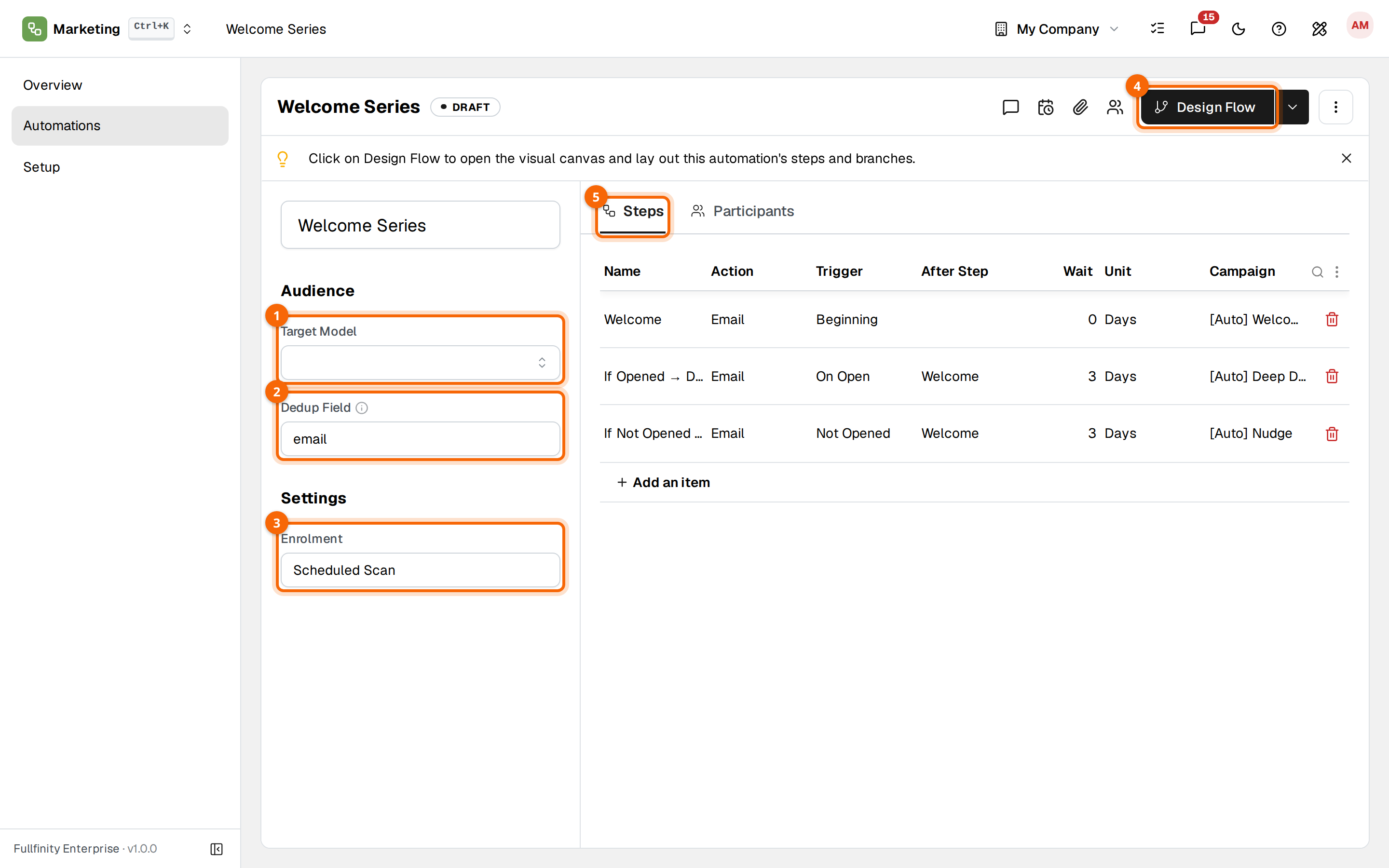
- Target Model — what the automation enrols: leads (when left empty), contacts, or any other kind of record with a person behind it.
- Dedup Field — the field that identifies a person, usually email. A second record with the same value (two leads from one address) is not enrolled again.
- Enrolment — when matching records come in:
- Scheduled Scan — every matching record, including those that existed before the automation ran, is enrolled on the next pass (every few minutes).
- On Creation — only records created after the automation first ran.
- On Save (enters filter) — records changed after the automation first ran that now match its filter.
- Manual — nobody is enrolled until you click Enrol Now.
New automations start with the Default Dedup Field and Default Enrolment Mode from Marketing → Setup.
2. Lay out the flow
- Click Design Flow. The flow canvas opens.
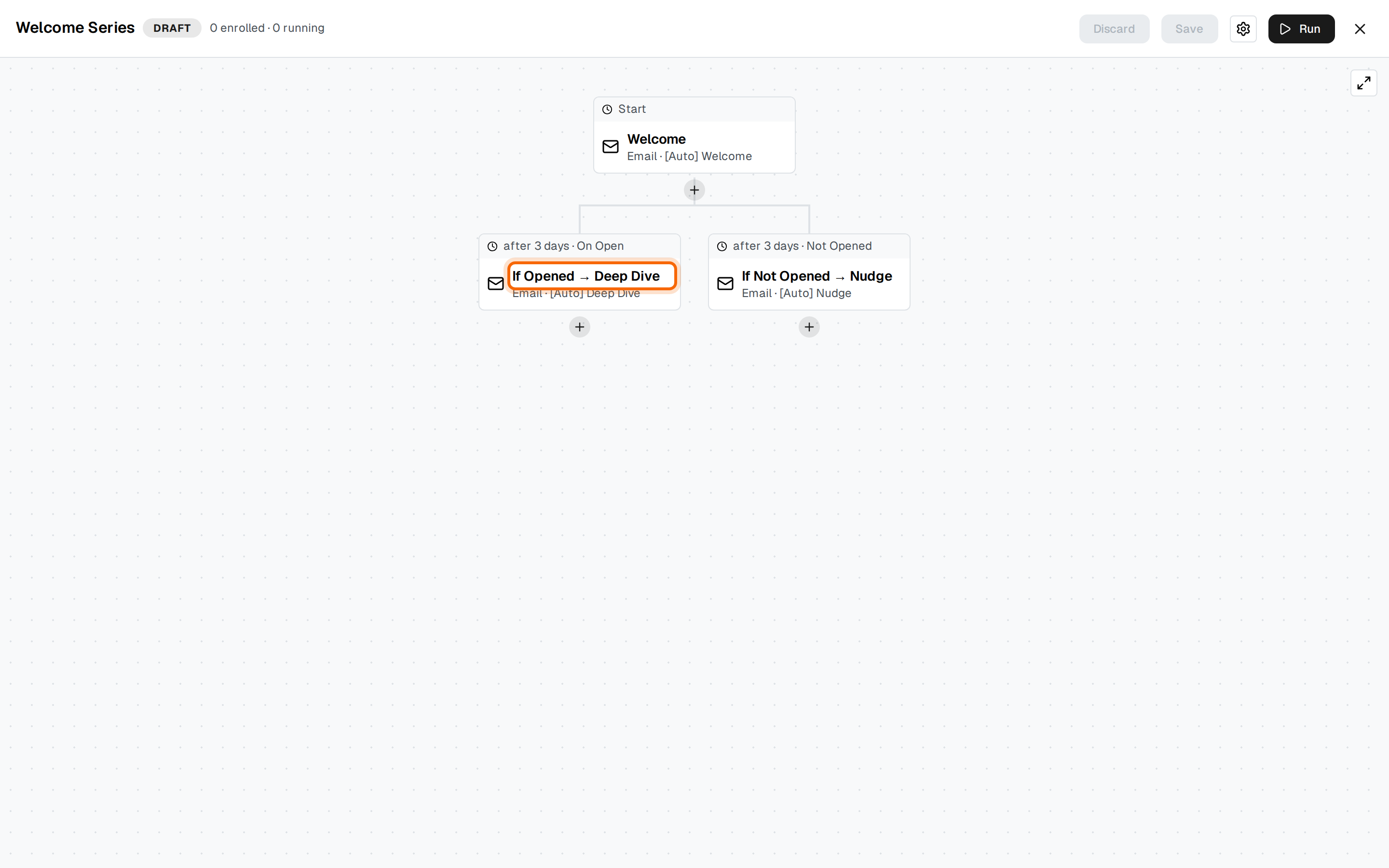
- Audience — in the automation's settings on the canvas, add the conditions a record must match (Stage is New). Preview audience shows how many match now.
- Add first step, then add steps below it. Click a step to set it up on the right: its Action, its Trigger and how long to Wait after the step before it.
- Click Save.
| Action | What it does |
|---|---|
| Email, SMS, WhatsApp | Sends a campaign to the participant. A draft campaign is created for the step; click Design Email on the step to lay it out. |
| Add to List / Remove from List | Subscribes or opts the participant's contact out of a List. |
| Add Tag | Tags a lead. |
| Set Field | Writes a Value into a Field of the record. |
| Create Lead | Opens a CRM lead for the participant's contact (not when the automation already enrols leads). |
| Create Activity | Gives someone a to-do on the participant's record. Choose the Activity Type, an Activity Summary (the step's name if you leave it empty), who to Assign To, and Due In (days) — counted from the day the step runs. |
| Server Action | Runs an action on the participant's record — the same actions an automation rule's Call Method offers, listed under Method with what each does. Only an administrator can choose the method. |
An automation won't Run while a step is missing what it needs: a Create Activity step without an activity type or someone to assign it to, or a Server Action step without a method. The message names the step.
The steps also appear in the automation's Steps tab, one row each, with the step it comes After Step.
➡️ Next: How do I send a different follow-up to people who opened or clicked? · How do I run an automation and follow its participants?