How do technicians work requests in the Workbench?
Technicians time their work, read meters, note what they did and parts they used, and sign off — on a phone, even with no signal.
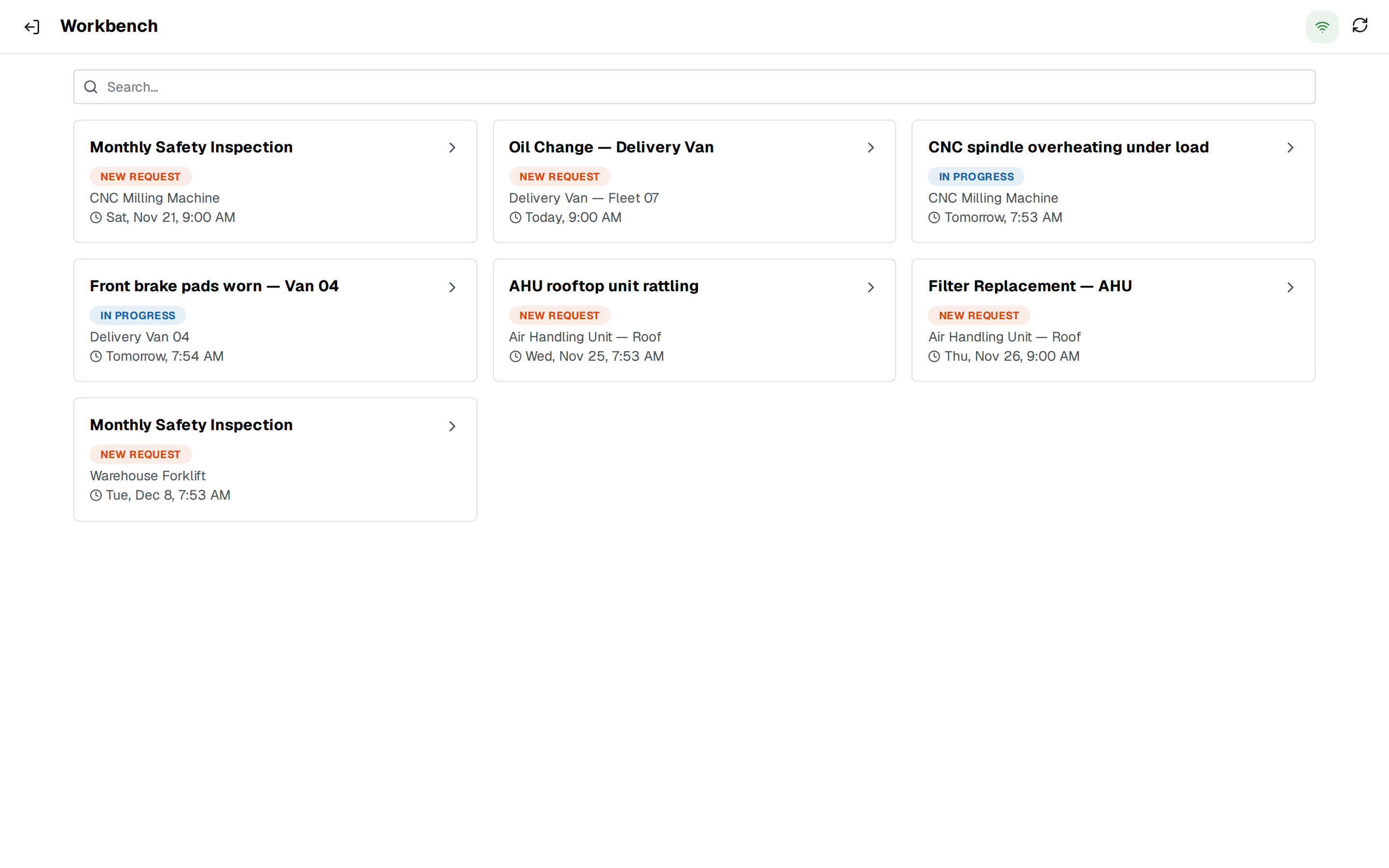
The Workbench is a phone app for technicians on the plant floor, in plant rooms and car parks where there is often no signal. It keeps working offline and sends everything once the phone is back in range.
Work a request
- Open Workbench. It lists the open requests you can see — your own, or your team's — soonest first. Tap one.
- On Work, read the Instructions and start the Work time timer when you start.
- Enter the Meter Reading if the equipment has a meter, and describe the Work Performed.
- Under Parts Used, tap Add Part for each spare part fitted (with spare parts switched on).
- On Sign Off, take Proof Photos and sign as Technician Signature.
- Tap Mark Repaired — or Scrap Equipment if it is beyond repair.
Make photos or a signature required
In Maintenance → Setup, Require Proof Photos and Require Technician Signature stop a request being closed from the Workbench without them.
In the office
The request's Work Log tab shows what came back: Worked Hours, when the work started and ended, who signed, and the work performed.
Was this article helpful?