Why is my delivery "Waiting"?
A Waiting transfer doesn't have the stock it needs yet. Here's how to find out why, and how to get it moving.
Waiting means the transfer is confirmed but can't be worked yet, because the stock it needs isn't held for it. It becomes Ready as soon as it is.
Read the Reservations tab first
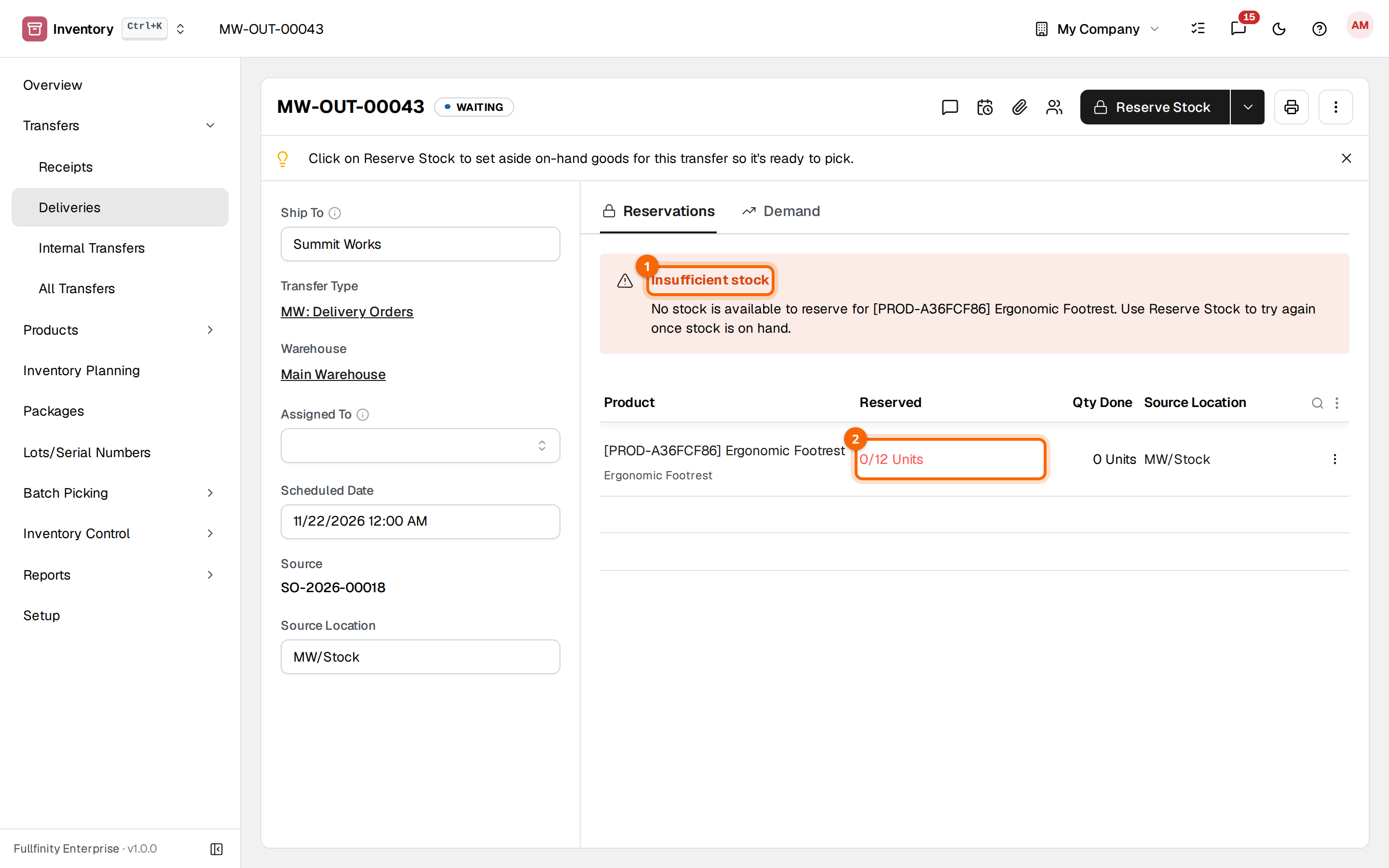
Open the delivery. The Reservations tab tells you which case you're in:
- An orange Insufficient stock warning names the products that are short. The Reserved figure on those lines is red (nothing held) or orange (part held).
- A blue Stock is on the way note means the stock is already coming — from an earlier step or from an order with your supplier. Nothing to do but wait for it.
The usual causes
| Cause | What to do |
|---|---|
| Not enough stock on hand. | Receive the incoming goods, then click Reserve Stock (menu next to Mark Done). The daily job also retries if Auto-Reserve Waiting Transfers (Scheduled) is on. |
| The stock is held by another delivery. | Check Inventory → Reports → Stock Reservations. Click Unreserve on the less urgent delivery, then Reserve Stock on this one. |
| Stock exists, but in a different warehouse or location than this delivery takes from. | Move it with an internal transfer, then reserve again. |
| The delivery's transfer type uses the Strict reservation policy. | Strict waits until every line is fully covered. Reserve the rest, reduce the quantity, or switch the type to Partial to ship what you have. |
| It's a later step of a two- or three-step flow. | It waits for the step before it. Click Chained Transfers and finish the earlier pick or pack first. |
| Auto-Reserve on Confirmation is off. | New deliveries start Waiting on purpose. Click Reserve Stock when you're ready. |
| The lot it needs is on hold or recalled. | Held or recalled lots can't be reserved. Release the lot or pick another. |
Related: How do I reserve and release stock?
Was this article helpful?