How do I move stock between locations?
Use an internal transfer to move goods to another shelf or another warehouse.
An internal transfer moves stock from one place to another — from overflow to the pick face, or from one warehouse to another — and keeps every location's quantity right.
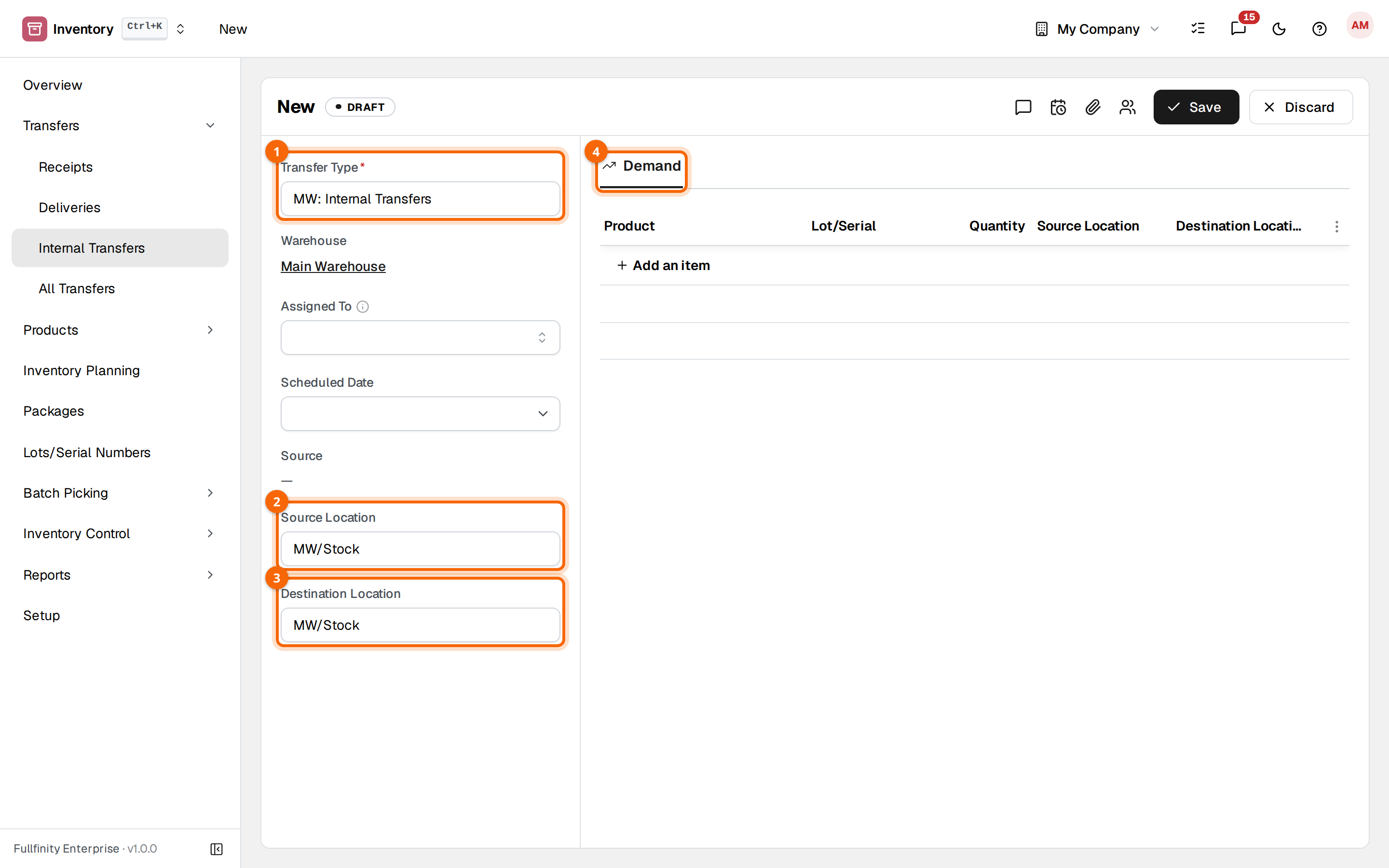
- Go to Inventory → Transfers → Internal Transfers and click New.
- Check the Transfer Type (1) — it decides which warehouse raises the move. It starts on your main warehouse's; pick the one for the warehouse the goods are leaving.
- Set the Source Location (2) and the Destination Location (3). For a move to another warehouse, choose a location in that warehouse.
- On the Demand tab (4), add each product and its Quantity. A line can override the source and destination.
- Click Save, then Confirm. Stock is reserved at the source.
- When the goods have moved, enter Qty Done on the Reservations tab and click Mark Done.
Related: How do I reorder automatically?
Was this article helpful?