How do I reserve and release stock?
Hold stock for a delivery so nobody else ships it, release it when plans change, and choose how strict reservation is.
Reserving sets stock aside for one delivery, so the same units can't be promised twice. Reserved stock still counts as on hand but no longer as available.
When stock is reserved
Normally you don't have to do anything: stock is reserved when a sales order is confirmed (Auto-Reserve on Confirmation) and a daily job retries deliveries that are still short (Auto-Reserve Waiting Transfers (Scheduled)). Both are in Inventory → Setup.
Reserve or release by hand
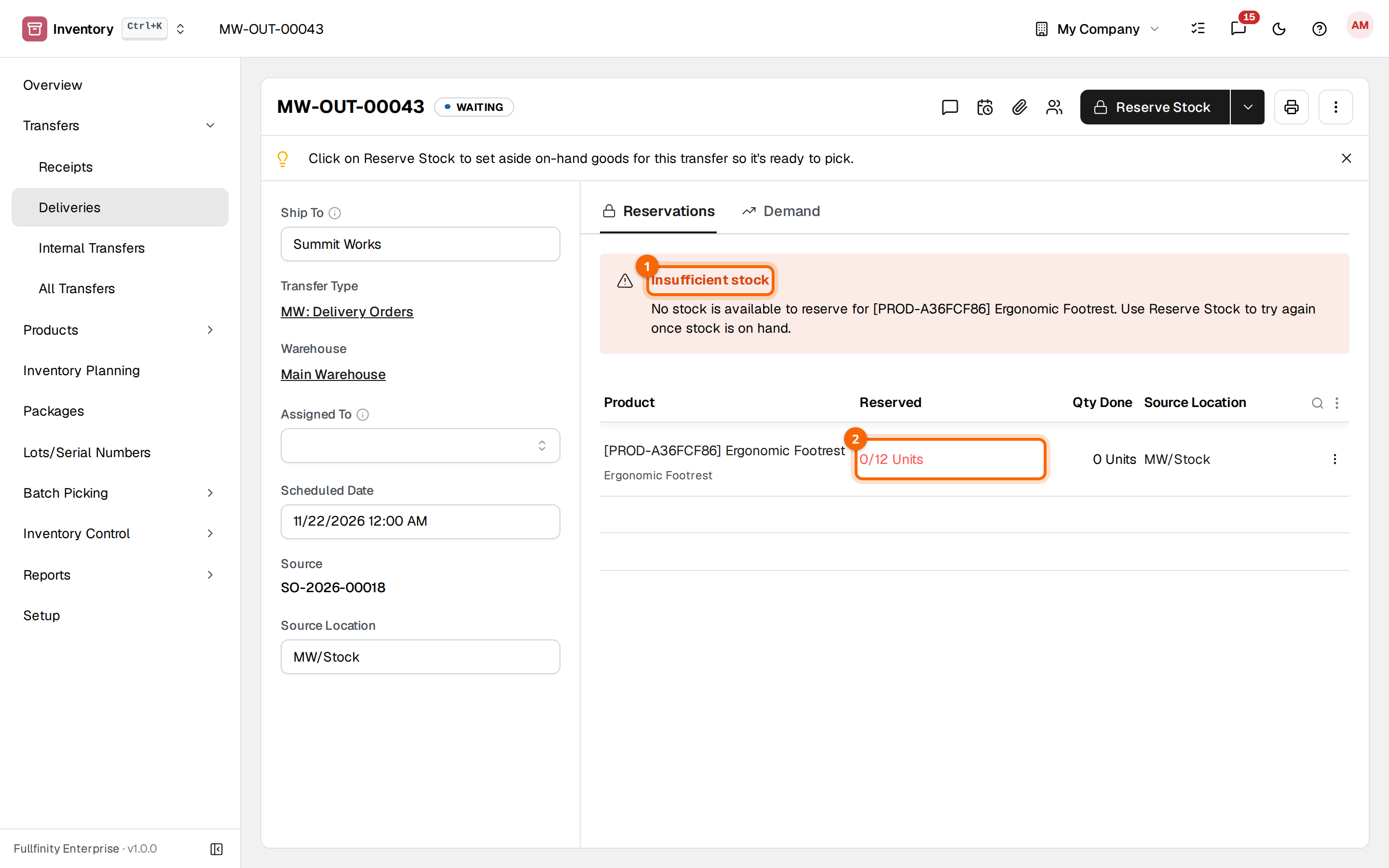
- Open the delivery. If something is short, the Reservations tab shows an Insufficient stock warning naming the product, and its Reserved figure is red (e.g. 0/12 Units).
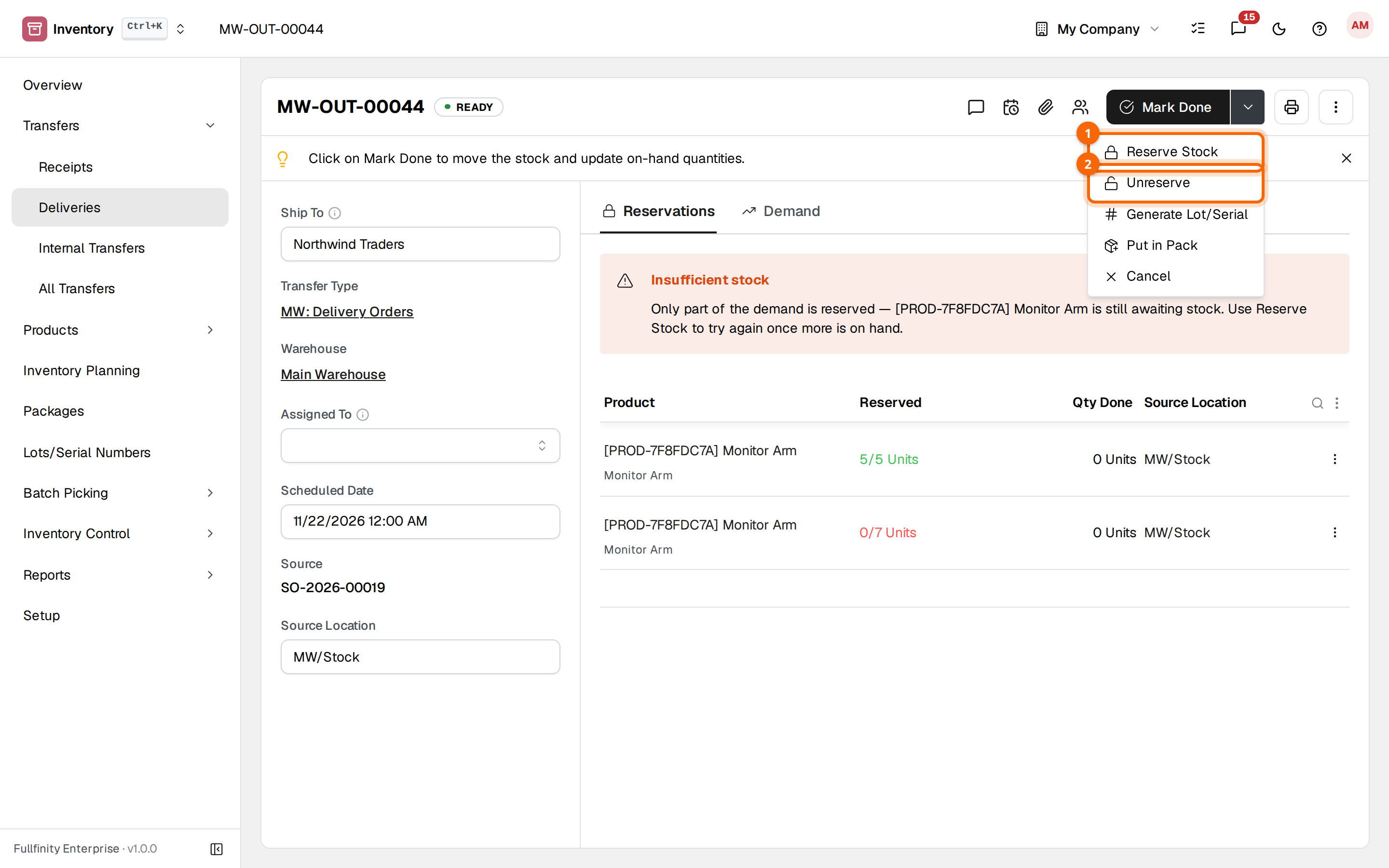
- Once more stock is in, open the menu next to Mark Done and click Reserve Stock (1). A message tells you how many lines are now reserved.
- To give the stock back — for example to ship a more urgent order first — click Unreserve (2). The lines stay on the delivery; only the hold is released.
How strict reservation is
Each transfer type has a Reservation Policy (open it from Transfer Types under Setup):
| Policy | The delivery becomes Ready… |
|---|---|
| Partial | As soon as anything is reserved, so you can ship what you have. The default. |
| Strict | Only when every line is fully reserved. It stays Waiting and can't be completed while anything is short. |
| None | Straight away — nothing is reserved. |
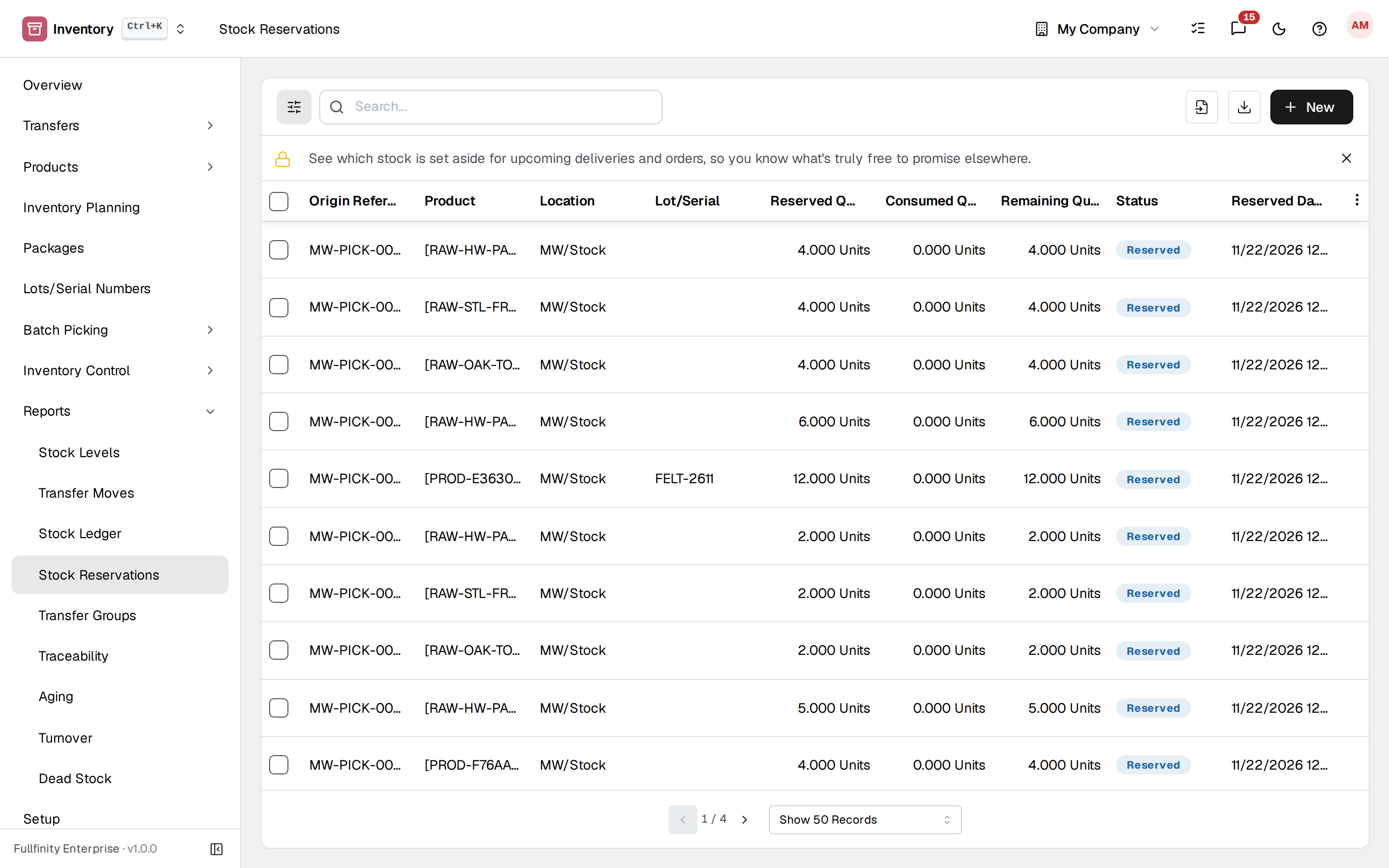
To see every hold in one place, open Inventory → Reports → Stock Reservations.
Was this article helpful?