How do I receive or ship in two or three steps?
Make goods pass through an input zone or quality check on the way in, and a pick and pack zone on the way out.
By default goods go straight from the supplier into stock, and straight from stock to the customer. Larger warehouses split this into steps — unload, inspect, then shelve; pick, pack, then ship — so each team works its own list.
Choose the steps for a warehouse
- In Inventory → Setup, click Warehouses and open the warehouse.
- On the Shipments tab, choose how goods come in under Incoming Shipments (1) and how they go out under Outgoing Shipments (2).
- Click Save.
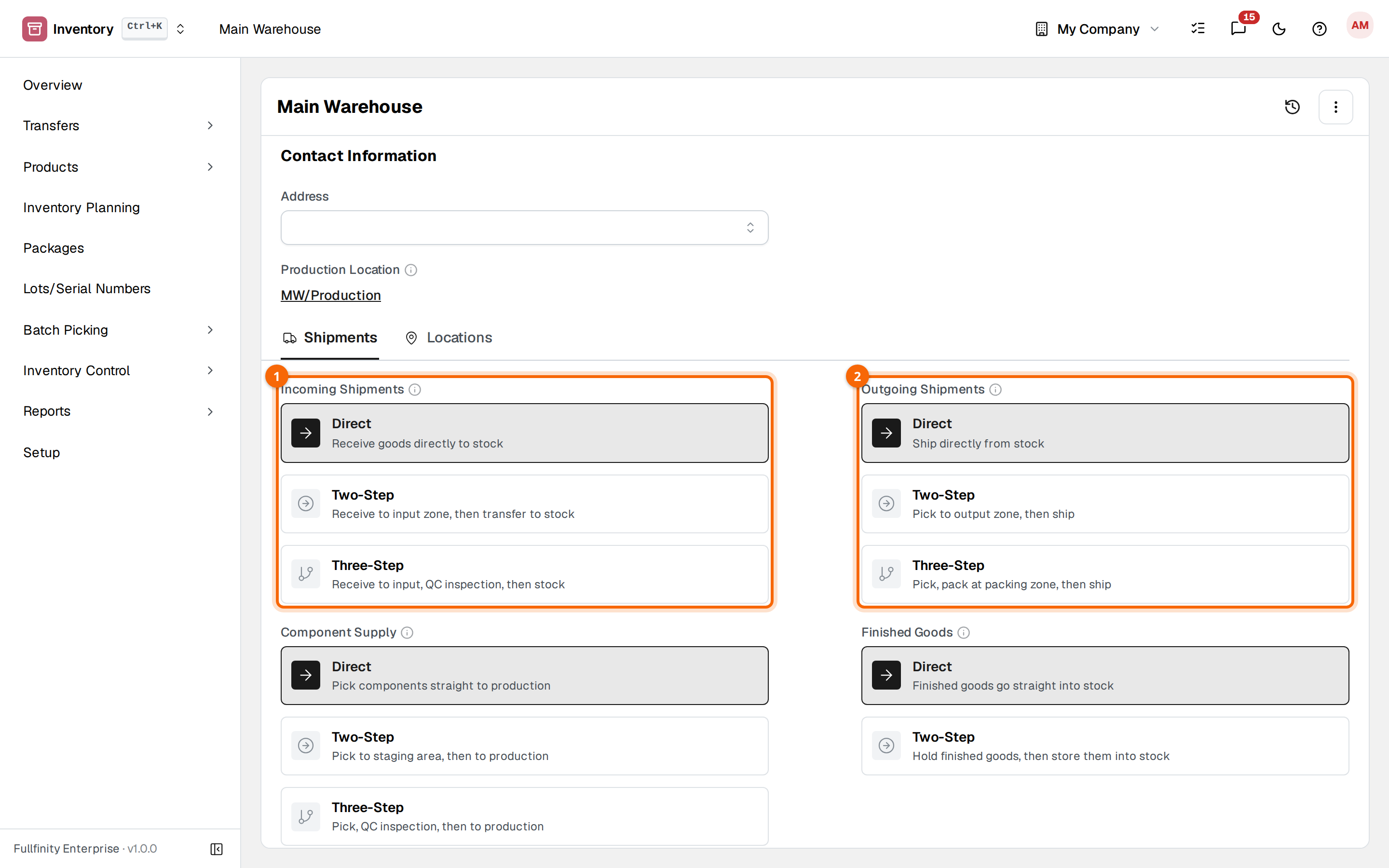
| Choice | Incoming Shipments | Outgoing Shipments |
|---|---|---|
| Direct | Receive straight into stock. | Ship straight from stock. |
| Two-Step | Receive into an input zone, then move to stock. | Pick to an output zone, then ship. |
| Three-Step | Receive into input, inspect in quality control, then move to stock. | Pick, pack in a packing zone, then ship. |
The Locations tab then shows the zones each step uses — Input Location, Quality Control Location, Output Location, Packing Location — next to the Stock Location.
What happens on each order
One order now creates a chain of transfers, one per step. Each step waits for the one before it: a pick that isn't done yet keeps the shipment Waiting, and trying to finish a later step first is refused. Open any transfer in the chain and click Chained Transfers to see the other steps.
Give one product its own route
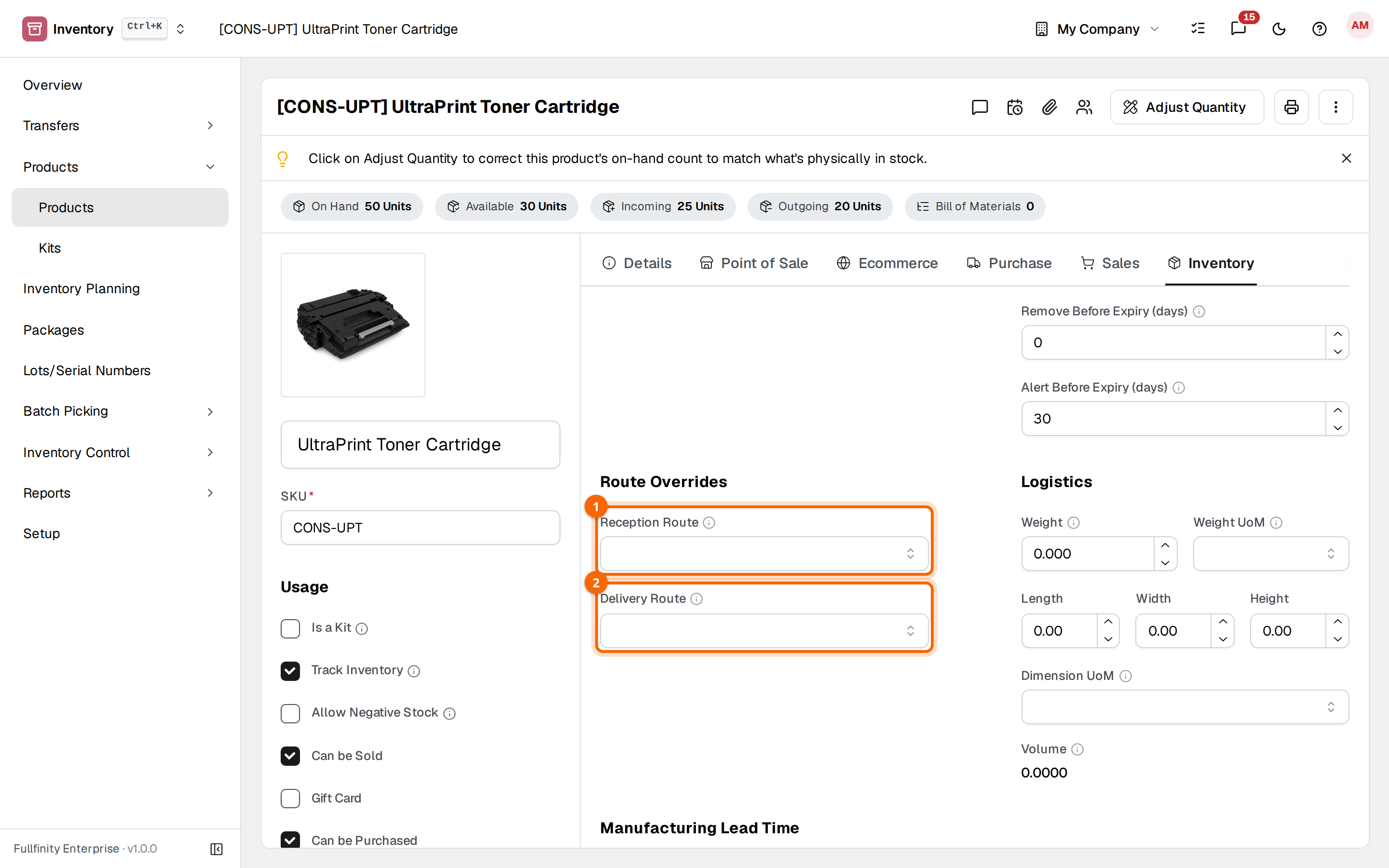
With Routes on, a product's Inventory tab has Route Overrides: set a Reception Route or Delivery Route to make that product skip or add steps compared with its warehouse.
Related: Why is my delivery "Waiting"?