How do I track lots and serial numbers?
Record which batch, or which individual unit, every receipt brought in and every delivery sent out.
Lot tracking groups units made or bought together (a production batch of toner). Serial tracking gives every single unit its own number (a laptop). Either way, you can later see exactly where each one went.
1. Switch the feature on
In Inventory → Setup, switch on Lots & Serial Numbers and click Save.
2. Choose tracking per product
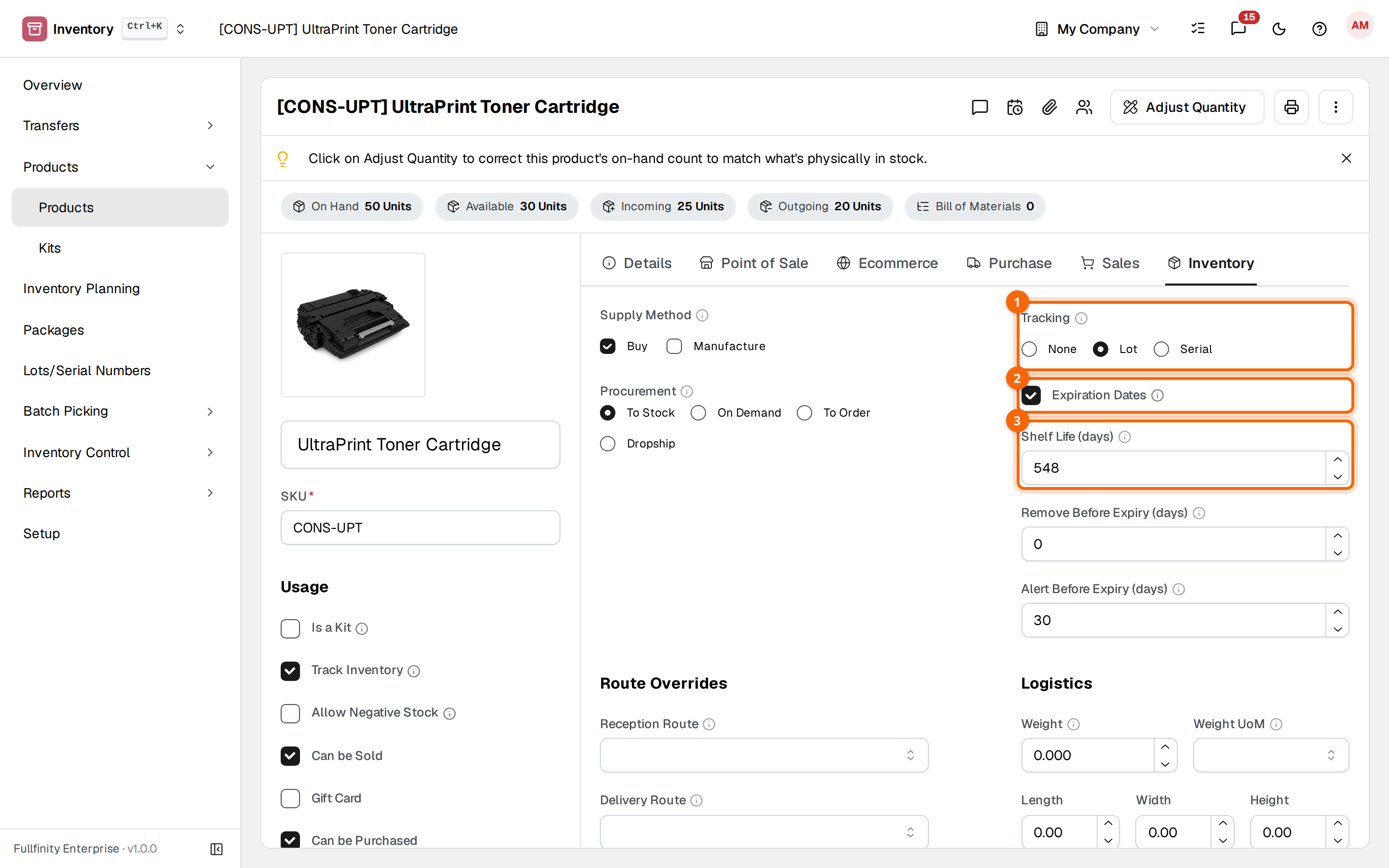
- Open the product and go to its Inventory tab.
- Under Tracking, pick Lot (many units share a number) or Serial (one number per unit). None means the product isn't tracked.
- Click Save.
3. Enter numbers when goods arrive
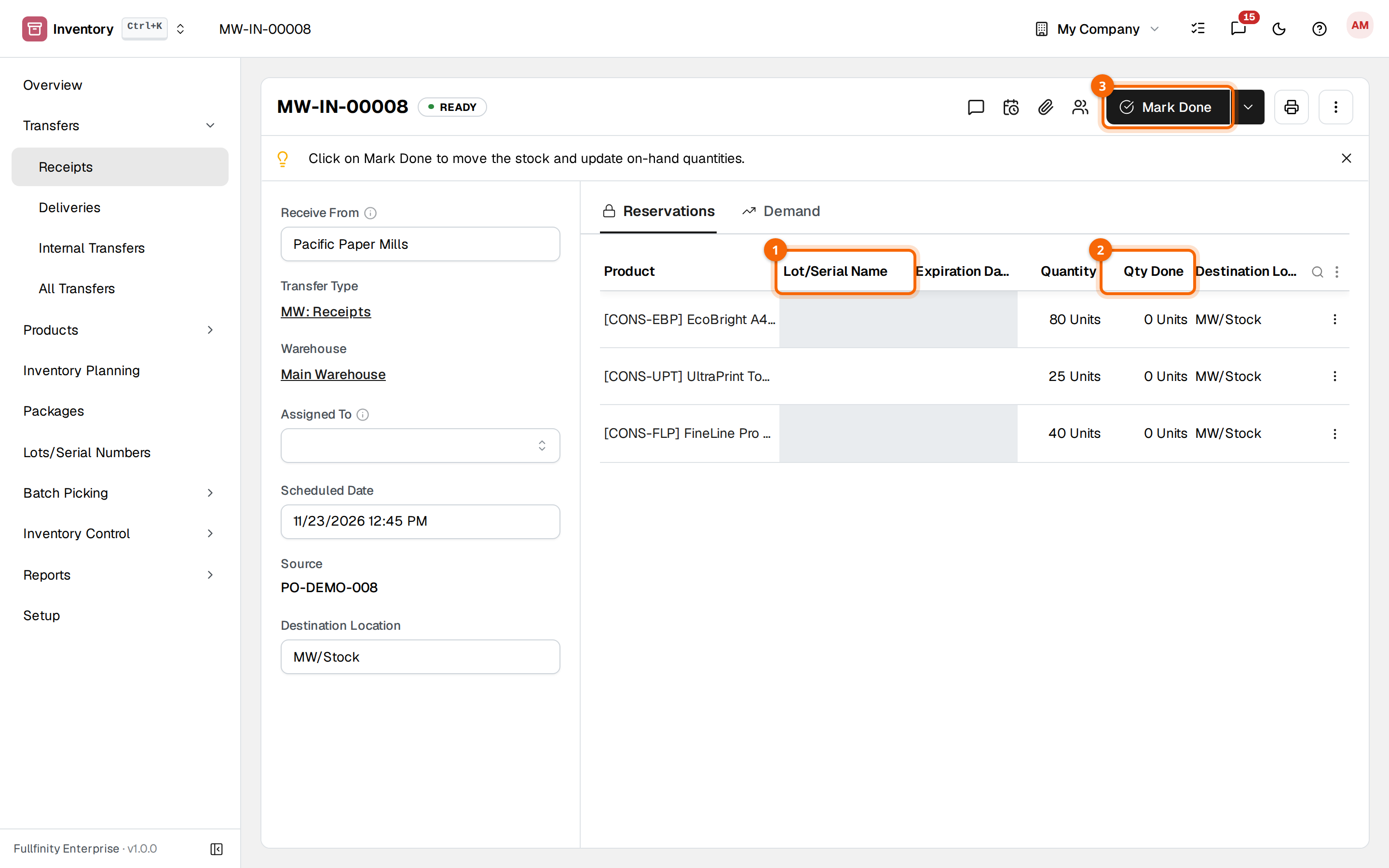
On a receipt, each tracked line has a Lot/Serial Name column. Type the number printed on the goods, or open the menu next to Mark Done and choose Generate Lot/Serial to fill them in for you. A serial-tracked line always holds a quantity of 1 — the receipt shows one line per unit.
4. Pick numbers when goods leave
On a delivery, the Lot/Serial column shows which lot was reserved. You can change it to another lot that is in stock at that location. A delivery can't be completed while a tracked line has no lot or serial number.
Find a lot later
Inventory → Lots/Serial Numbers lists every number with its Status and On Hand quantity. Open one to see its dates, or click Traceability to follow it from receipt to customer.
Related: How do I track expiry dates? · How do I trace a lot and recall it?