How do I deliver to a customer?
Pick the goods for a confirmed sales order and mark the delivery done to take them out of stock.
Confirming a sales order creates its delivery, with the stock reserved for it where available. Your warehouse picks the goods, records what is going out, and marks the delivery done.
- Go to Inventory → Transfers → Deliveries and open a delivery with the status Ready. Ship To shows the customer and Source the sales order.
- The Reservations tab lists each product with Reserved (held for this delivery out of what's needed — green when fully held). Enter what you pick in Qty Done (1).
- For tracked products, check the Lot/Serial on each line.
- Click Mark Done (2).
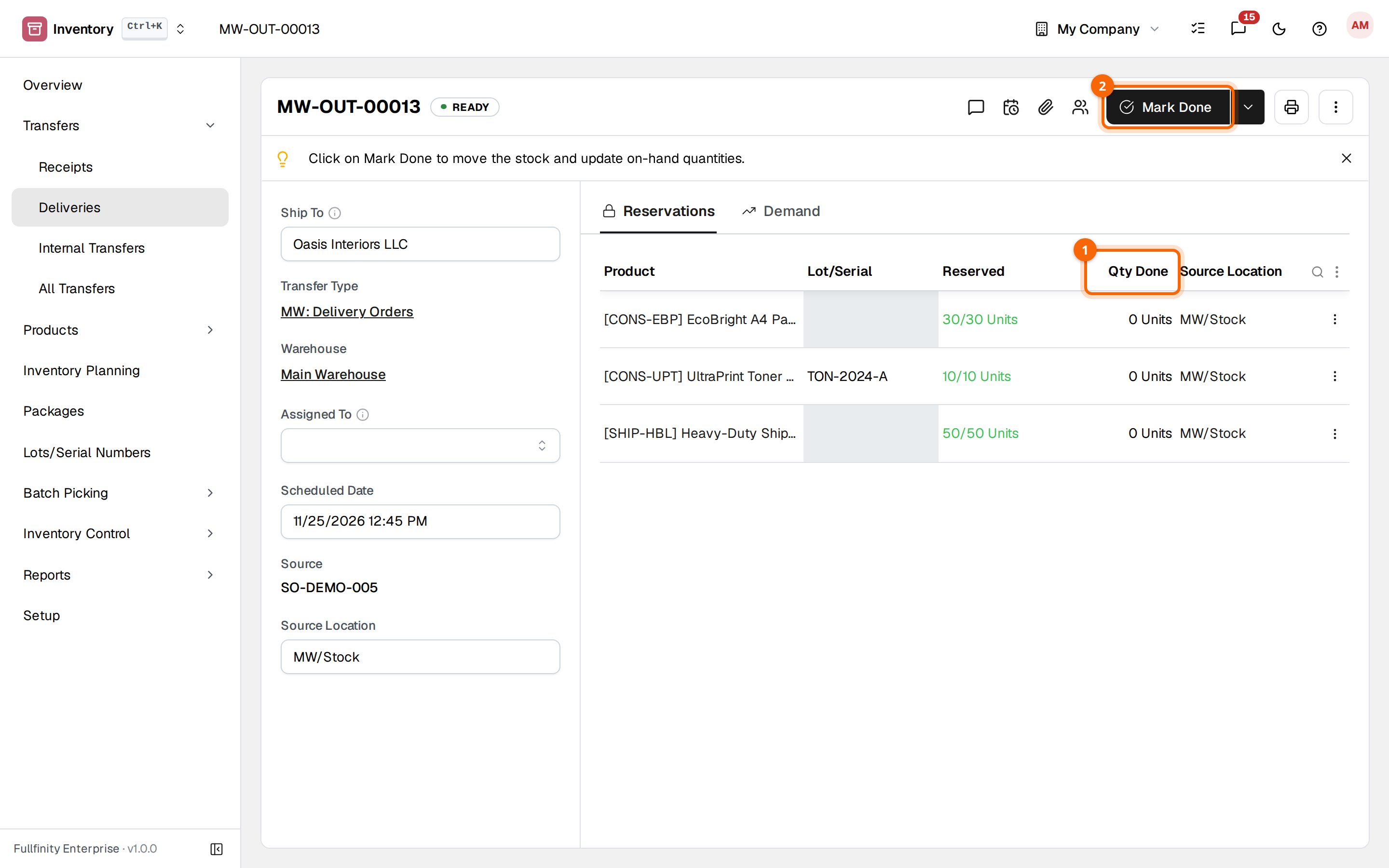
If you leave every Qty Done at 0, clicking Mark Done asks whether to send everything — click Mark All Done.
What happens next
- The delivery moves to Done, the stock leaves your warehouse and the sales order counts the goods as delivered.
- If you sent less than ordered, you can keep the rest as a backorder — see How do I ship or receive part of an order?
- If the customer sends goods back, open the done delivery and click Create Return.
Was this article helpful?