How do I install and remove apps?
Add an app such as CRM or Inventory, keep apps up to date, and remove one you no longer use.
Fullfinity is made of apps — Sales, Invoicing, Inventory, CRM and many more. Install the ones your business needs; you can add others whenever you are ready.
Install an app
- Open Apps — from the app launcher, click Manage Apps.
- Find the app: search for it, or open the Browse panel and tick Apps under Filter By to list only full apps, or pick a Category or Status.
- Click the app's card to open it — its description and the apps it depends on are listed — and click Install.
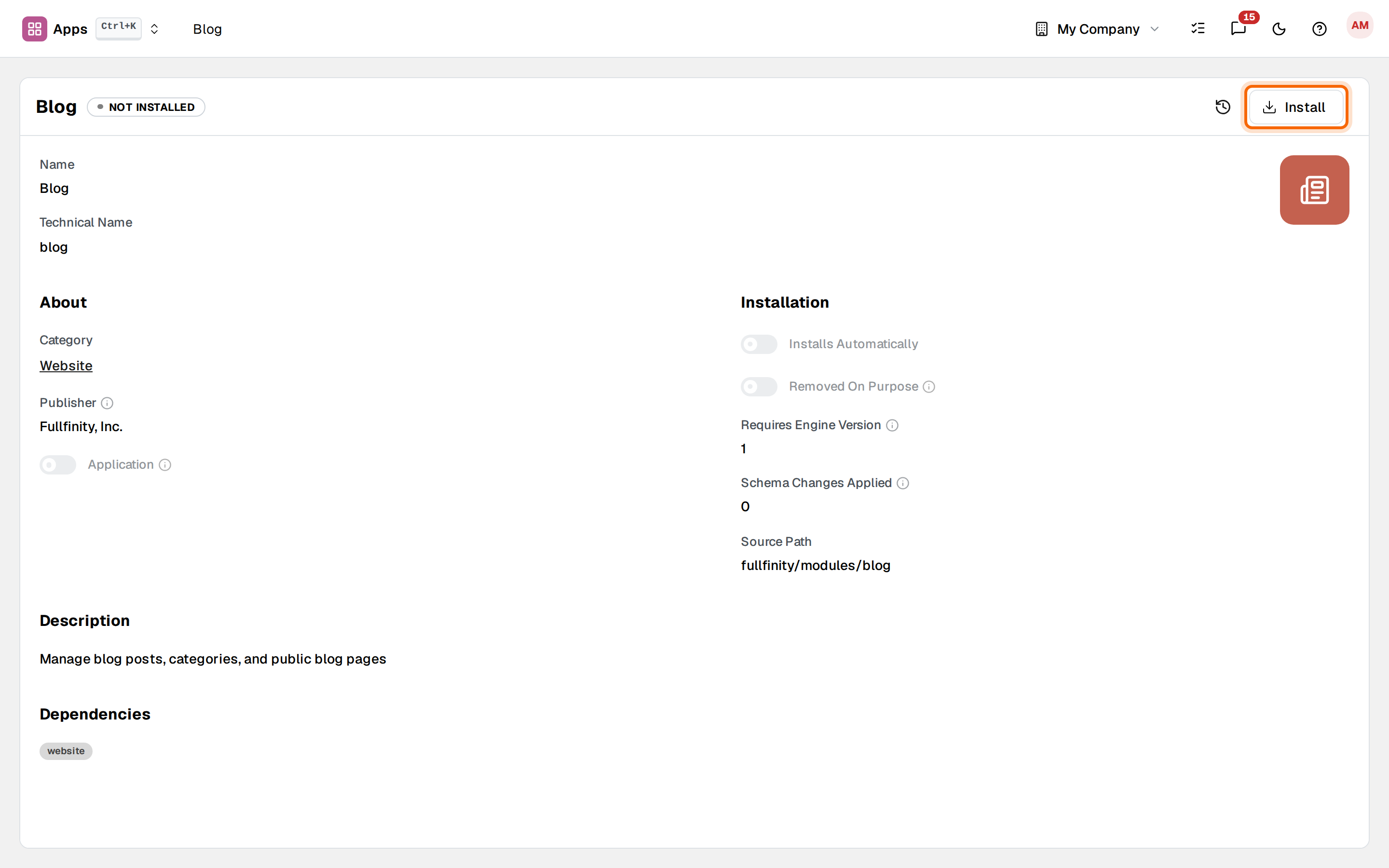
The three-dot button on each card offers the same Install without opening the app.
Fullfinity installs the app, together with any other app it needs, and reloads. The new app appears in the app launcher.
You don't need to install everything by hand:
- Small connecting apps — the ones under Bridges, such as one that links Sales and Inventory — install themselves as soon as both of the apps they connect are installed.
- Some features are switched on from an app's own settings, in its Features section on Setup, which installs what they need.
- Connections to other services — Google, Stripe, shipping carriers — are installed from Integrations.
Update an app
Open an installed app and click Update to apply a newer version of it. Refresh Modules at the top makes newly added apps appear in the list.
Remove an app
Open the app, click the arrow beside Update and choose Uninstall.
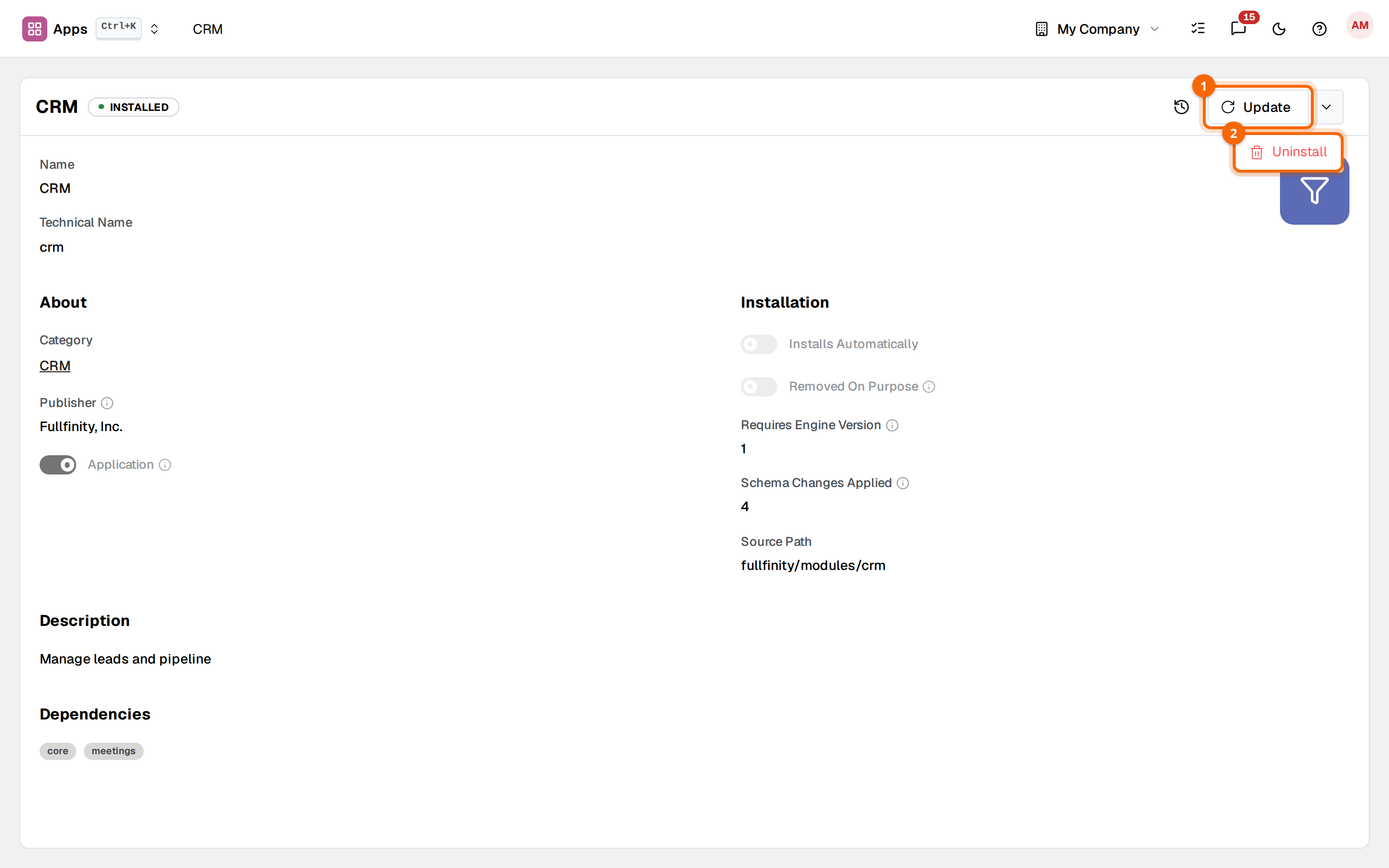
Fullfinity first shows which apps would be removed with it — every app that depends on it — and why. Read the list, then click Remove Apps to go ahead.
An app removed on purpose is marked Removed On Purpose and stays removed: it doesn't install itself again, even if it is one that normally does.