How do I approve or refuse time off?
Find the requests waiting for you, approve or refuse them, and handle the second HR step when a type needs it.
Requests go to the employee's manager — the person shown as Approver. HR Managers can approve any request.
1. Find the requests waiting for you
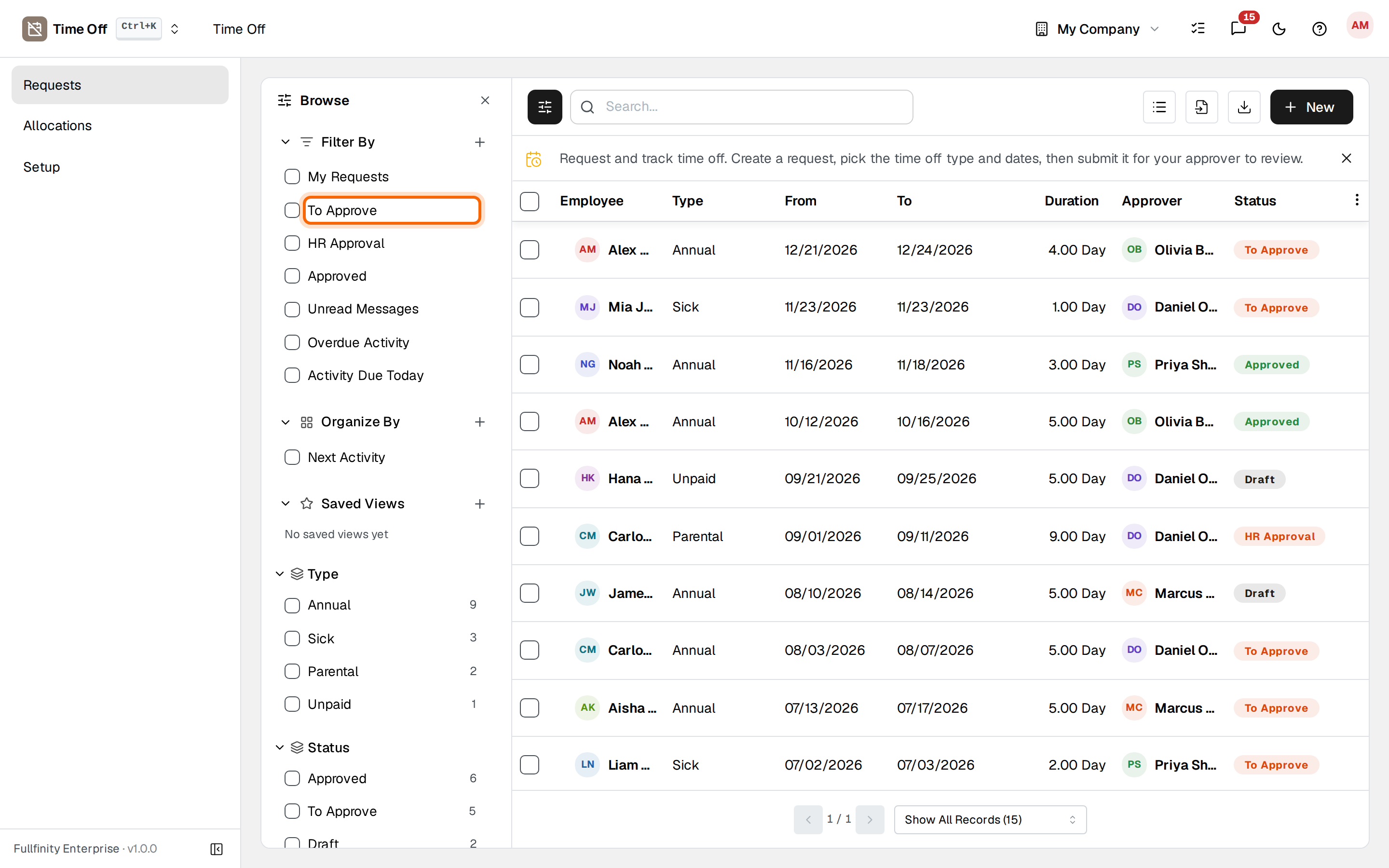
Go to Time Off → Requests, open the Browse panel and tick To Approve. Managers see their own team's requests; HR sees everyone's.
2. Approve or refuse
Open a request and check the dates, the Duration and the employee's Available Balance.
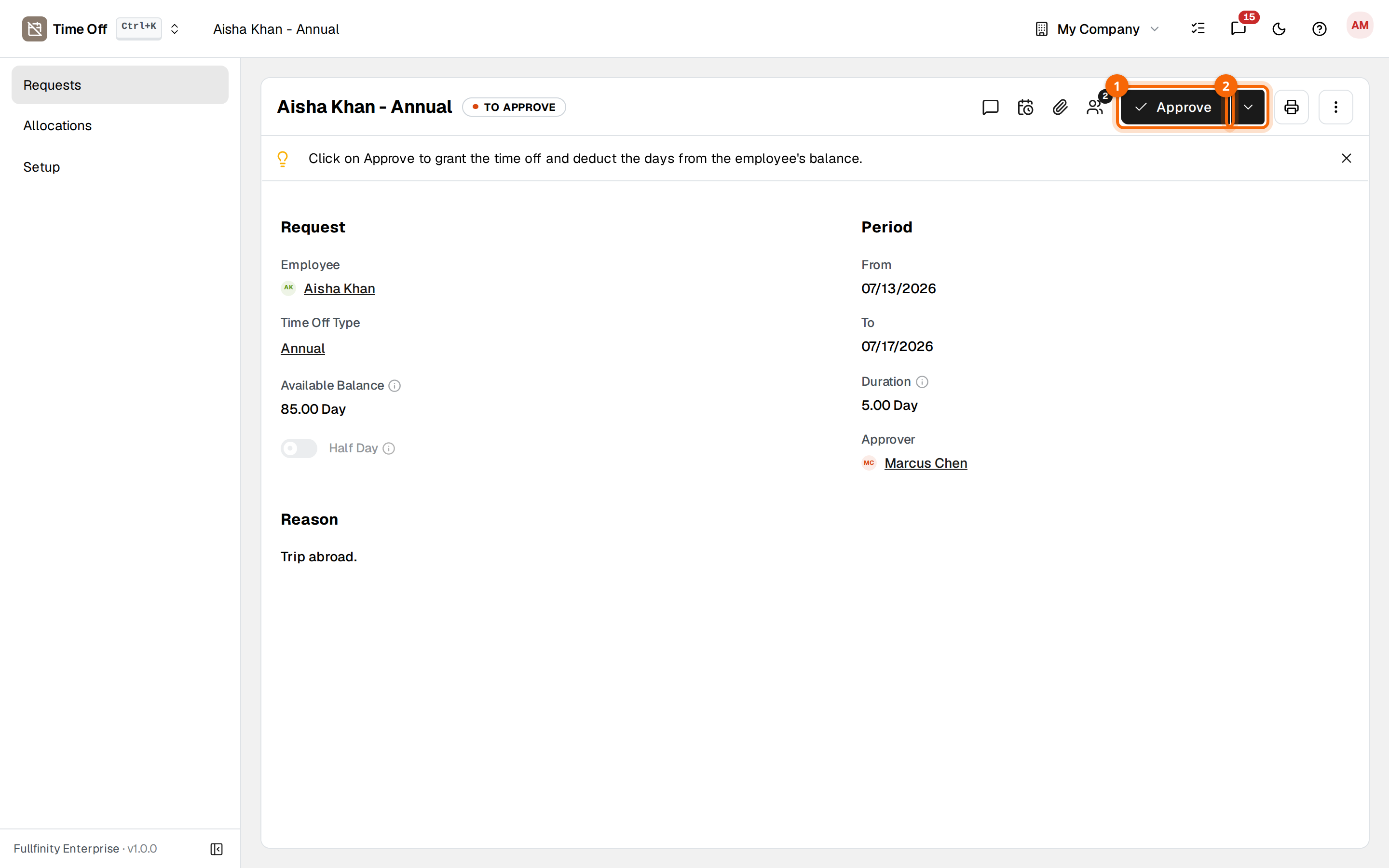
- Approve — grants it. The time is taken from the employee's balance and the status becomes Approved. If the balance doesn't cover it and the type doesn't allow a negative balance, approval is refused with the balance available.
- The arrow beside it opens Refuse — declines it. Nothing is taken from the balance. Tell the employee why in the request's messages.
Types that need HR approval too
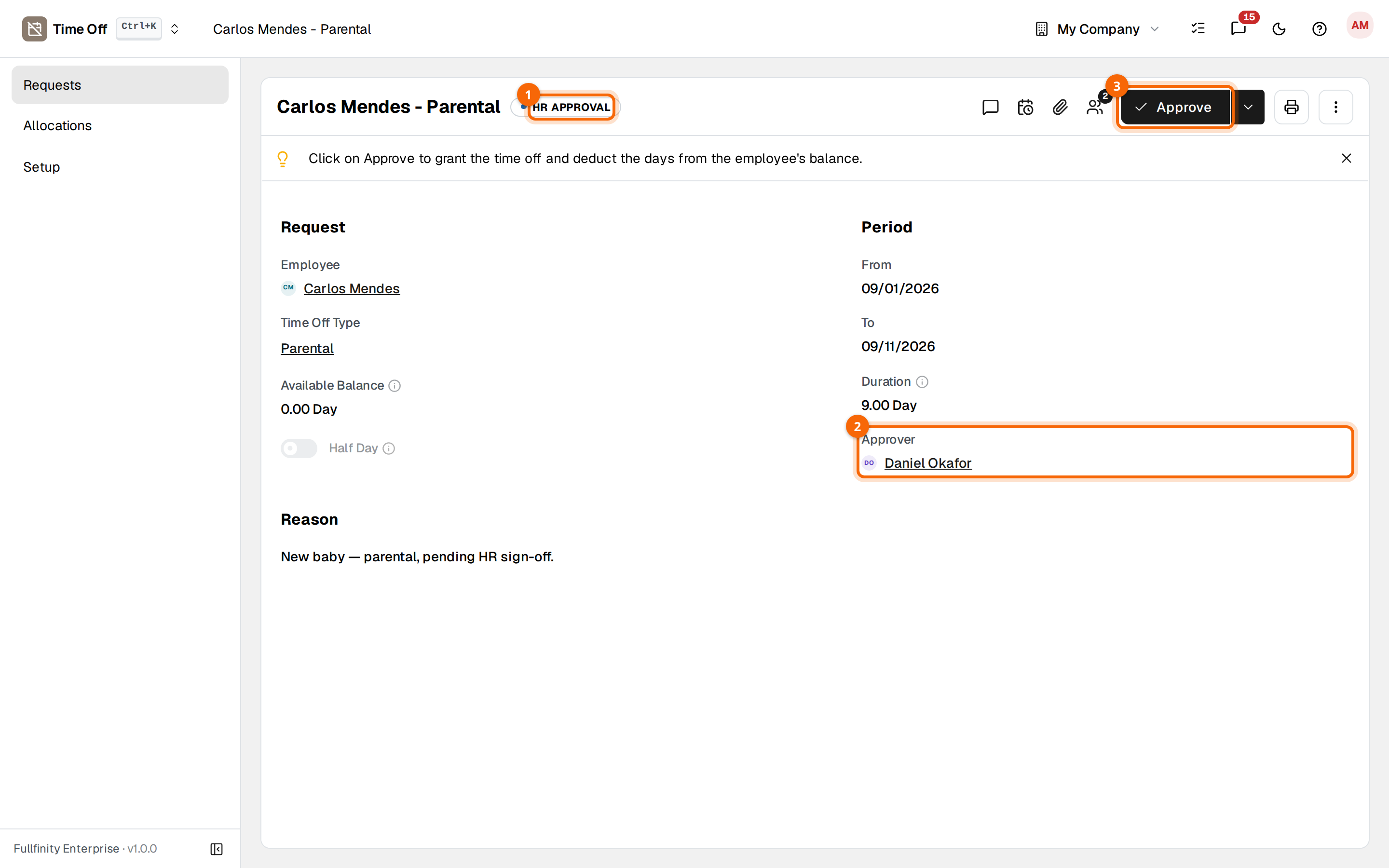
If the time off type has Requires HR Approval on, the manager's approval moves the request to HR Approval instead of Approved. An HR Manager then opens it — the HR Approval filter lists them — and clicks Approve to grant it. Their name is recorded as HR Approver.
Changing your mind
Already approved or refused? Reset to Draft reopens the request and gives any deducted time back to the balance. The employee, their manager and HR can all do this.
➡️ Related: How do I see who is off?