How do I confirm and look after appointments?
See every booking on the calendar, book one yourself, confirm it, and record afterwards whether the customer came.
Every booking — from the website or made by your team — is in Appointments → Appointments. It opens on the calendar; switch to the list for filters such as Upcoming, Pending and Cancelled.
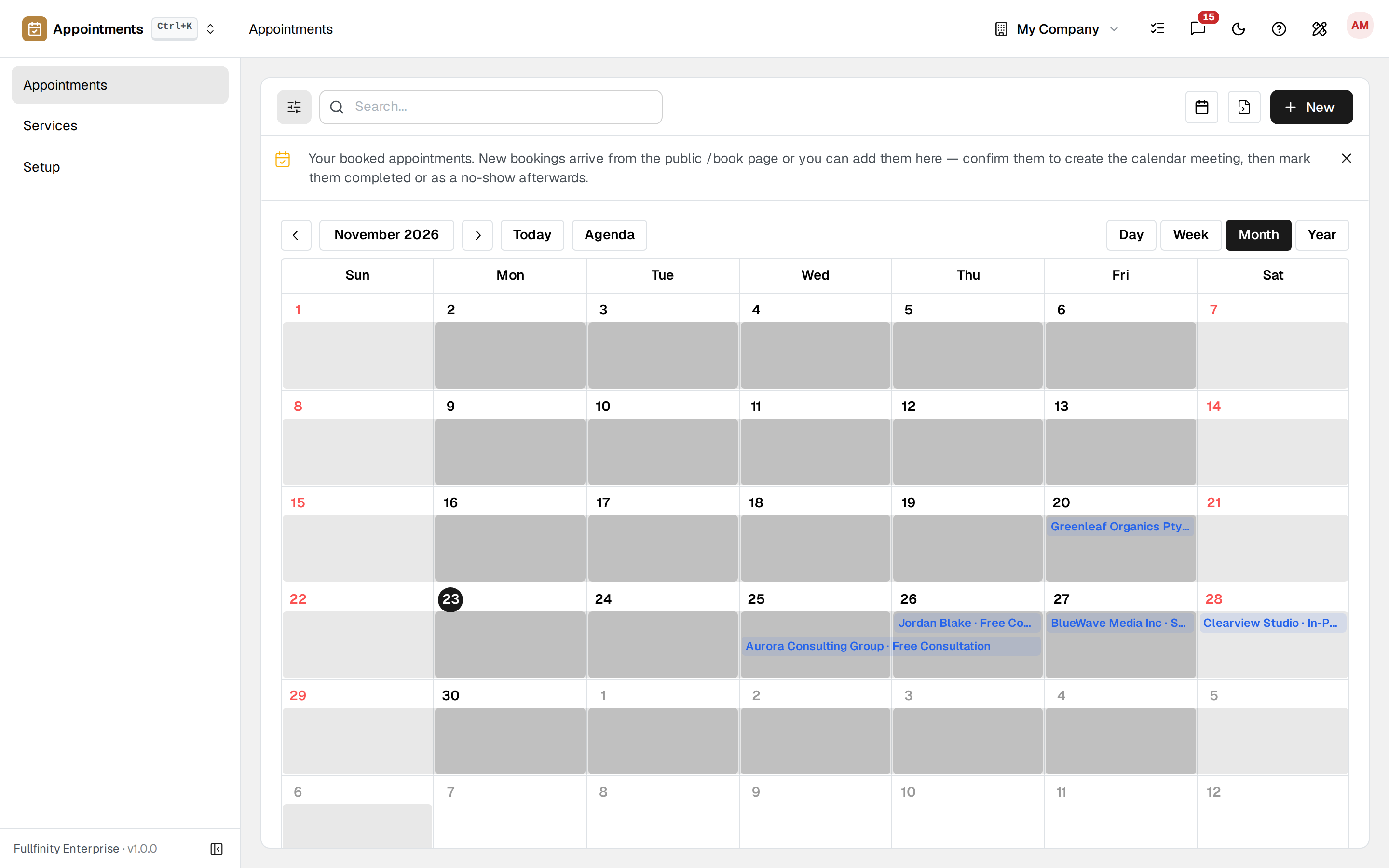
Book an appointment yourself
Take a booking over the phone by clicking a time on the calendar: choose the Service, the Customer and the Staff member, and check the Start and End. Or click New in the list for the whole form. The new appointment is a Draft until you confirm it. A time the staff member already has an appointment in is refused with That time slot was just taken.
Confirm it
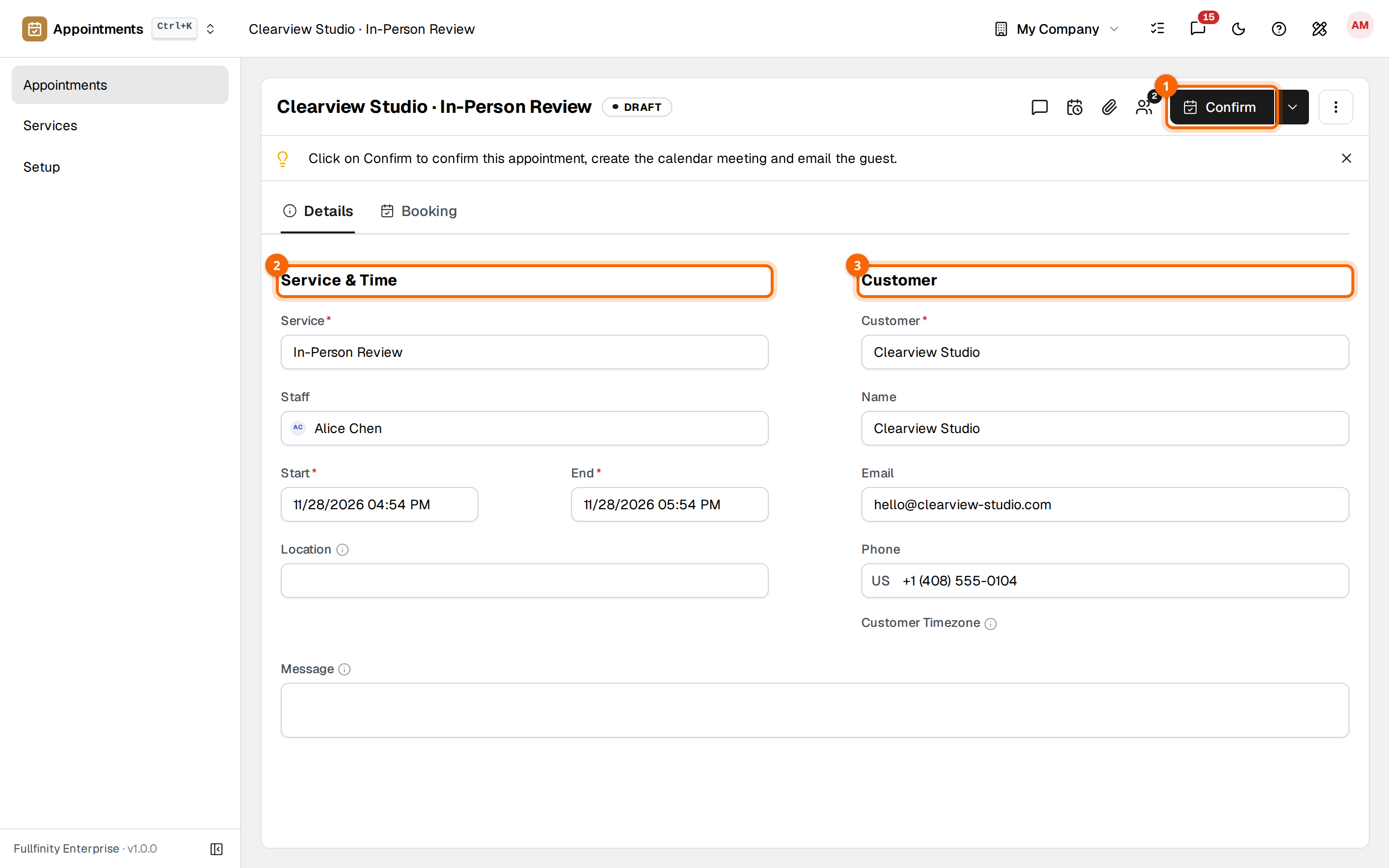
- Confirm — puts the appointment in the staff member's calendar as a meeting (with a video link for a video call and the reminder from Setup), and emails the customer their confirmation.
- Service & Time — the service, the staff member, the time and the Location (the address, or the video link once confirmed).
- Customer — the contact and the name, email and phone they gave. A website booking also shows the Customer Timezone their emails use, and their Message below.
Open Meeting opens the calendar meeting. The Booking tab records where the booking came from and when it was confirmed or cancelled.
After the appointment
Close each confirmed appointment so your records show who came:
| Status | What it means |
|---|---|
| Draft | Booked, not yet confirmed. The time is already held. |
| Confirmed | On the calendar; the customer has their confirmation. |
| Completed | It took place — click Mark Completed. |
| No Show | The customer did not come — click No Show. |
| Cancelled | Called off; the time is free again. |
➡️ Related: How do I reschedule or cancel an appointment?