How do I reschedule or cancel an appointment?
Customers move or cancel their own booking from the link in their email; your team moves one on the calendar or cancels it from the appointment.
When the customer does it
Every confirmation email has a Reschedule or cancel link. It opens their booking, with no sign-in:
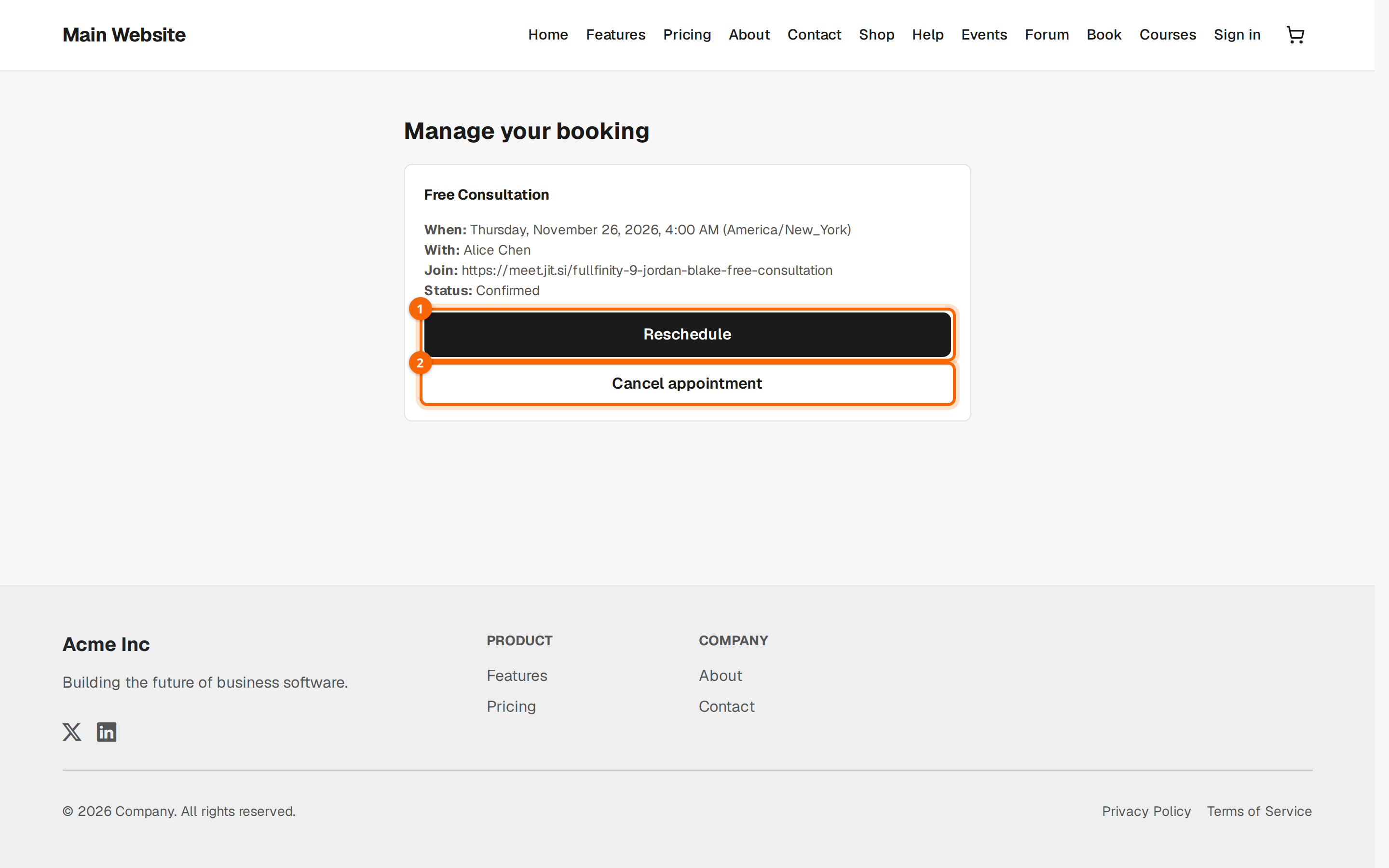
- Reschedule — they pick a new date and time from the free ones, and are emailed the new time. The meeting in your calendar moves with it.
- Cancel appointment — the appointment is cancelled with the reason Cancelled by guest, its meeting is removed and the time is free again. A paid booking is refunded.
Customers can change a booking online only while it is a draft or confirmed and starts later than the service's Minimum Notice (hours). After that the page says This appointment can no longer be changed online. and they have to contact you.
When your team does it
- Move it — drag the appointment on the calendar, or change its Start, End or Staff on the form. Its calendar meeting follows, and a confirmed appointment's customer is emailed the new time with an updated calendar file — the same email they get when they reschedule themselves. Saving without changing the time sends nothing, and a Draft appointment is not emailed until it is confirmed.
- Cancel it — open the appointment and click Cancel. The meeting is removed, the customer is emailed that it was cancelled, and a paid booking is refunded. Note why under Cancellation Reason on the Booking tab.
A cancelled appointment stays cancelled; to see the customer after all, book a new one.
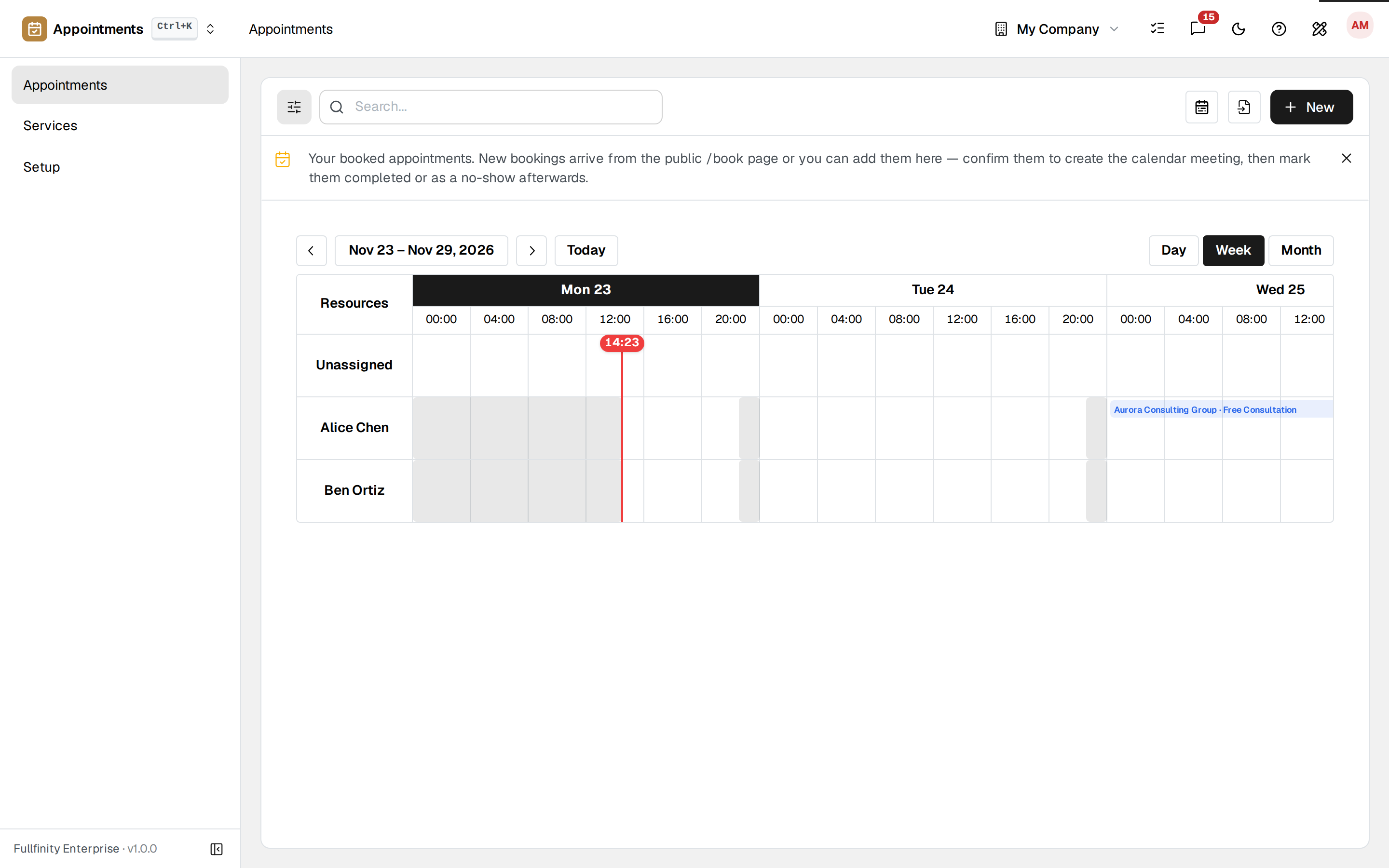
Move bookings between staff on the board
With Enterprise, Appointments → Appointments also has a Board view: one row per staff member, their bookings as bars, their time off shaded. Drag a booking along a row to move it, or onto another row to hand it to a colleague. A booking can never be dropped on top of another one for the same person.