How do I create a bookable service?
Decide how long a service lasts, when it can be booked, who delivers it and where, and publish it to your booking page.
A service is something a customer books — Free Consultation, Strategy Session. Its rules decide which times your booking page offers.
1. Name it and say where it happens
Go to Appointments → Services and click New.
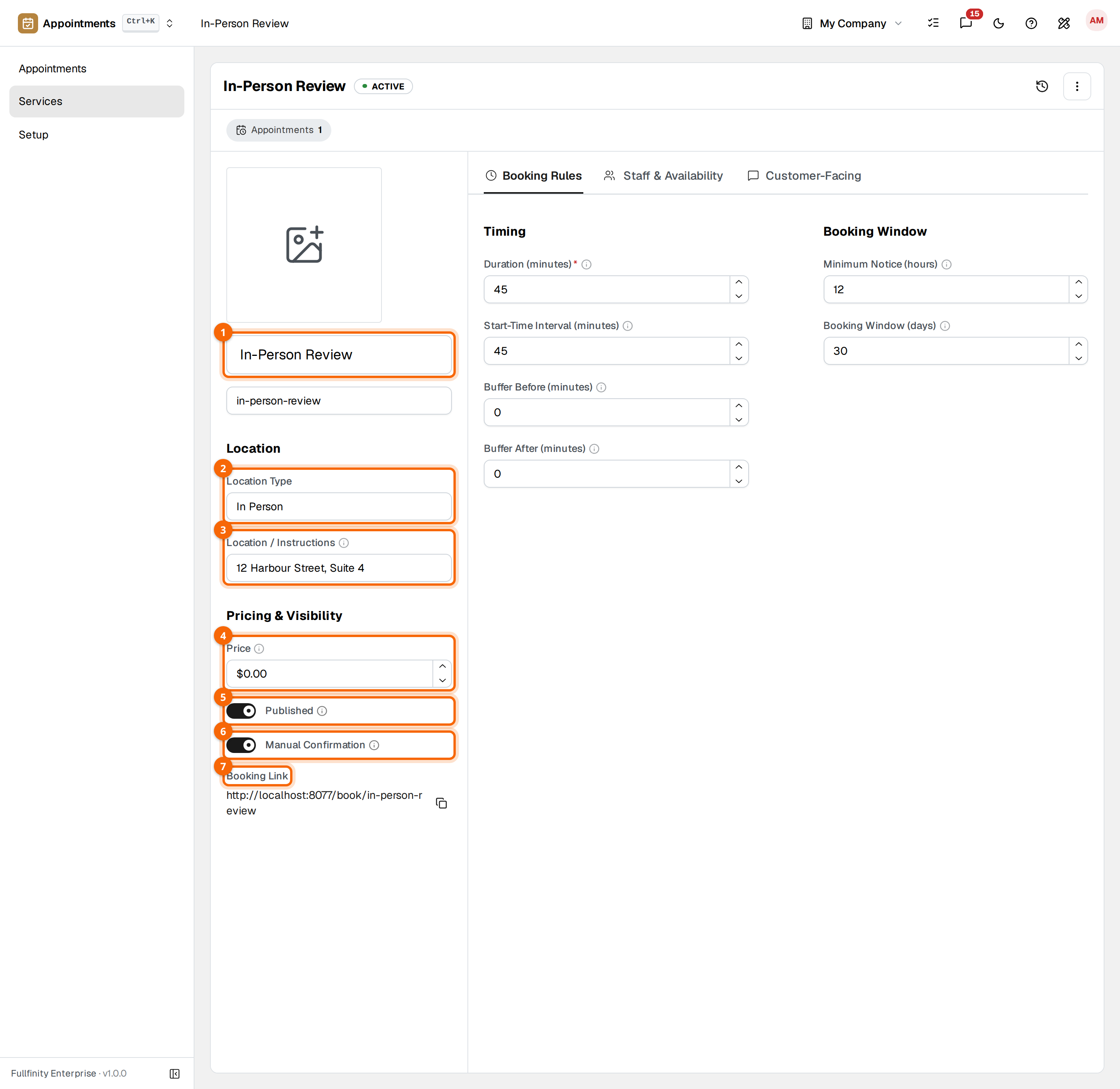
- The name, as customers see it. The address of its booking page, below it, is filled in from the name.
- Location Type — Video Call, Phone Call or In Person.
- Location / Instructions — the address for in person, the dial-in details for a phone call. Leave it empty for a video call: each confirmed booking gets its own video meeting link.
- Price — 0 for a free service. See How do I charge for an appointment?
- Published — on your booking page. Unpublished, only your team can book it.
- Manual Confirmation — online bookings wait as Draft until someone confirms them, instead of confirming straight away.
- Booking Link — the service's own page. Copy it into an email or your signature.
2. Booking Rules
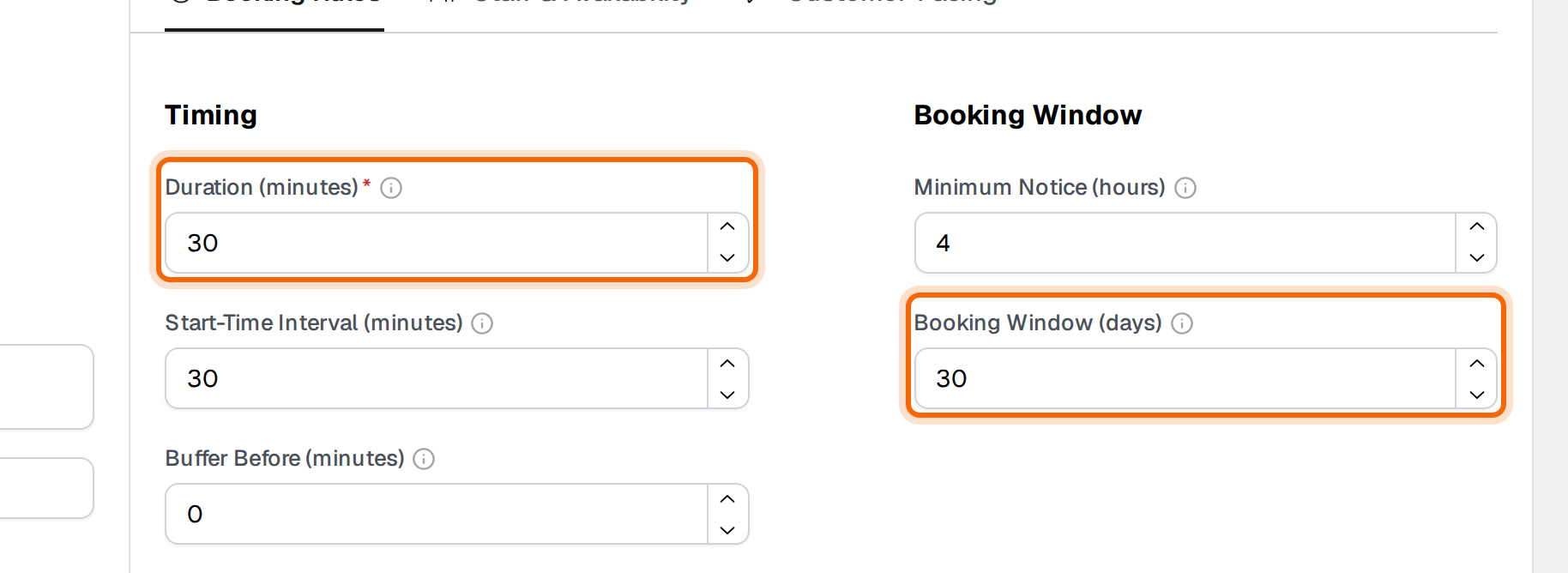
| Field | What it does |
|---|---|
| Duration (minutes) | How long the appointment lasts. |
| Start-Time Interval (minutes) | How often a start time is offered: 30 offers :00 and :30. |
| Buffer Before (minutes), Buffer After (minutes) | Free time kept around each appointment — to prepare, travel or write up. |
| Minimum Notice (hours) | No booking can start sooner than this. It is also how close to the appointment a customer can still cancel or reschedule online. |
| Booking Window (days) | How far ahead customers can book. |
3. Staff & Availability
- Staff Assignment — Chosen by Customer lets the customer pick who they see. Automatically Assigned shows only the times, and gives the booking to whoever is free with the fewest appointments.
- Staff — the people who deliver the service.
- Availability Schedule — optional. Offer this service only in these hours, instead of each person's own working hours: mornings only, say.
- Timezone — the zone those hours are in. Customers see times in their own zone and can change it on the booking page.
4. Customer-Facing
The Description is shown on the booking page. The Confirmation Message is shown to the customer once their booking is confirmed — on screen and in their confirmation email: Please arrive ten minutes early.
The Colour under Appearance tells your services apart: the service's appointments are drawn in it on the Appointments calendar and the staff board, and its card on your booking page carries a stripe of it.
Save. The service is on your booking page straight away if Published is on. To stop offering it, archive it from the three-dot menu; its past appointments stay.