How do I review survey results?
Read individual responses, explore the answers question by question, compare surveys and export everything to a spreadsheet.
Every submission is a response. You can read them one at a time, explore them together with charts, or download them.
Individual responses
Click Responses on the survey, or go to Surveys → Responses for every survey at once.
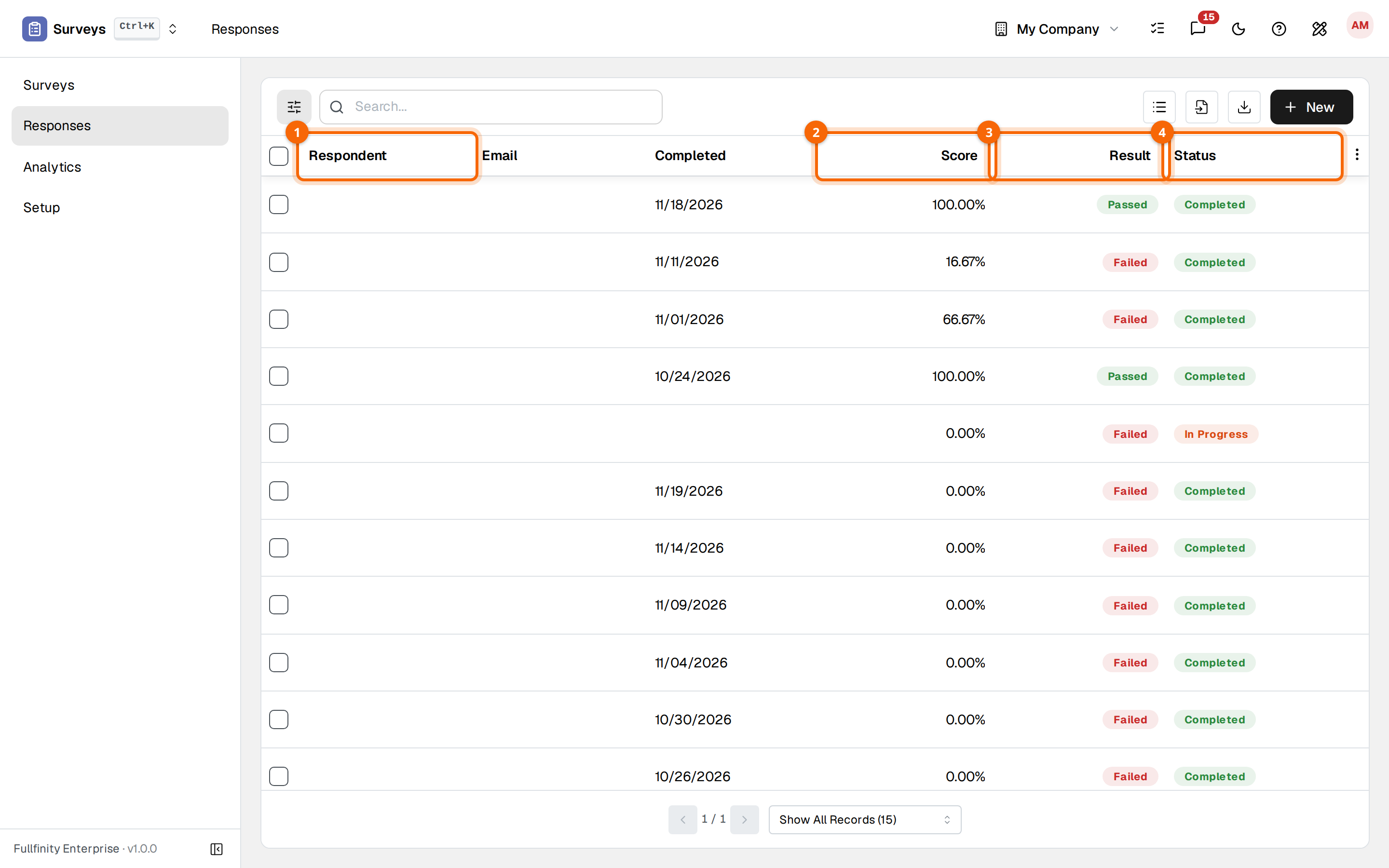
A response is In Progress while someone is still answering and Completed once submitted. Anonymous responses have no Respondent. Open one to see every answer on its Answers tab and, on a quiz, the points per question.
Explore the answers
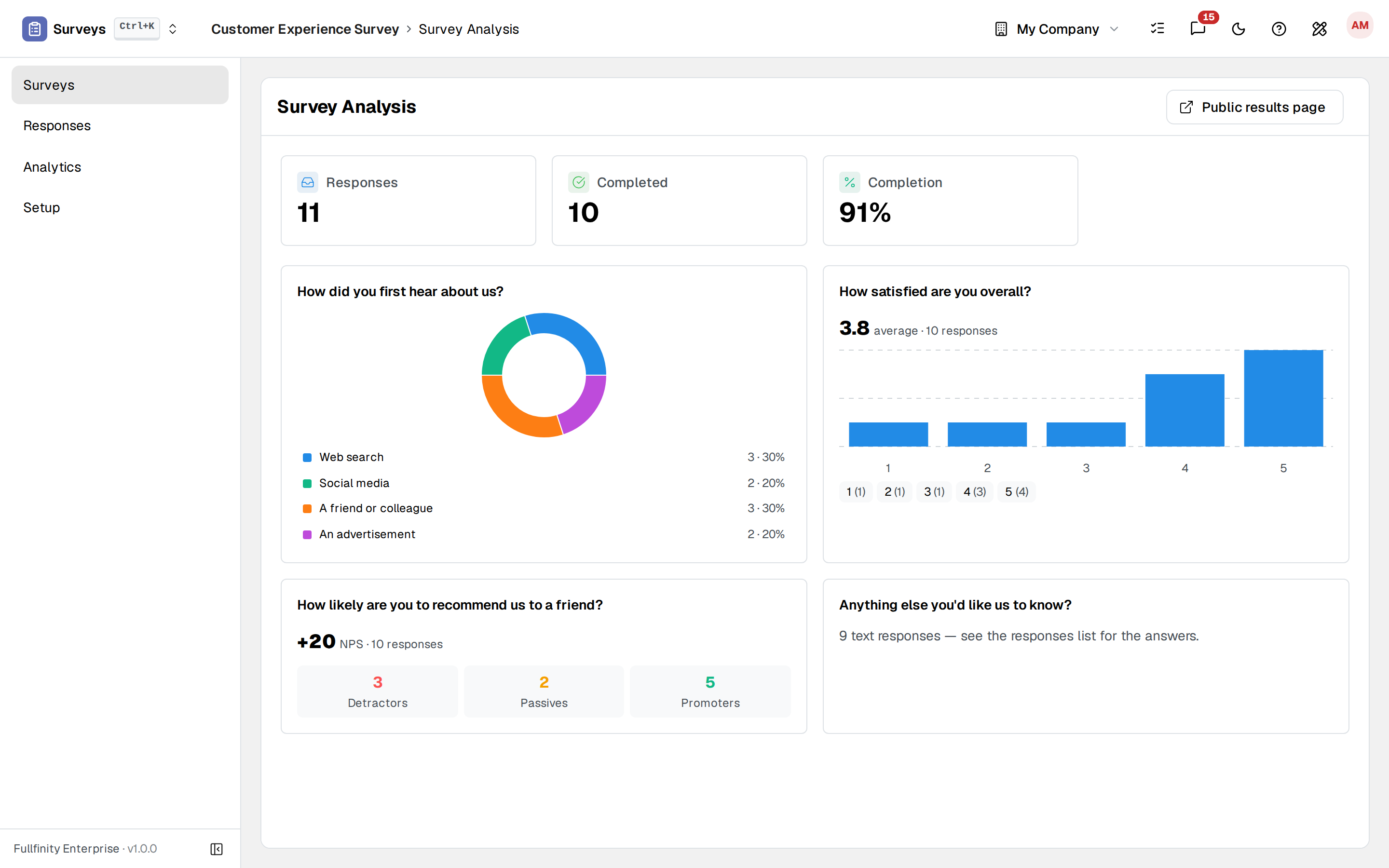
On the survey, click Analyze Responses. The figures at the top give Responses, Completed, the Completion rate and, on a quiz, the Avg Score. Below, a chart per question: click a bar to filter every other chart to the respondents who gave that answer — for example, how people who found you through a referral rated you. Public results page opens the read-only results page you can share — see What do respondents see when they answer a survey?
Compare surveys over time
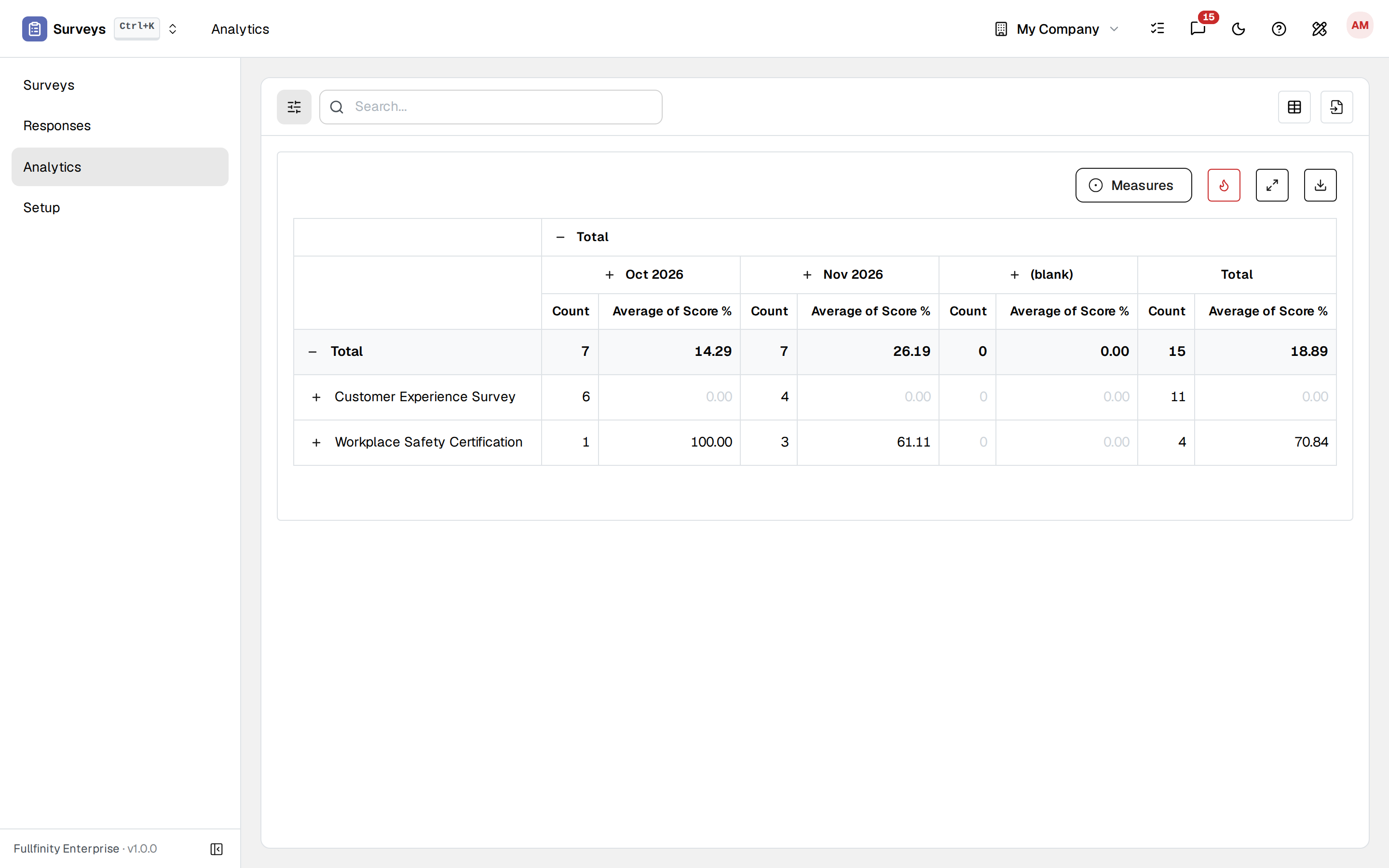
Surveys → Analytics is a pivot table of responses by survey and month, with the count and the average score. Switch to the chart, filter by This Month or This Year, or by Is Passed.
Export
On the survey, click Export CSV: a spreadsheet of every completed response, one row each, one column per question, with the score and result for a quiz.