How do I pause, resume, cancel or close a subscription?
Stop billing for a while with Pause, restart it with Resume, end a subscription with a cancellation reason, or close it outright.
Open the subscription and click the arrow next to Generate Invoice. The actions that stop or end a subscription are in that menu.
Pause and resume
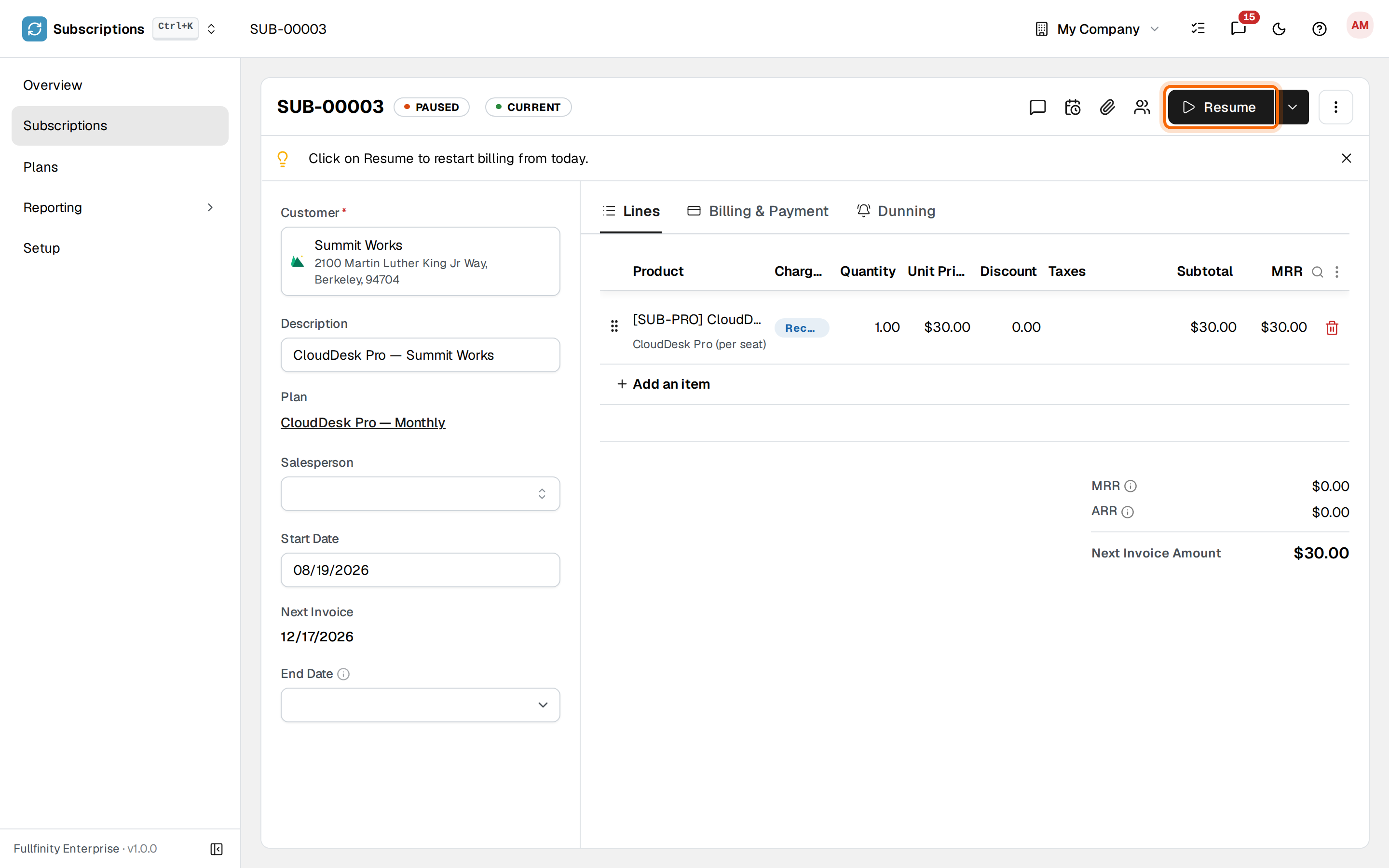
Choose Pause to stop billing for a while without ending the subscription — a customer who is away for a season, for example. The subscription becomes Paused and nothing is billed while it is.
When the customer is back, open it and click Resume. It becomes Active again. If its Next Invoice date passed while it was paused, the date moves to today, so the paused time is not billed.
Cancel
Choose Cancel when the customer leaves.
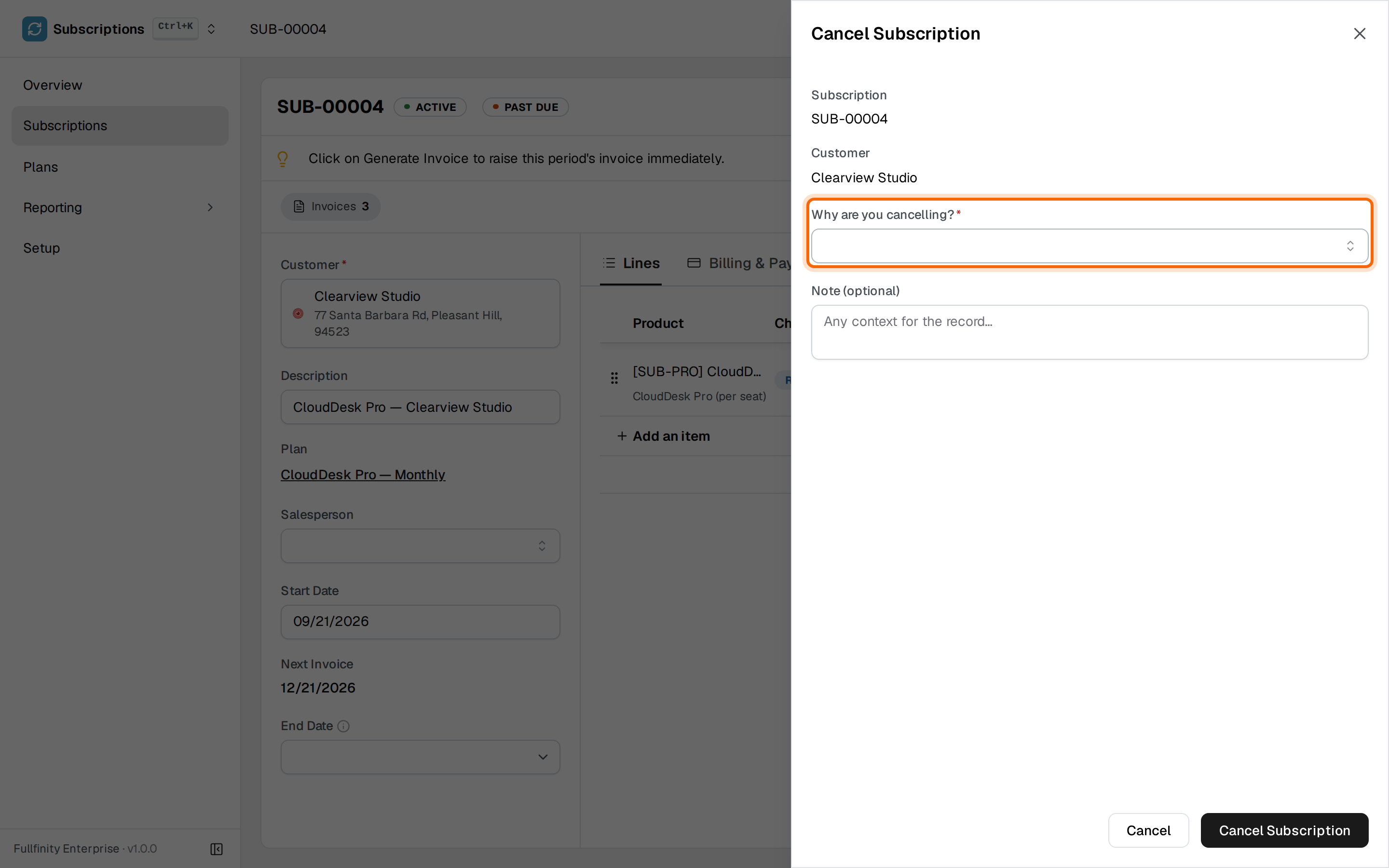
Pick the reason in Why are you cancelling? and add a Note (optional), then click Cancel Subscription. The reason is what your churn reports group cancellations by; the note is kept on the subscription's history.
- The subscription becomes Churned and stops billing.
- On a plan billed In Arrears, a last invoice is raised for the part of the period the customer has used.
- The customer keeps what they have paid for until the end of the current period. After that the subscription is closed automatically.
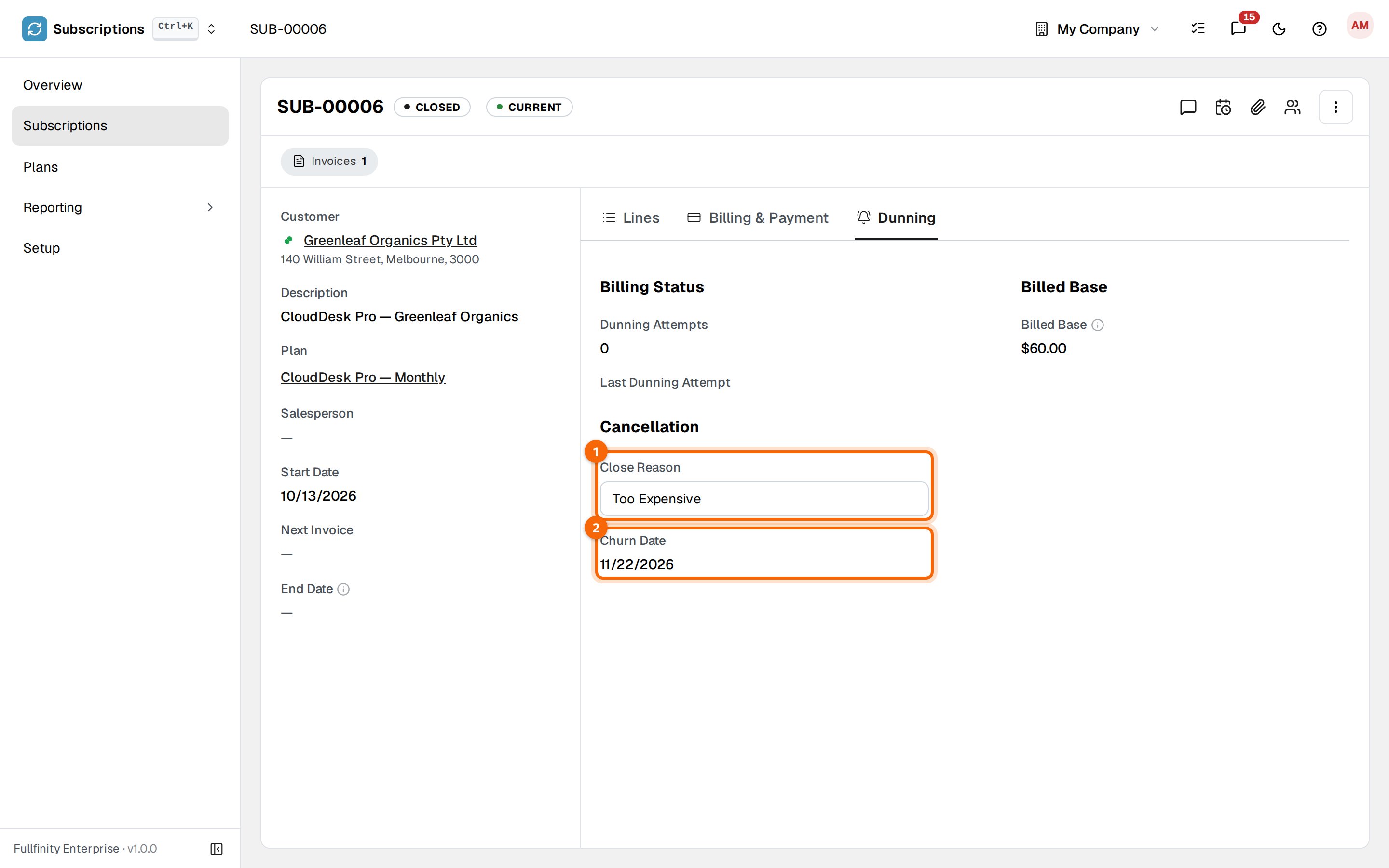
The reason and the date appear on the Dunning tab, under Cancellation:
Close
Choose Close on an Active subscription to end it straight away, without choosing a reason. It becomes Closed and stops billing. Its monthly value still leaves your MRR, so it is counted in MRR Movement.