How do I request time off?
Choose the type and dates, see how much it takes from your balance, and submit it to your manager.
Ask for time off from the Time Off app. Your request goes to your manager; once they approve it, the days come off your balance.
1. Fill in the request
Go to Time Off → Requests and click New.
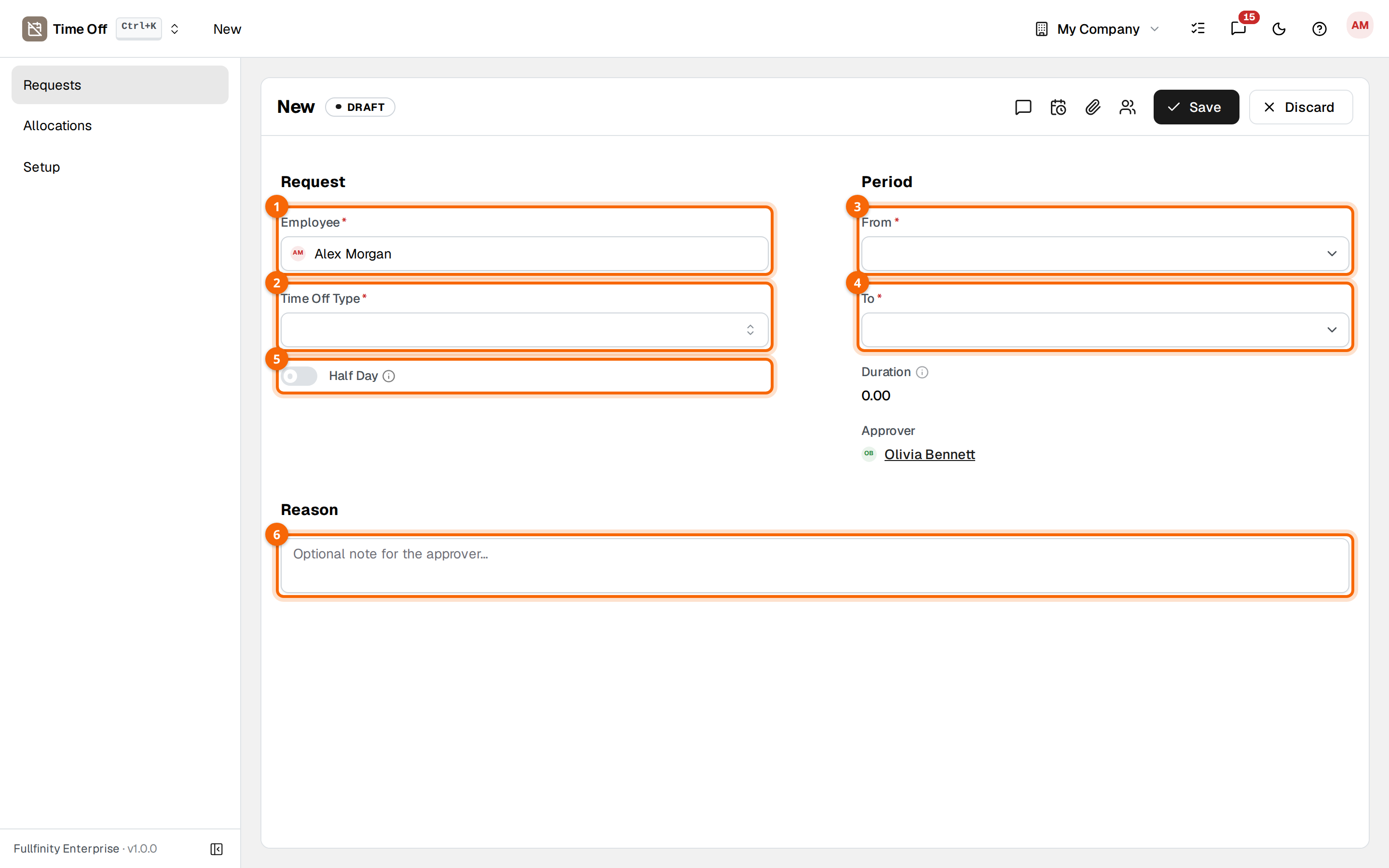
- Employee — already you. A manager can choose someone on their team instead; HR can choose anyone.
- Time Off Type — Annual, Sick and so on. Once chosen, your Available Balance of that type appears below it.
- From — the first day off.
- To — the last day off. The same as From for a single day.
- Half Day — for a single day, to take half of it (counts as 0.5).
- Reason — an optional note for your approver.
The Duration fills in by itself: it counts only your working days (or hours) on your schedule, so weekends and company holidays in the middle of your dates are not taken from your balance. The Approver is your manager. Click Save.
2. Submit it
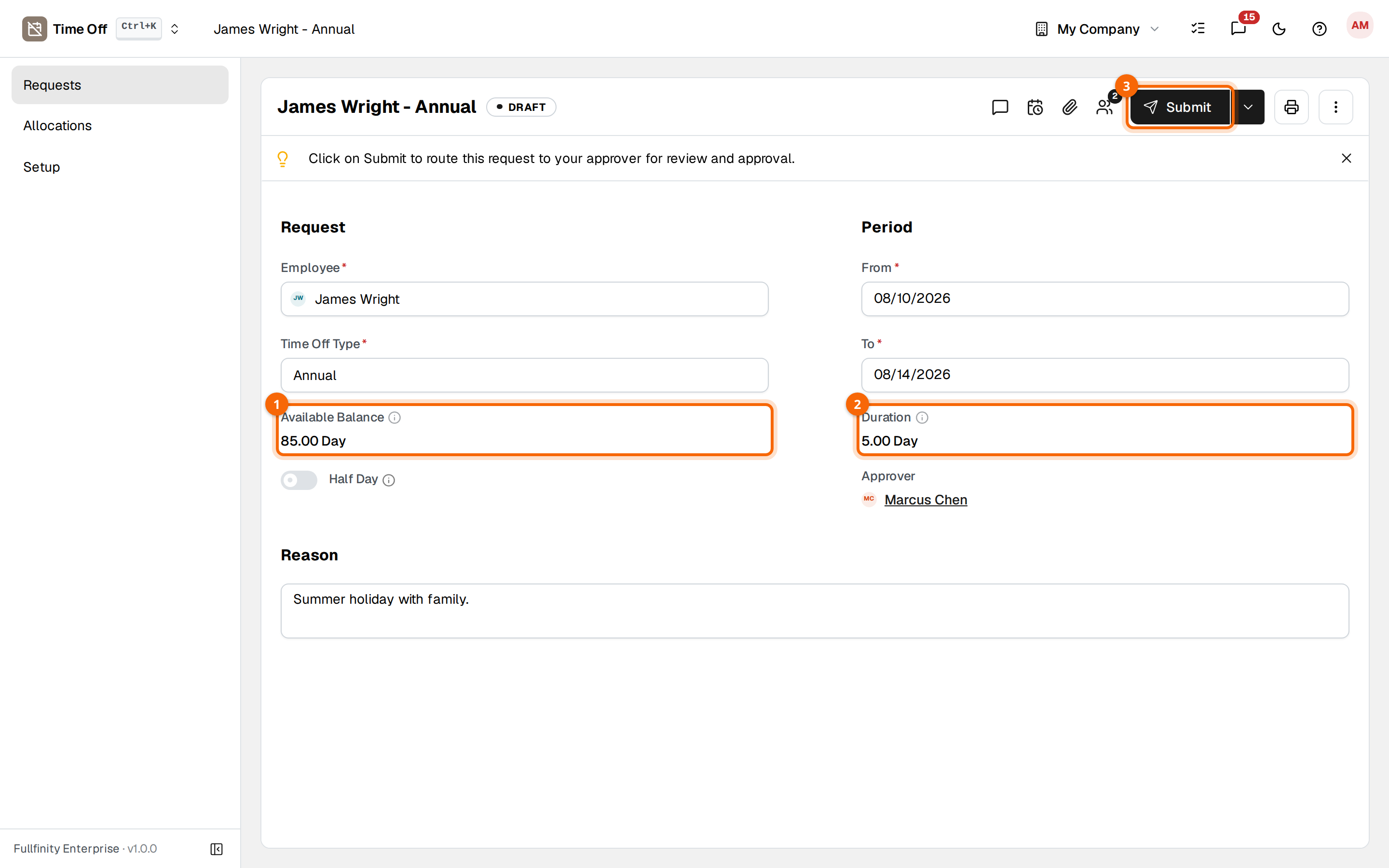
Check that the Duration fits your Available Balance, then click Submit. The status moves from Draft to To Approve, and your manager can now approve it. If the type doesn't need approval, it is Approved straight away.
A submitted request is locked so your approver decides on exactly what you asked for. To change it, click Reset to Draft, edit, and submit again.
What the statuses mean
| Status | Meaning |
|---|---|
| Draft | Saved, not yet sent. Nothing is taken from your balance. |
| To Approve | Waiting for your manager. |
| HR Approval | Your manager approved; the type also needs an HR Manager's approval. |
| Approved | Granted. The time is taken from your balance. |
| Refused | Declined. Nothing is taken from your balance. |
Submit refused? See Why can't I submit this time off request? To see only your own requests in the list, use the My Requests filter.