How are recurring journal entries in another currency converted?
Each entry a recurring schedule creates is converted at the exchange rate of its own date.
A recurring entry creates the same journal entry on a schedule — rent every month, an annual licence fee. When the entry is in a currency other than your company's, each entry it creates is converted at the exchange rate on that entry's own date, not at one rate fixed when you set the schedule up.
Set up the recurring entry
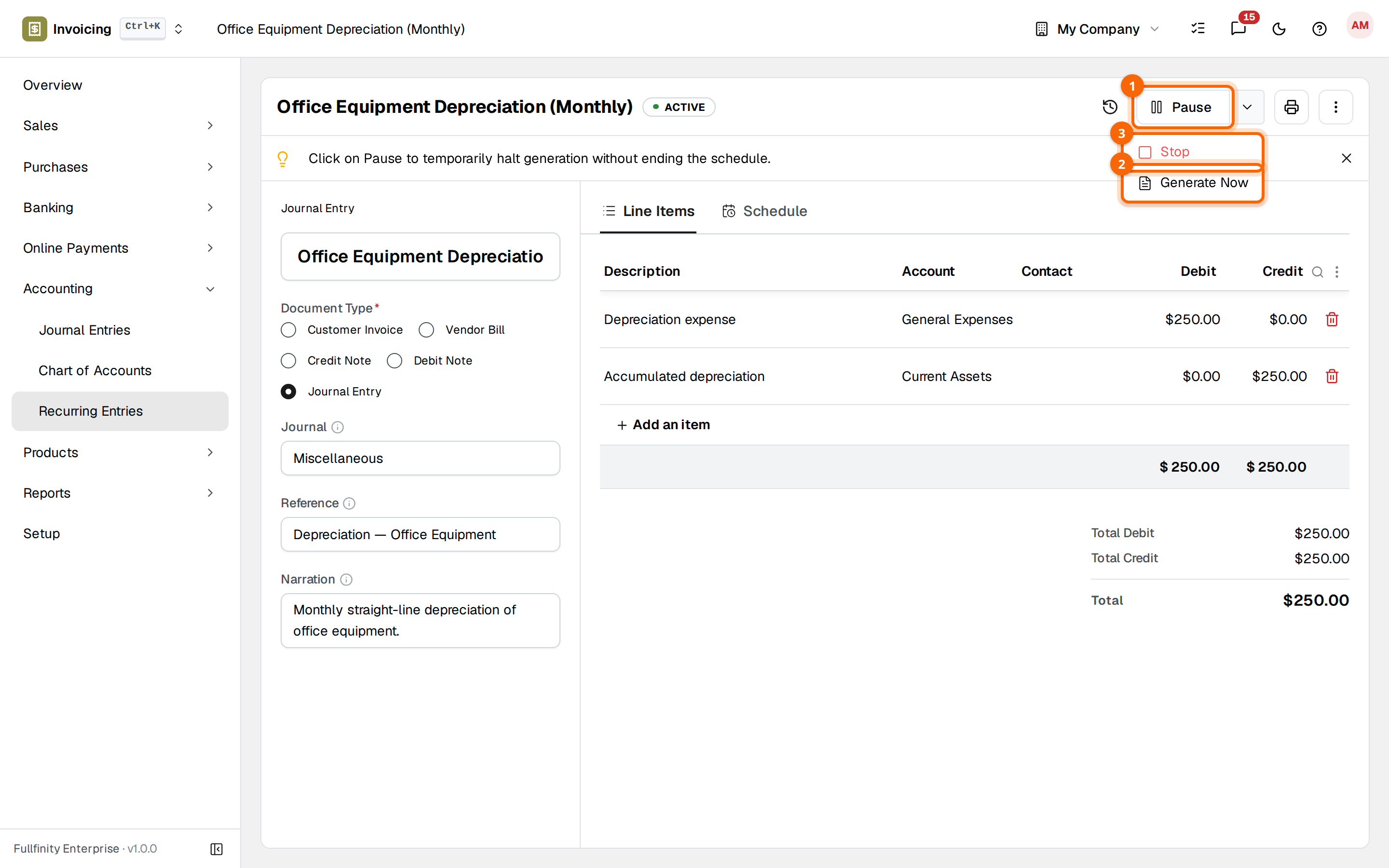
- Open Invoicing → Accounting → Recurring Entries and create a new one (see how).
- Set Document Type to Journal Entry.
- Set Currency to the currency the amounts are in (e.g. EUR). The Currency field appears when multi-currency is switched on.
- On the Line Items tab, enter each line's Debit or Credit in that currency — the amounts exactly as they appear on the agreement or the supplier's bill.
- On the Schedule tab, set how often it repeats, the Start Date, and optionally an End Date.
- Click Start.
What each entry is booked at
When an entry is created — on its Next Date, or when you click Generate Now — its lines are converted into your company's currency at the rate that applied on that date: the most recent rate on or before it.
Example. A recurring entry of 1,000.00 EUR (debit Rent, credit the supplier), monthly, in a company that keeps its books in USD:
| Entry date | EUR rate on file | Booked in USD | Kept in EUR |
|---|---|---|---|
| 1 January | 1 EUR = 1.10 USD | 1,100.00 | 1,000.00 |
| 1 February | 1 EUR = 1.08 USD | 1,080.00 | 1,000.00 |
| 1 March | (no new rate yet) 1.08 | 1,080.00 | 1,000.00 |
Each line keeps its amount in the entry's currency alongside the converted figure, so you can always see the original 1,000.00 EUR.
If converting each line separately leaves the entry a cent out of balance, the cent is put on the largest line, so every entry balances in your company currency.
When there's no rate for the date
If there is no rate on file on or before the entry's date, the entry is not created — Fullfinity won't guess or book it at 1 : 1. You'll see a message naming the currency and the date, and the earliest rate on file if there is one.
Add a rate dated on or before that day — open Setup, click the Currencies link, open the currency and click Current Rate to see and add its rates — then generate the entry again.