How do I set up taxes?
Create the tax rates you charge and pay, put them on your products, and swap them automatically for some customers with tax rules.
Taxes are worked out on every invoice and bill line from the taxes on that line. A line gets its taxes from its product, so setting up taxes means three things: the tax rates themselves, which products carry them, and — when some customers are taxed differently — a tax rule.
1. Create or check a tax
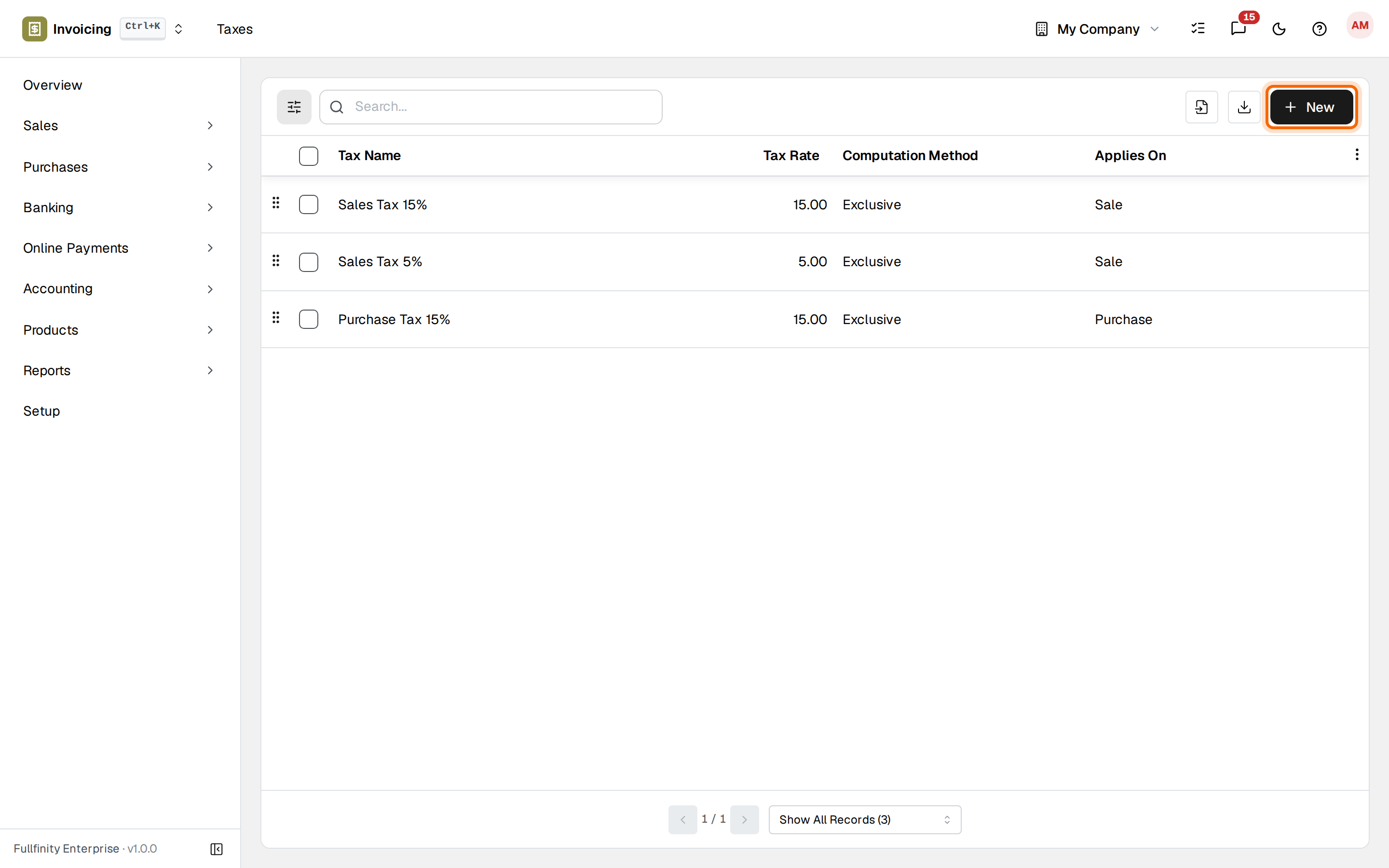
- Click Setup, then the Taxes link under Setup.
- Open a tax to check it, or click New to add one.
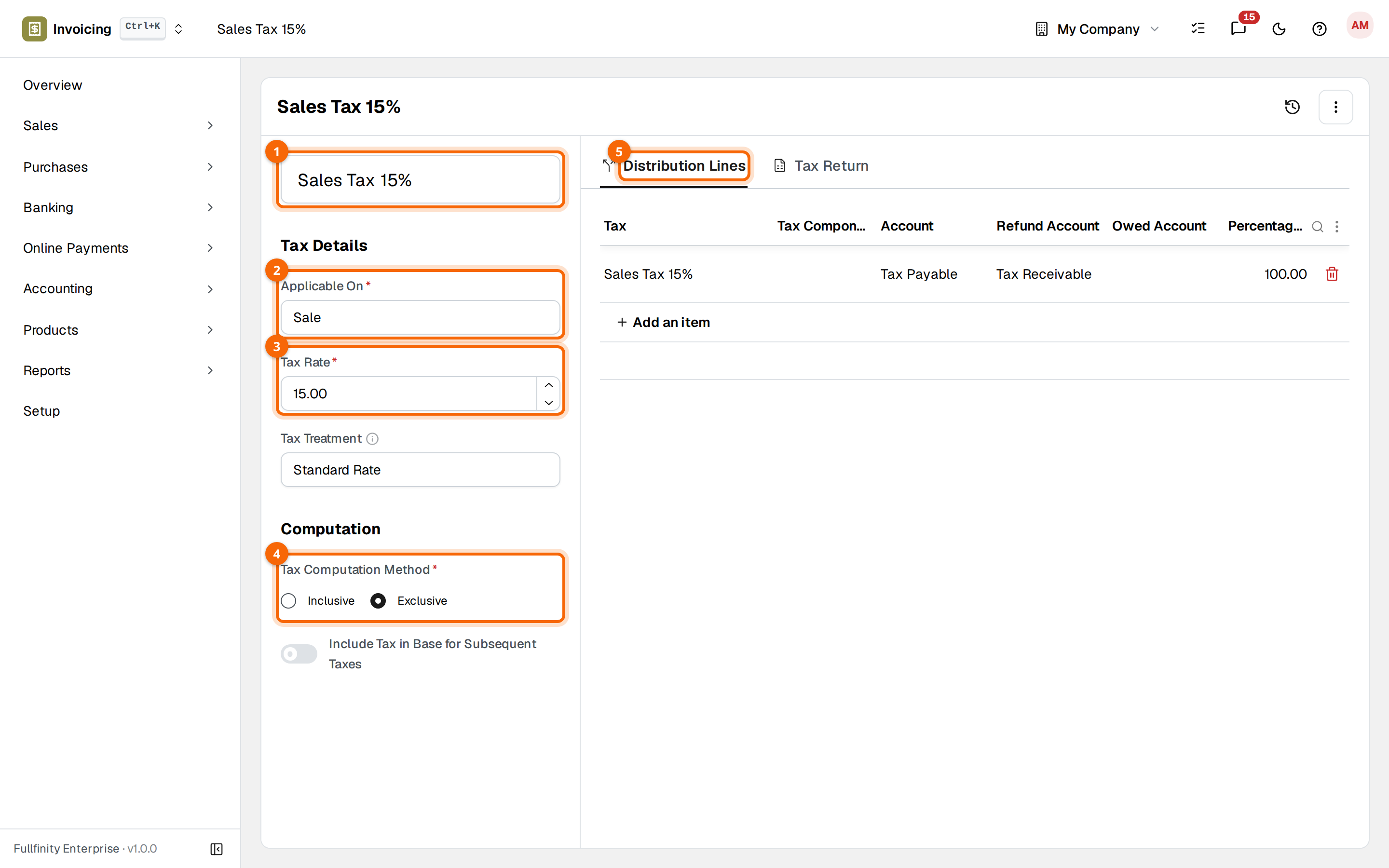
On the tax:
- Type its name (e.g. VAT 20%) — this is what shows on invoice lines and in the totals.
- Applicable On — Sale, Purchase or Both.
- Tax Rate — the percentage.
- Tax Computation Method — Exclusive adds the tax on top of the price; Inclusive means the price already contains it.
- Distribution Lines — which account the tax is posted to (Account) and, for credit notes, Refund Account. The lines' percentages must add up to 100. Use Tax Component when one tax is split into legal parts that print separately (e.g. CGST and SGST).
Switch on Include Tax in Base for Subsequent Taxes only when a second tax on the same line must be charged on the price plus this tax.
For a tax that does not charge the standard rate — zero-rated, exempt, reverse charge — set its Tax Treatment and type the Exemption Reason exactly as the law words it (e.g. Autoliquidation). Every invoice that uses the tax prints that wording below its totals.
A purchase tax you account for yourself instead of paying it to the supplier — services bought from abroad, goods bought from another EU country — is Self-Assessed. It is not added to the bill; posting books it twice, as tax you owe (to the Owed Tax Account) and as tax you can reclaim (to its distribution lines), so the two cancel out. On the Tax Return tab, Owed Tax Box and Owed Tax Base Box say where the owed half is reported on your return.
2. Put the tax on your products
Open a product (Products → Sellable Products) and set Customer Taxes (charged when you sell it) and Vendor Taxes (charged when you buy it). New products start with the Sales Tax and Purchase Tax defaults from Setup.
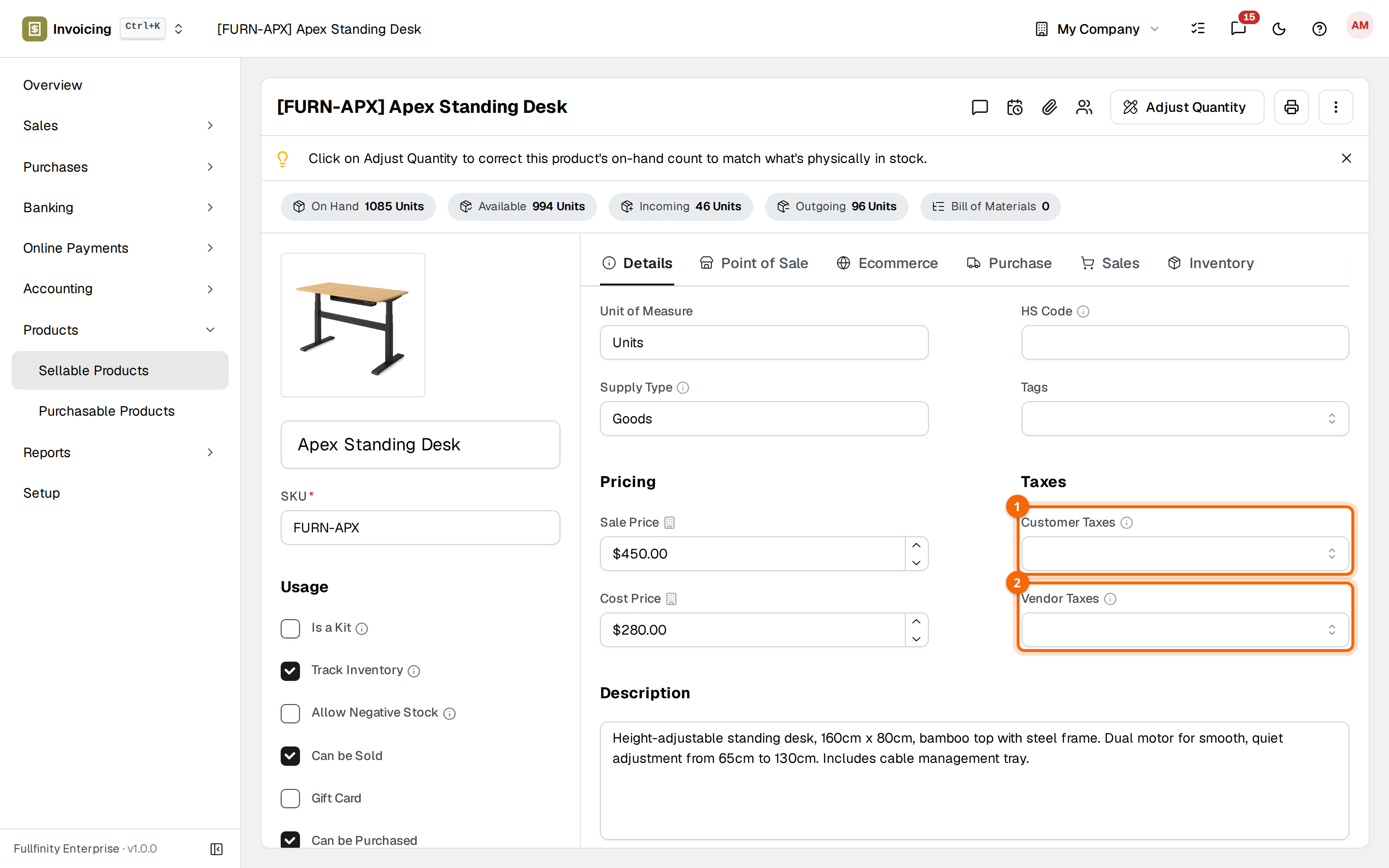
When you pick the product on an invoice line, its taxes come with it. You can still change the Tax on one line.
3. Tax some customers differently with a tax rule
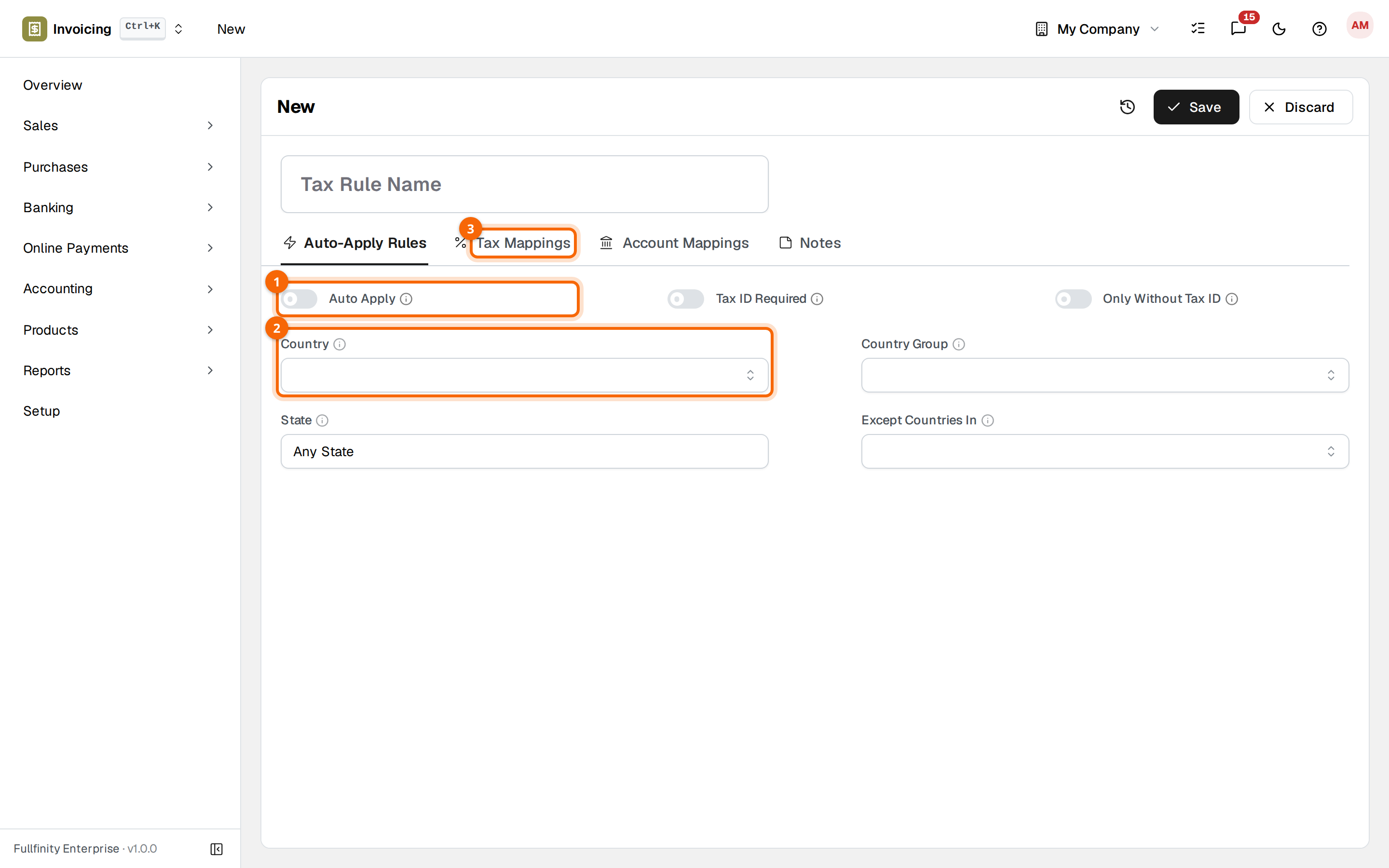
A tax rule replaces taxes for the customers it applies to — for example, no VAT on exports. Click Setup, then Tax Rules, then New:
- On Auto-Apply Rules, switch on Auto Apply to choose the rule from the customer's address. Optionally switch on Tax ID Required to apply it only to customers with a tax number.
- Set the Country or Country Group it applies to — or Except Countries In for everyone outside a group, such as every country outside the EU. A customer with no country never matches that one.
- On Tax Mappings, add a line per tax: Tax on Product is the tax being replaced, Tax to Apply its replacement. Leave Tax to Apply empty to remove the tax. Applies To limits a line to products that are Goods or Services (the product's Supply Type), when the two are taxed differently.
Rules are tried in order of their sequence, and the first that matches is used.
Account Mappings works the same way for income and expense accounts.
You can also set a rule on one customer: open the customer, go to the Invoicing tab and choose its Tax Rule. A rule chosen on the customer wins over an automatic one. On a single invoice or bill, Tax Rule is on the Details tab; changing it re-works the taxes of every product line.