How do I undo a payment applied to the wrong invoice?
Detach a payment from the invoice it was set against and apply it to the right one — or cancel the payment altogether.
A payment set against the wrong invoice doesn't need to be deleted. Detach it from that invoice and it becomes a credit for the customer, ready to apply to the right one.
1. Detach the payment
- Open the invoice the payment was wrongly applied to.
- Under Payment History, find the payment and click its Unreconcile button (the broken-link icon).
- Confirm.
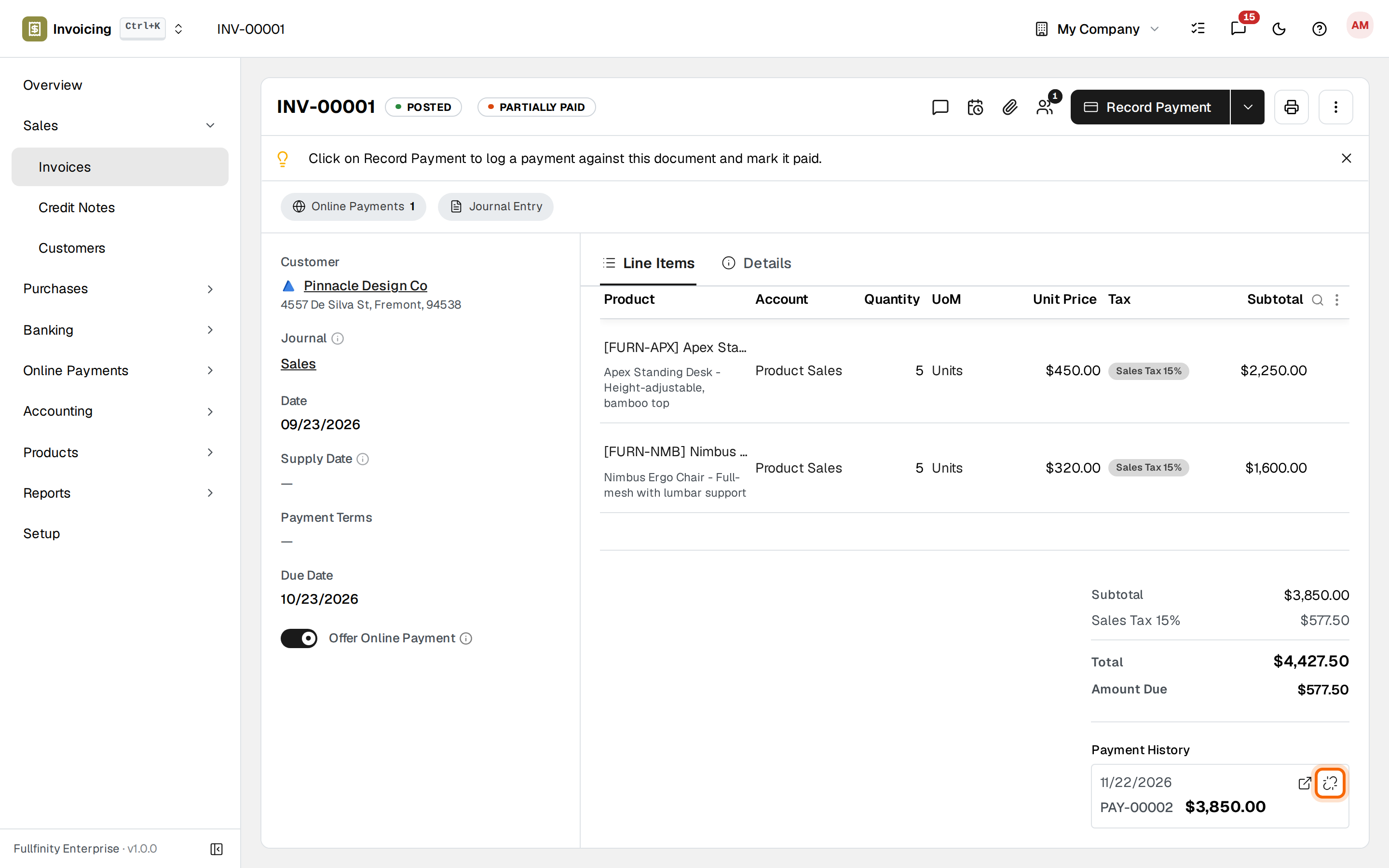
The payment leaves Payment History, Amount Due goes back up and the payment status goes back to Unpaid or Partially Paid. The payment itself is still posted — the money did arrive.
2. Apply it to the right invoice
Open the right invoice for the same customer. The payment is listed under Available Credits; click its Apply Credit button, check the amount and click Apply. See How do I apply a credit note to an open invoice?
The payment itself was wrong
If the payment should never have been recorded (wrong amount, wrong customer, money never arrived), cancel it instead: open it from Banking → Payments — or click the open button beside it in Payment History — and click Cancel. That detaches it from every invoice and cancels its journal entry. A cancelled payment can be reopened with Reset to Draft, corrected and posted again.