How do I use packages and product packaging?
Define the boxes and pallets you ship in, and the standard pack sizes you buy and sell in.
Two features sound alike but answer different questions:
- Packages — the physical boxes and pallets you put goods into. Each package is tracked: what's in it and where it is.
- Packaging — a product's standard pack size, such as a Box of 12, so orders and transfers can be written in packs.
Switch on either in Inventory → Setup, then click Save.
Define your package types
- In Inventory → Setup, click Package Types, then New.
- Name the type (e.g. Medium Box) and enter its Length, Width and Height.
- Enter its Empty Weight and Max Weight. A carrier uses the dimensions and weight to price the shipment.
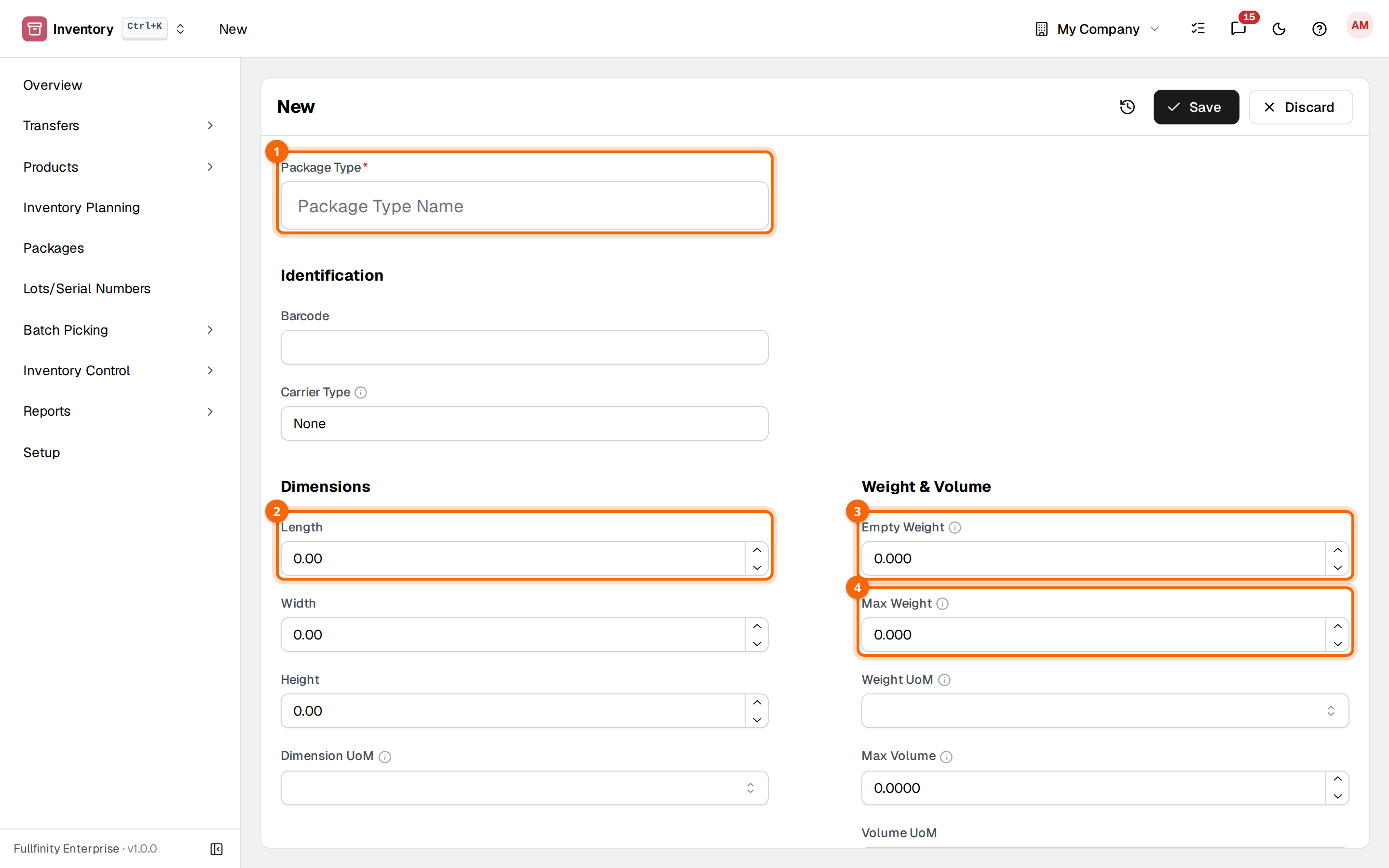
Packages themselves are created as you pack — see How do I pack items into packages? Find them later under Inventory → Packages; each one lists its Contents and any Child Packages (boxes on a pallet). Unpack empties a package back onto the shelf.
Define a product's pack sizes
- Open the product and go to its Packaging tab.
- Add a line: the Packaging name (e.g. Carton), the Quantity of units it holds, and its Barcode if the carton has its own.
When an order line uses a packaging, its transfer lines show the Packaging and the number of Packs, so the warehouse picks "2 cartons" rather than "24 units". To review pack sizes across all products, use Product Packaging under Setup.
Was this article helpful?