How do I see stock levels and the stock ledger?
See how much of each product you have, where it is and what's free — and every movement that got it there.
Two reports answer the everyday stock questions: how much do I have? and how did it get to that number?
Stock levels: what you have now
Go to Inventory → Reports → Stock Levels. Each row is one product in one location (and one lot, if tracked):
- Quantity on Hand (1) — what is physically there.
- Reserved Quantity (2) — what is held for transfers.
- Available Quantity (3) — what is free to promise: on hand minus reserved.
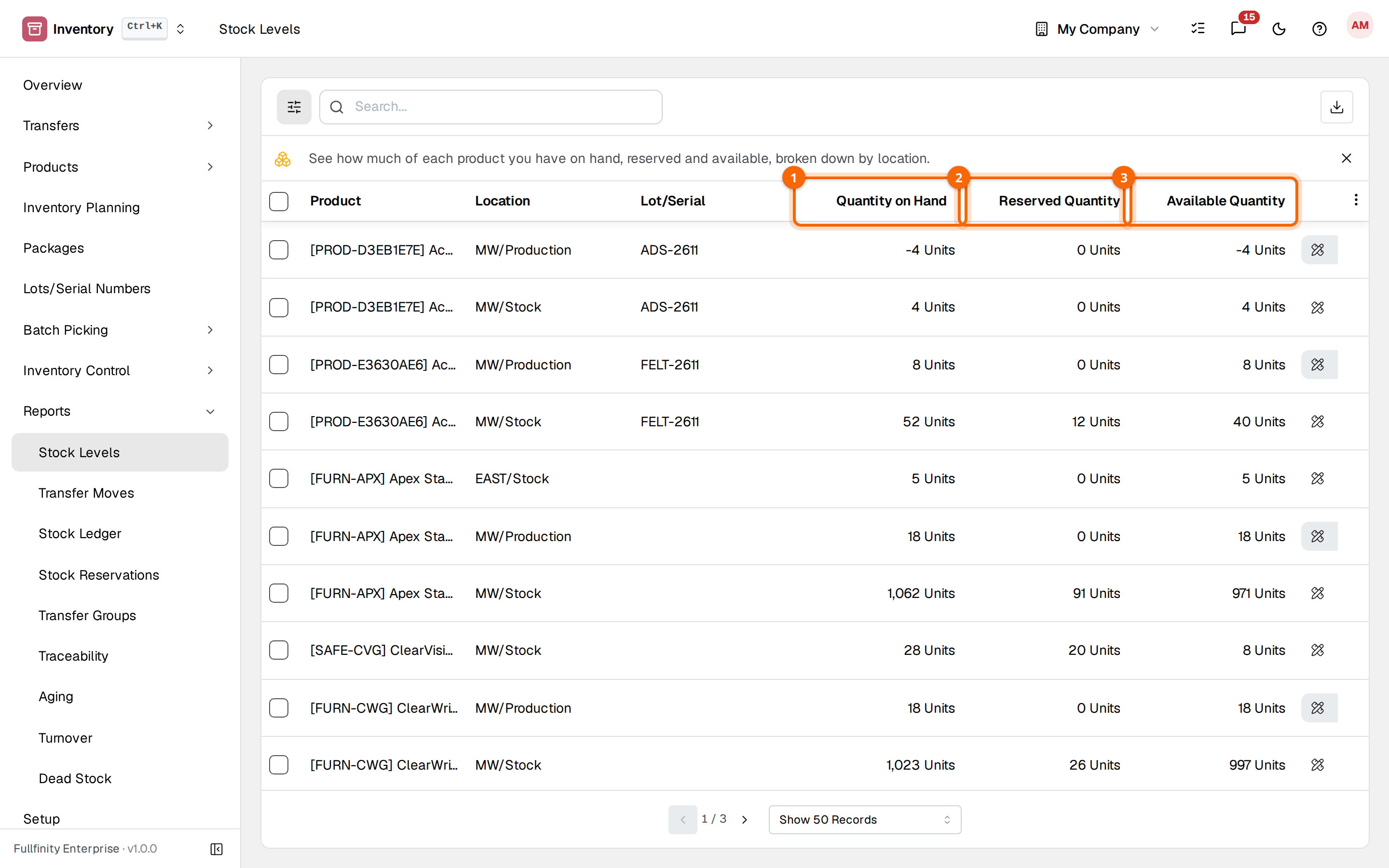
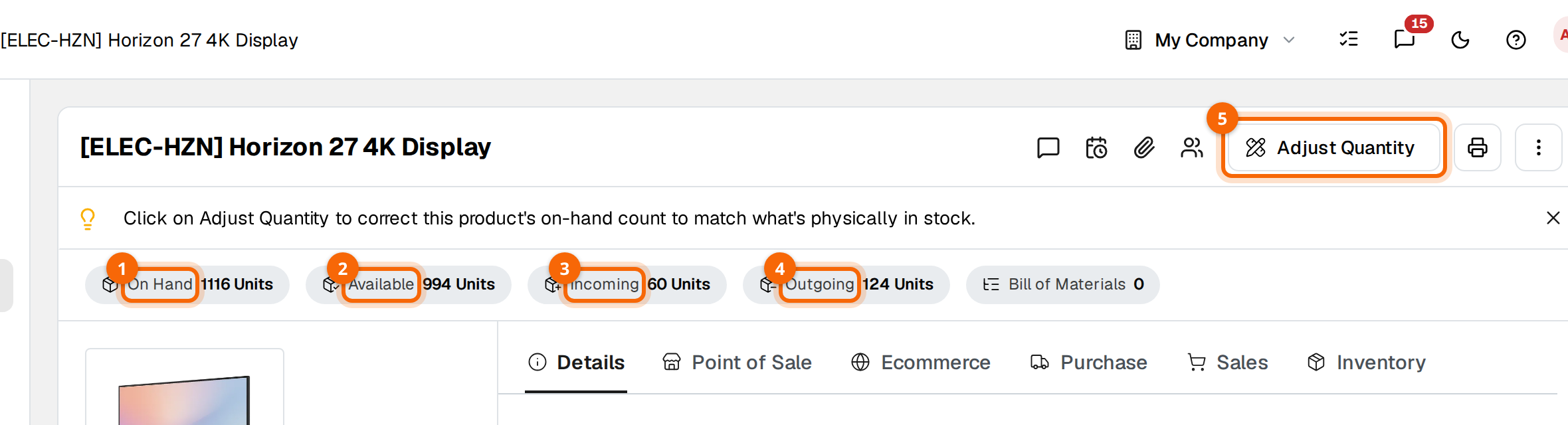
The list opens filtered to stock you have; group it by product or location to total it up. The same figures appear on each product as the On Hand, Available, Incoming and Outgoing buttons.
Stock ledger: every movement
Go to Inventory → Reports → Stock Ledger. Every receipt, delivery, internal move, adjustment, scrap and count is a row, with its Transaction Type (1), the Quantity In and Quantity Out, and the location's Running Balance (2) after it.
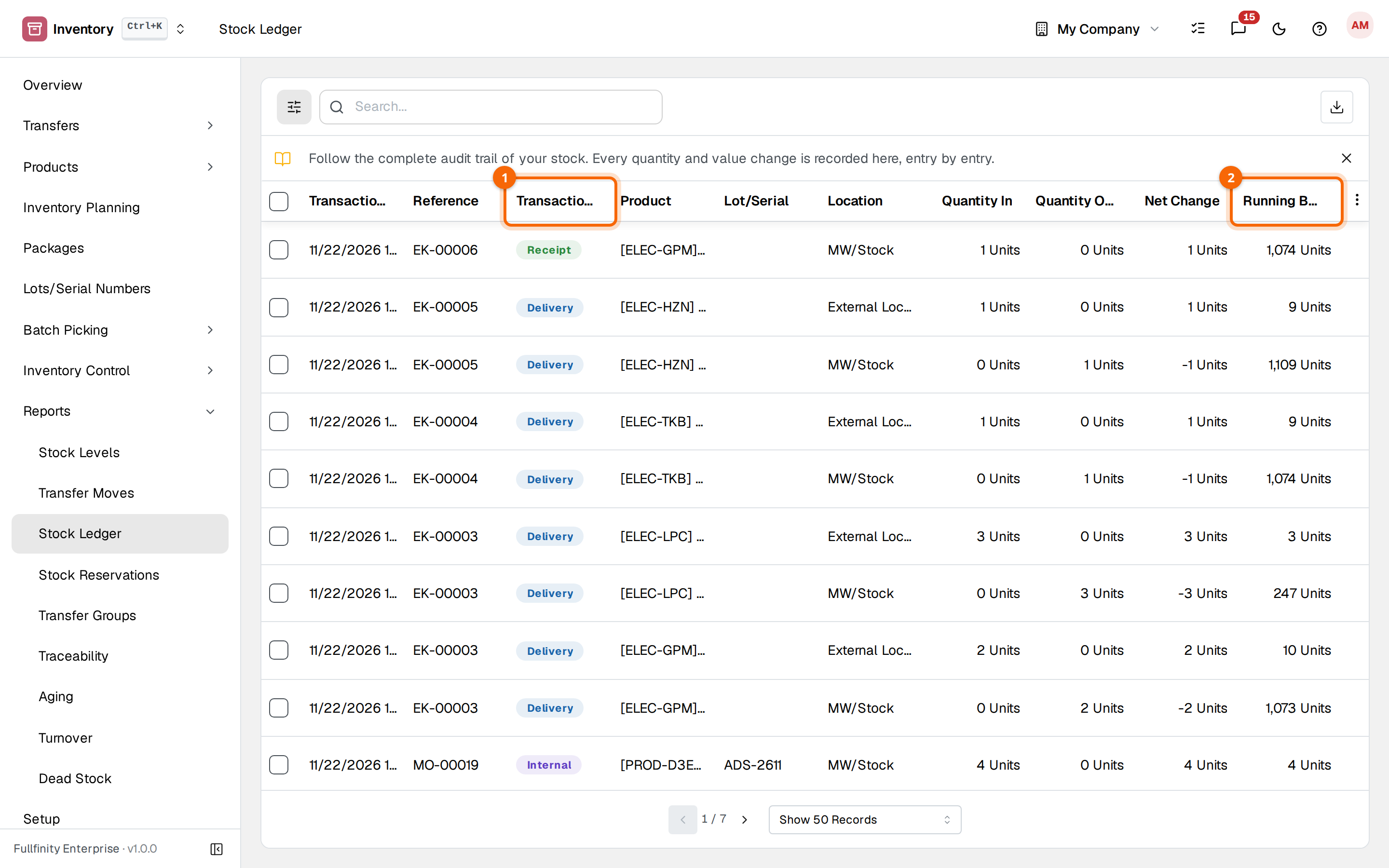
Use the filters (Receipts, Deliveries, Adjustments, This Month…) or group by product to follow one item. Open a row to see its Unit Cost and Total Cost and the document behind it on Related Documents.