How do I receive goods?
Check in what a supplier delivered against its receipt and add it to your stock.
When you confirm a purchase order, Fullfinity creates a receipt listing what you expect. When the goods arrive, you check them in on that receipt and mark it done — that is the moment they count as stock.
Check in the delivery
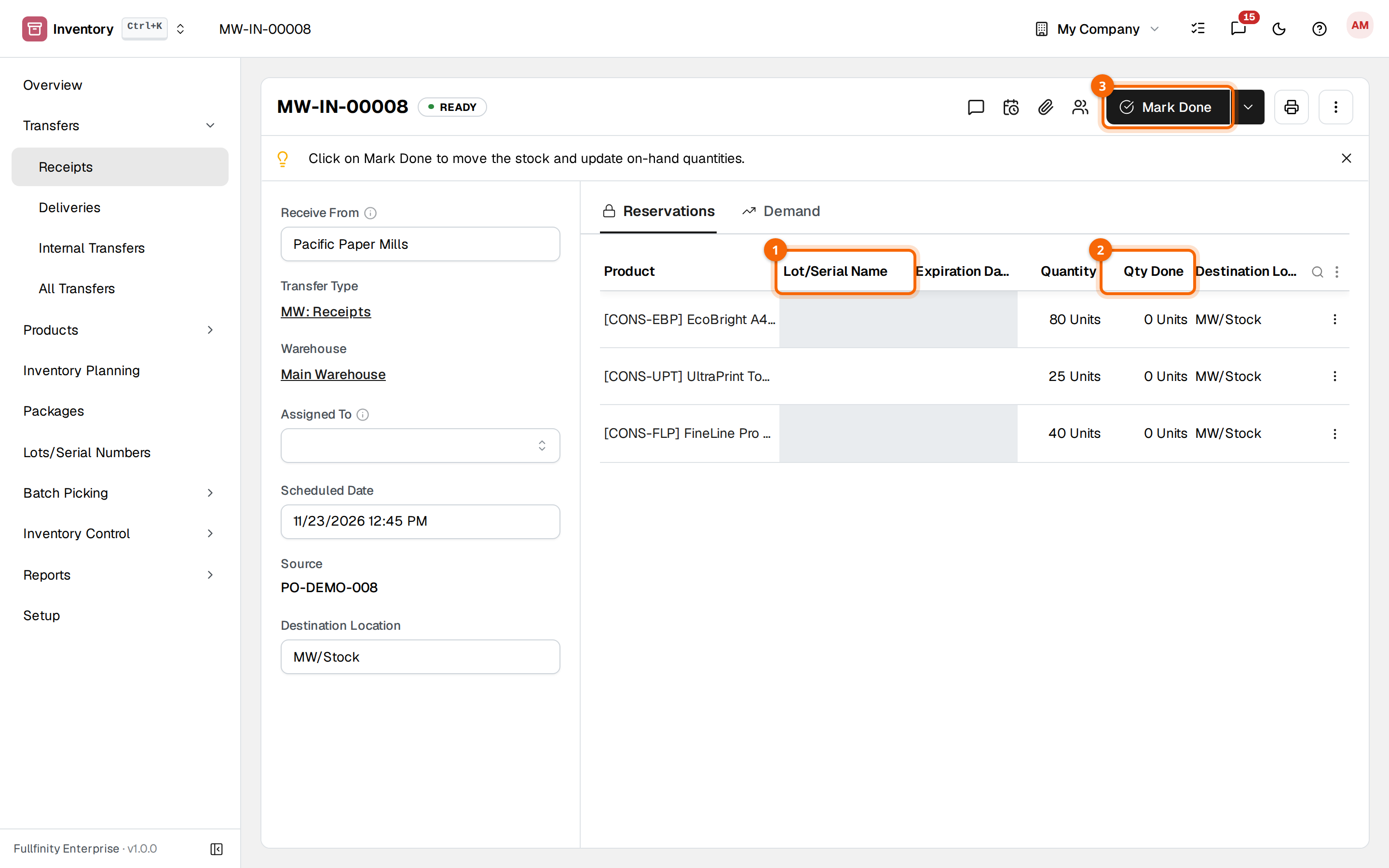
- Go to Inventory → Transfers → Receipts and open the receipt. Its Source shows the purchase order it came from.
- On the Reservations tab, enter in Qty Done how many of each product actually arrived.
- For a tracked product, type the number from the goods in Lot/Serial Name (and the Expiration Date if shown).
- With storage locations on, change a line's Destination Location to put it on a particular shelf.
- Click Mark Done.
What happens next
- The receipt moves to Done and the goods are added to stock.
- If less arrived than ordered, you're asked whether to keep the rest as a backorder — see How do I ship or receive part of an order?
- You can't enter more than the receipt expects. If the supplier sent extra, add it with Adjust Quantity on the product.
- To send goods back, open the done receipt and click Create Return.
Was this article helpful?