How do I count my stock?
Run a full, partial or cycle count of a location, enter what you find, and let Fullfinity correct the differences.
An inventory count compares what the system expects with what is really on the shelf, then corrects every difference in one go. Use it for a year-end stocktake or a regular cycle count.
1. Plan the count
- Go to Inventory → Inventory Control → Inventory Counts and click New.
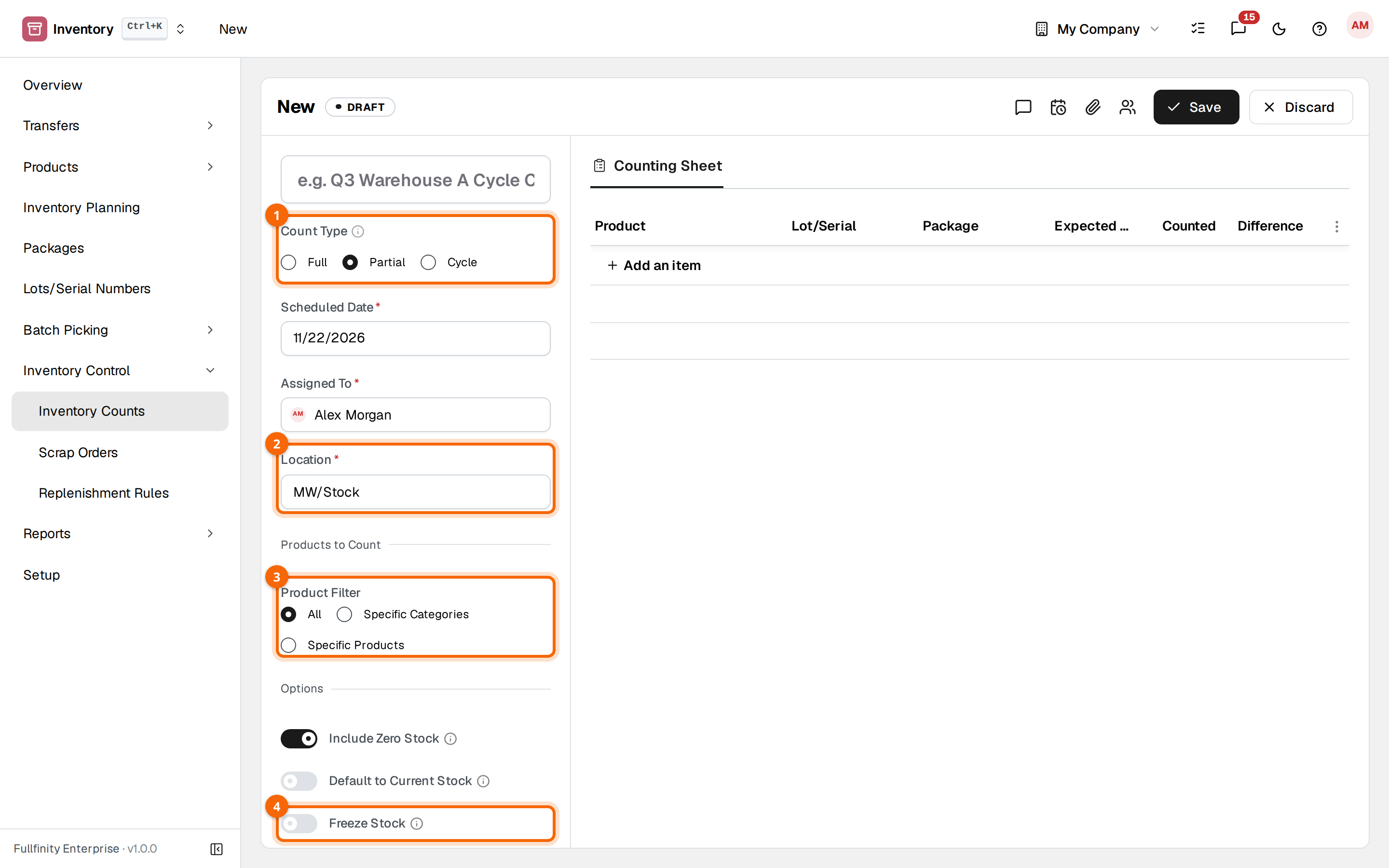
- Give it a name and choose the Count Type (1): Full (the whole location), Partial (specific products) or Cycle (a scheduled subset).
- Set the Scheduled Date, who it's Assigned To, and the Location (2) to count.
- Under Products to Count, use Product Filter (3) to count All products or only Specific Categories or Specific Products.
- Under Options, switch on Freeze Stock (4) to stop transfers using the location while you count. Default to Current Stock pre-fills each line with the expected quantity, so you only change what differs.
- Click Save.
2. Count
- Click Start Count. The Counting Sheet fills with a line per product, showing the Expected Qty.
- Enter what you find in Counted. Difference shows the gap.
- Counting on paper or a spreadsheet? Click Import Count Lines, use Download Template, fill it in and upload it with Import.
3. Apply the results
Click Validate. Every line with a difference becomes a stock adjustment, the count moves to Done and the location is unfrozen. Each correction appears in the stock ledger as a Count.
Related: How do I correct a stock quantity?
Was this article helpful?