How do I correct a stock quantity?
Set a product's on-hand quantity to what is really on the shelf, with a reason for the change.
For a quick fix to one product — a miscount, a breakage found on the shelf, stock that arrived without paperwork — adjust its quantity directly. For many products at once, run an inventory count instead.
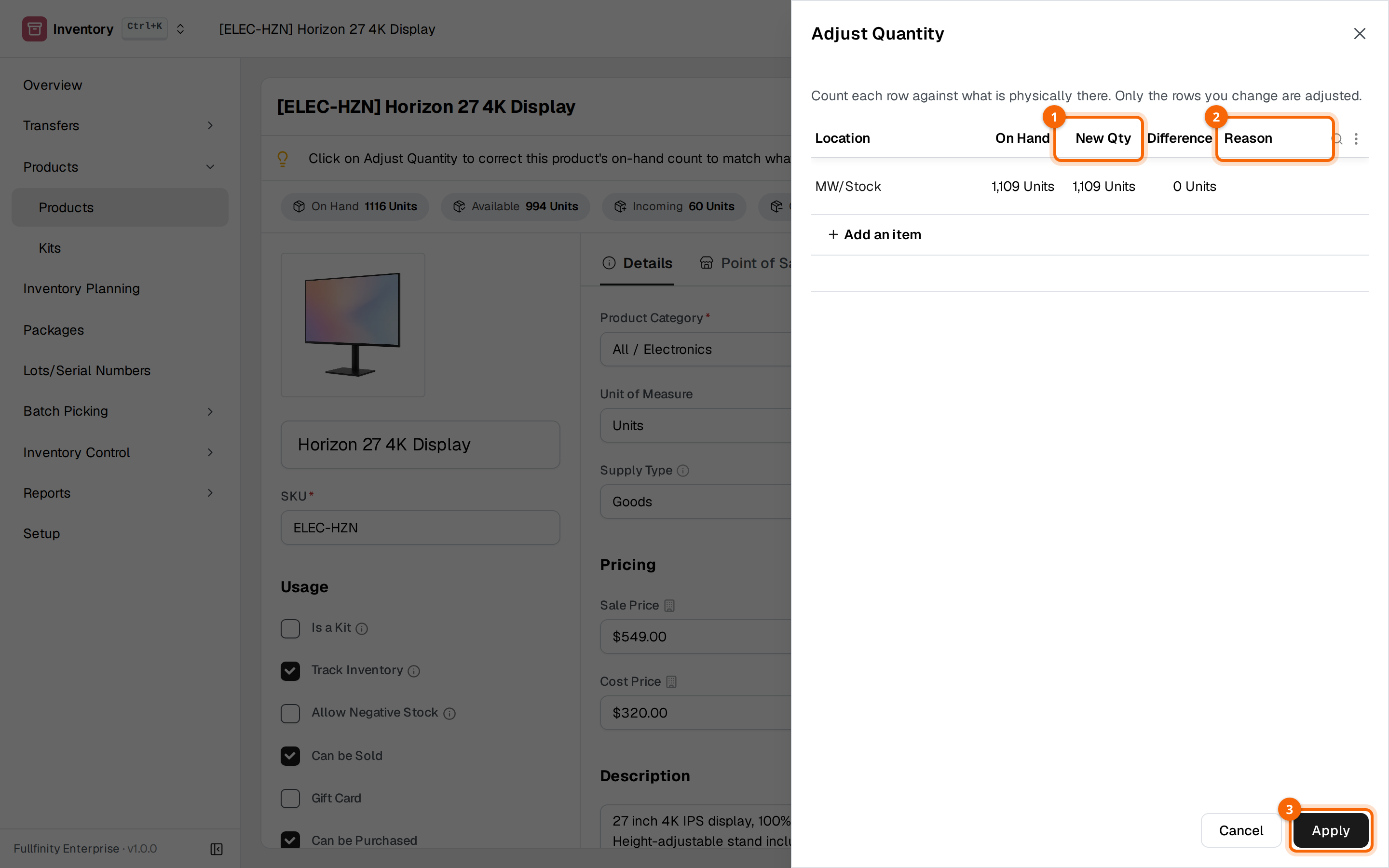
- Open the product (Inventory → Products → Products) and click Adjust Quantity.
- The window lists every location holding the product with its On Hand quantity. Type the real quantity in New Qty (1). Difference shows the change.
- Pick a Reason (2), such as Damaged Goods or Count Correction.
- To add stock in a location that has none yet, click Add an item and choose the location.
- Click Apply (3). Only the rows you changed are adjusted.
For a serial-tracked product, each serial number has its own row with an In Stock switch instead of a quantity.
The reasons offered are managed under Adjustment Reasons in Inventory → Setup. Every adjustment is recorded in the stock ledger as an Adjustment.
Was this article helpful?