How do I start a topic or reply in the forum?
What members do on the website — ask a question or start a discussion, reply, and edit or delete their own posts.
Anyone can read a public forum. To post, a member signs in to the website; a visitor who clicks to post is sent to sign in first and brought back afterwards.
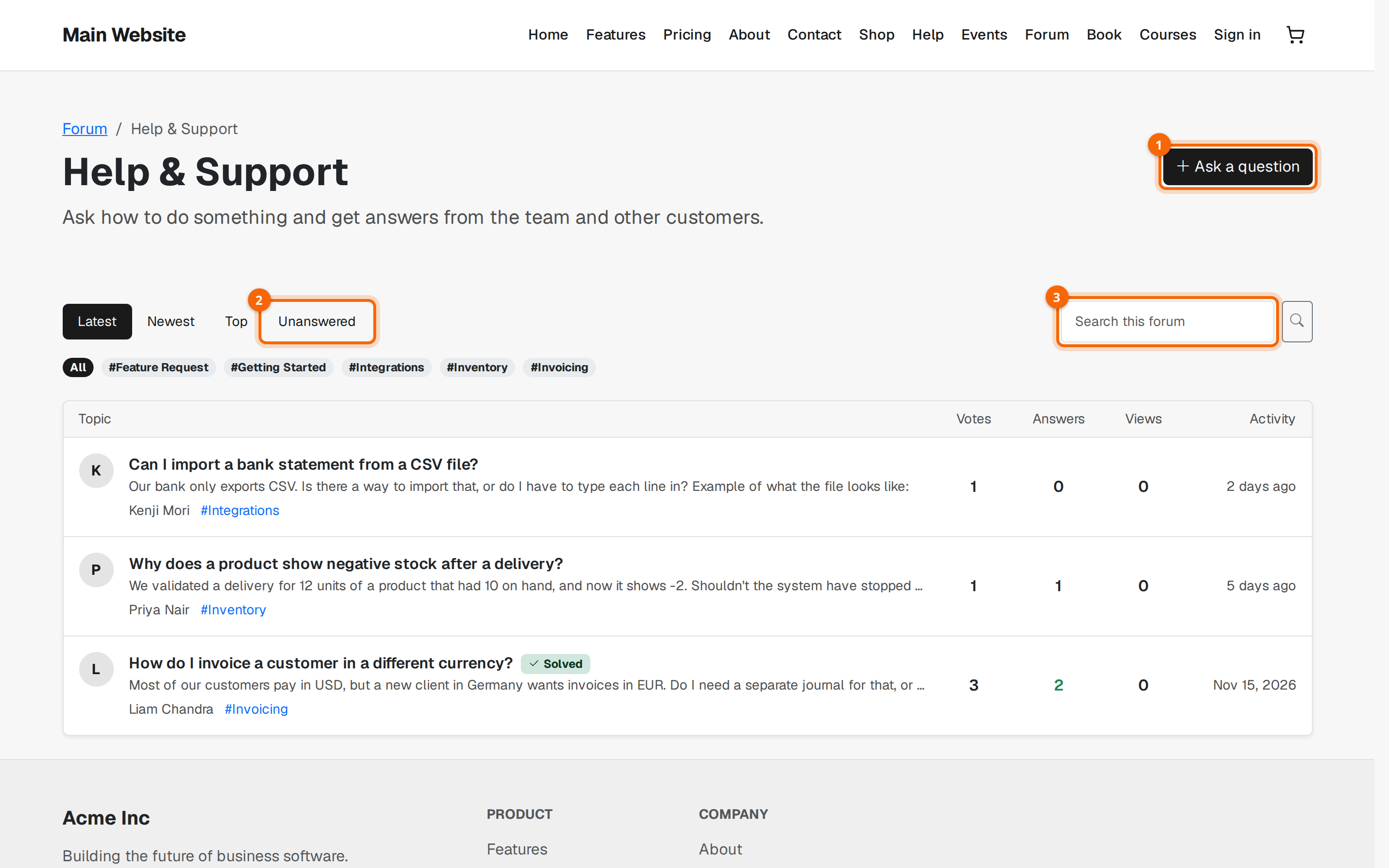
- Ask a question (in a Q&A forum) or New topic (in a discussion forum) starts a topic. It isn't there in a forum where only moderators start topics.
- Latest shows the most recently active topics first, with pinned ones on top; Newest the most recently started; Top the best voted; Unanswered the ones nobody has replied to yet (in a Q&A forum, the unsolved ones).
- Search this forum looks through titles and posts. Click a tag to see only its topics.
Start a topic
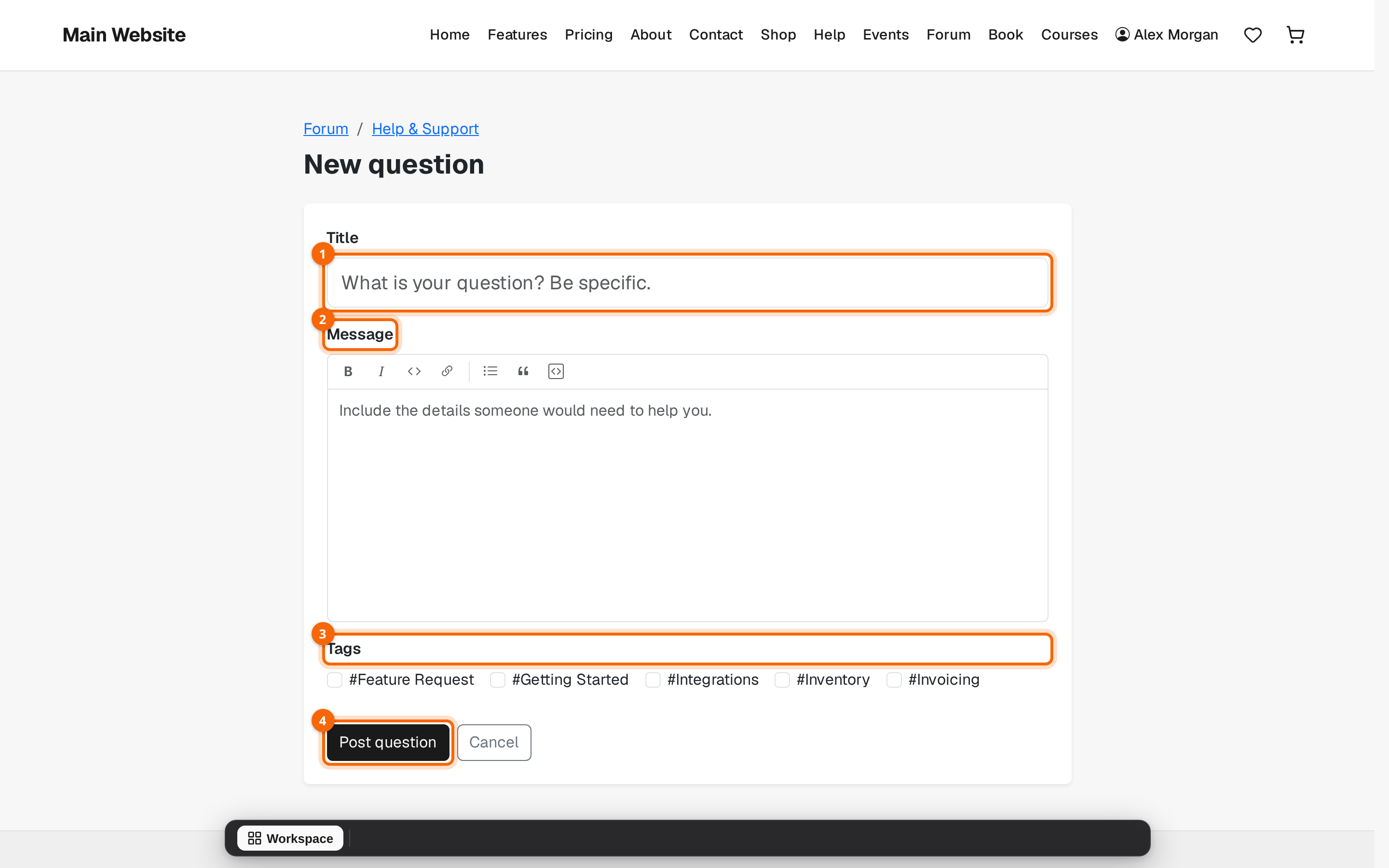
- Title — for a question, the question itself, as specifically as you can.
- Message — the details. The toolbar adds bold, code, links, quotes and lists.
- Tags — tick the ones that fit.
- Click Post question (or Post topic).
You follow your own topic automatically, so you hear about replies by email.
Reply
Open a topic and write in the box at the bottom, then click Post answer (Q&A) or Post reply. In a discussion, the Reply link under a post answers that post specifically: your reply shows a line of what you replied to.
If your post says "Awaiting review"
The forum reviews posts before they appear. Only you and the moderators can see it until a moderator approves it; then it is published and the topic's followers are told. See Why can't I post, or see my post?
Change or remove your own post
- Edit under your post opens it for changes; click Save changes. An edited post is marked edited.
- Delete removes it. Deleting the opening post deletes the whole topic — but only while nobody else has replied. After that, ask a moderator.
A post a moderator rejected can't be edited.