How do I record a visit from the job itself?
Move a job through en route, on site and done from the office, time the work, and capture the sign-off on the job's worksheet.
Everything the On-Site app does can also be done from the job in Field Service → Field Service Orders — useful when a technician calls in, or for office staff covering a visit.
| Status | Next button |
|---|---|
| Draft | Schedule — put it in the technician's queue. |
| Scheduled | En Route — the technician is on the way. |
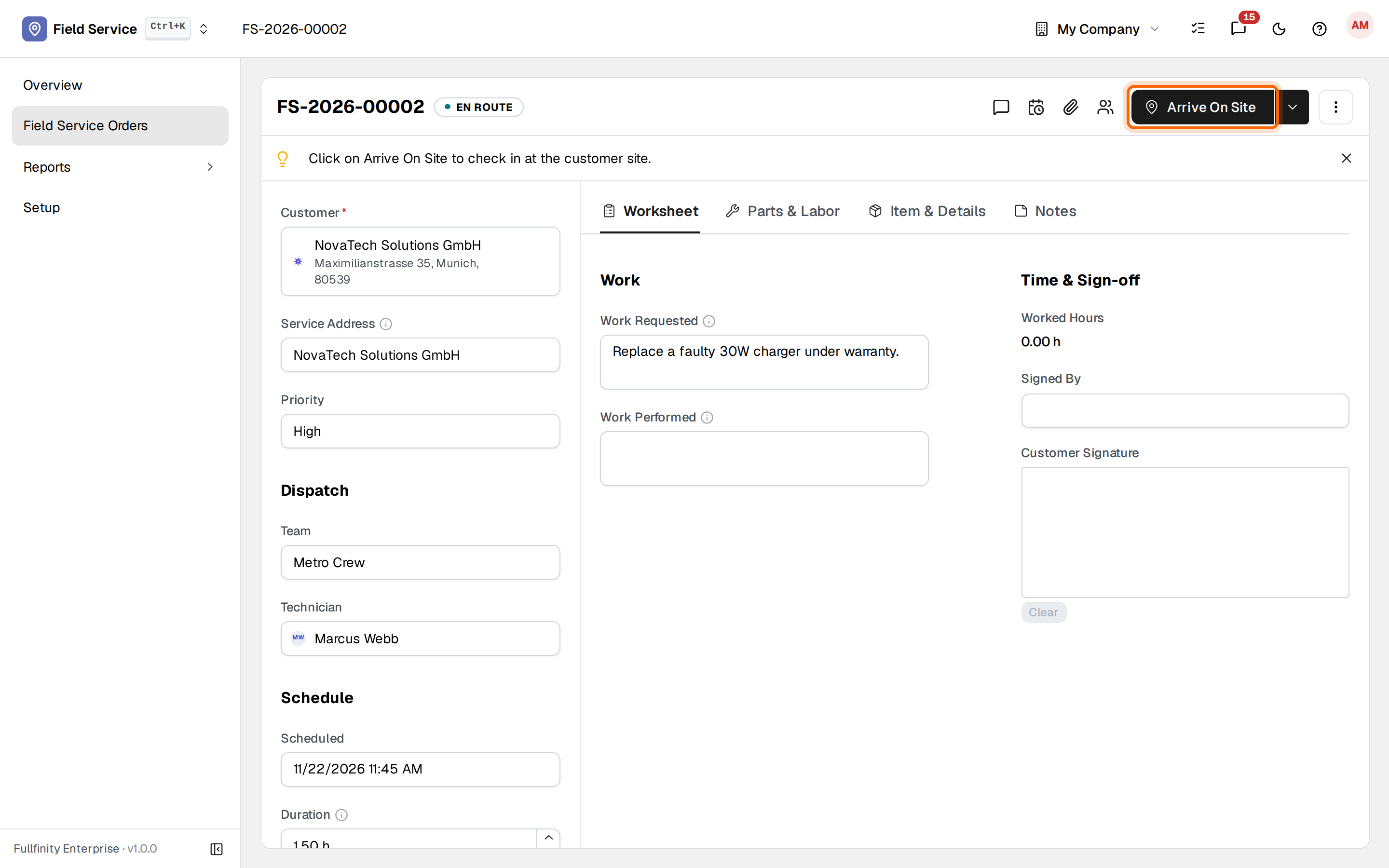
| En Route | Arrive On Site — the technician is at the site. |
| On Site | Complete Job — the work is finished. |
Time the work
On site, Start Timer and Stop Timer (in the menu beside the main button) record the time spent. It shows as Worked Hours on the Worksheet tab, and becomes a labor line on the Parts & Labor tab that updates each time the timer stops. A forgotten timer counts no more than 16 hours.
Fill in the worksheet
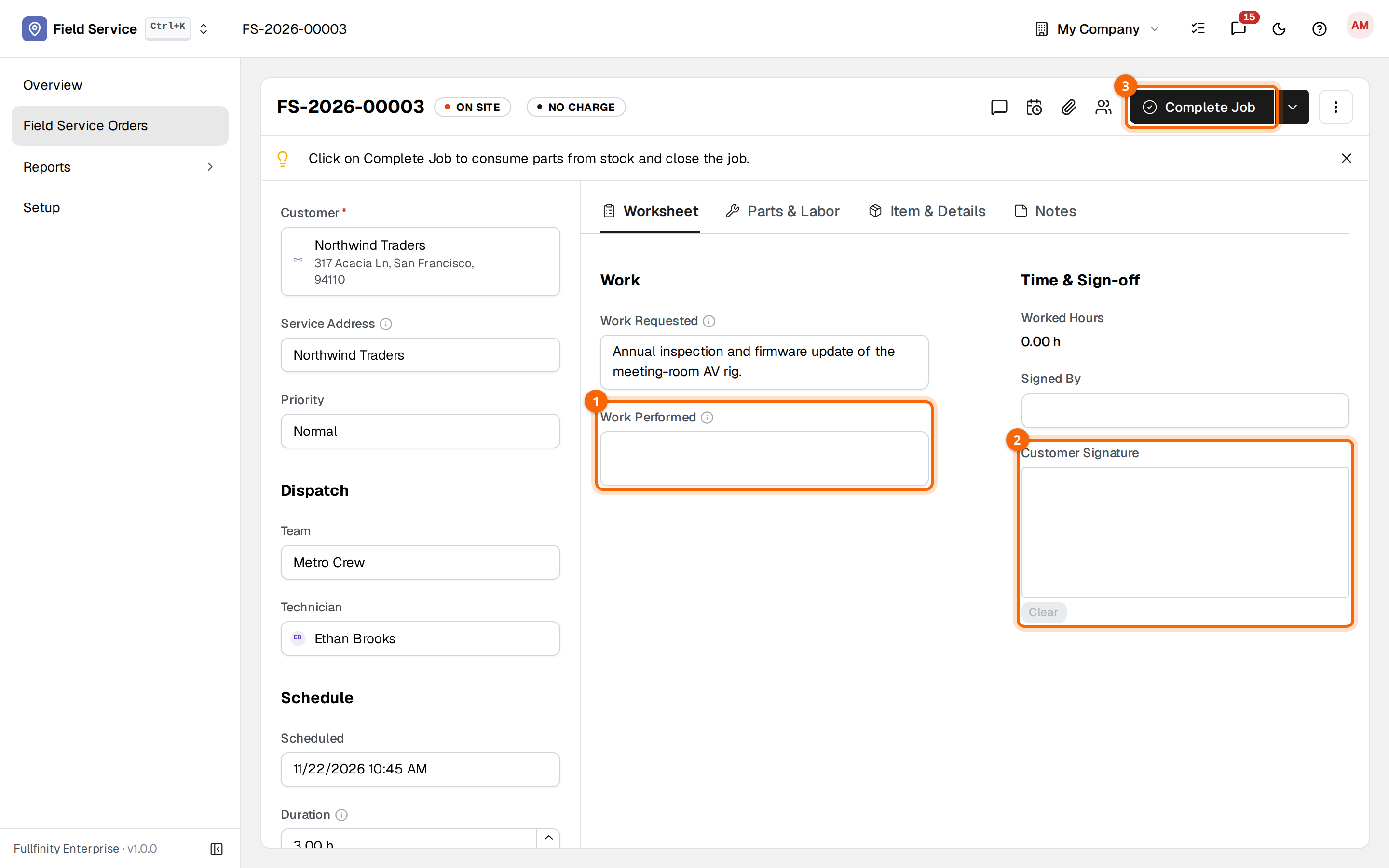
- On the Worksheet tab, describe the Work Performed (1).
- Have the customer sign in Customer Signature (2) and enter their name in Signed By.
- Click Complete Job (3). A running timer is stopped, the parts are taken from stock, and the job is Done.
Was this article helpful?