How do I add parts and labor to a job?
List the parts a job used and the time it took, and decide what the customer is billed for — including warranty work.
A job's Parts & Labor tab is what it used and what it costs the customer. Parts the technician records in the On-Site app and the time from the timer land here by themselves; add anything else by hand.
- Open the job and go to the Parts & Labor tab. Click Add a line.
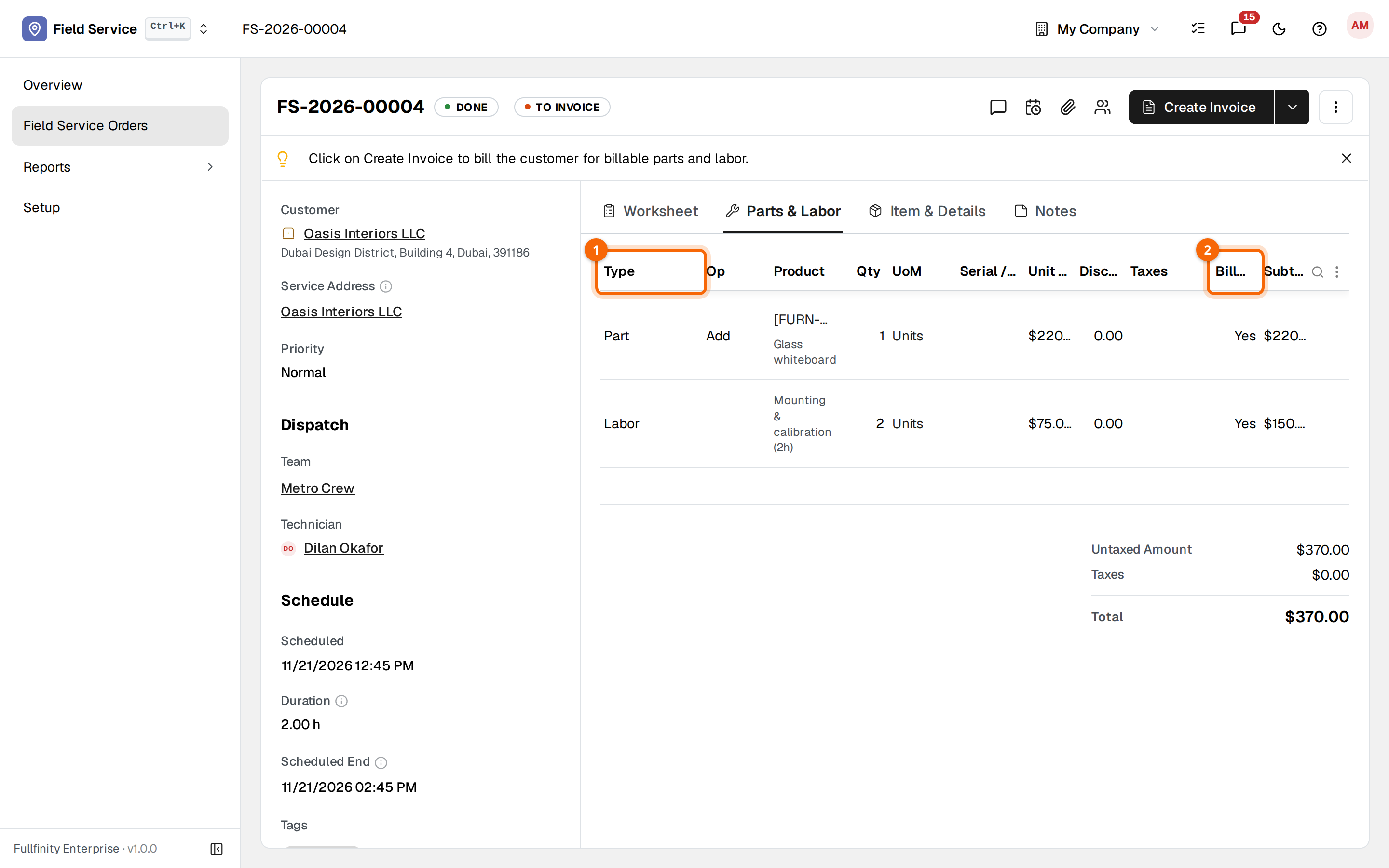
- Set the Type (1): Part for a spare from stock, Labor for time or a service. A part's Op is Add for one fitted on site, or Remove for one brought back to stock.
- Choose the Product, then check the Qty, Unit Price, Disc % and Taxes.
- Only lines with Billable (2) ticked are invoiced. Click Save.
Parts and stock
Parts leave stock when the job is completed, from the job's warehouse (set on the Item & Details tab when you have several). Completing a job is never blocked by stock: the part is already fitted, so it is recorded even if that takes the warehouse below zero — a signal to replenish the van or the shelf.
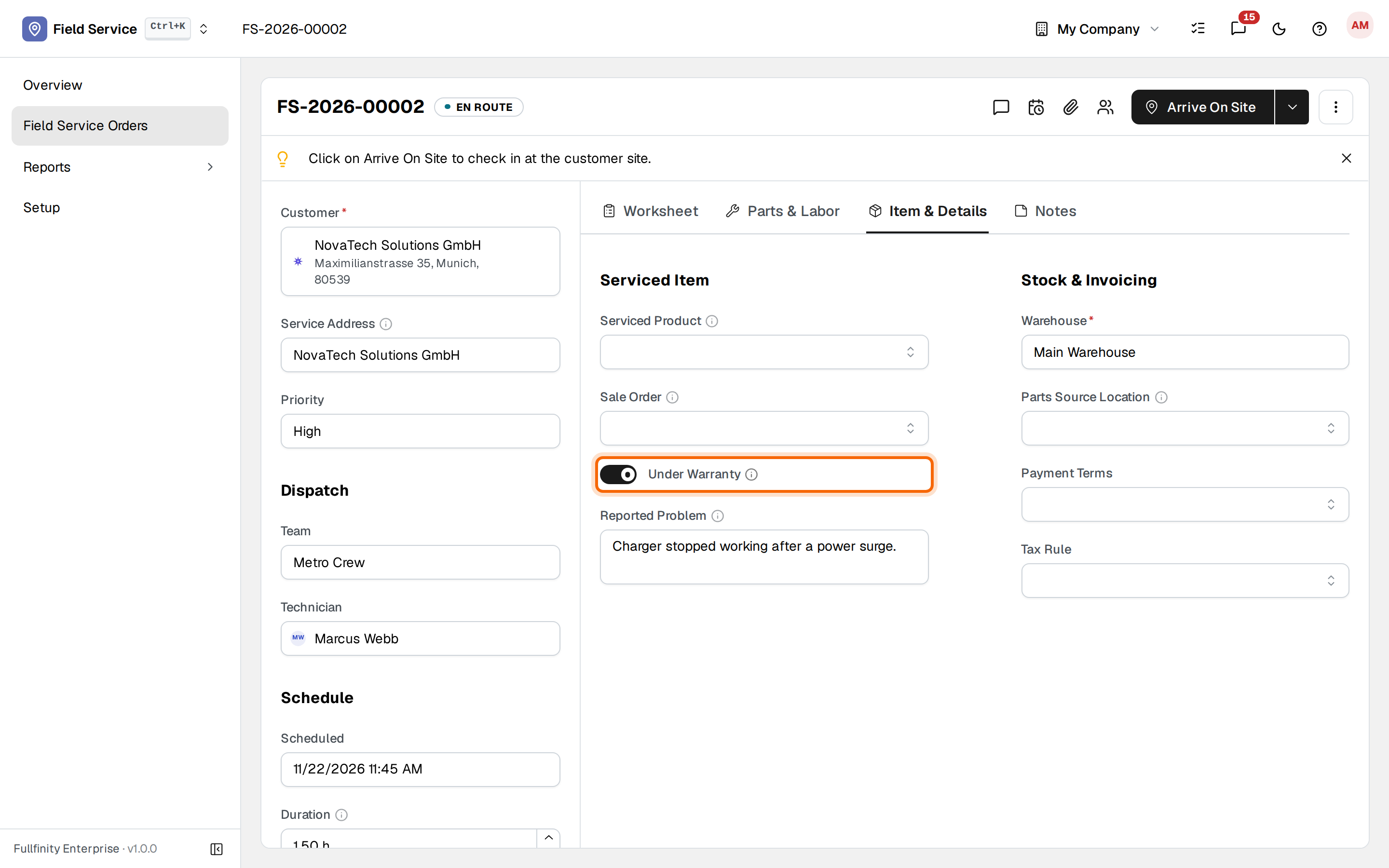
Warranty work
On the Item & Details tab, switch on Under Warranty. Every part and labor line — including the timer's — is then not billable. Tick Billable on any line the warranty doesn't cover.