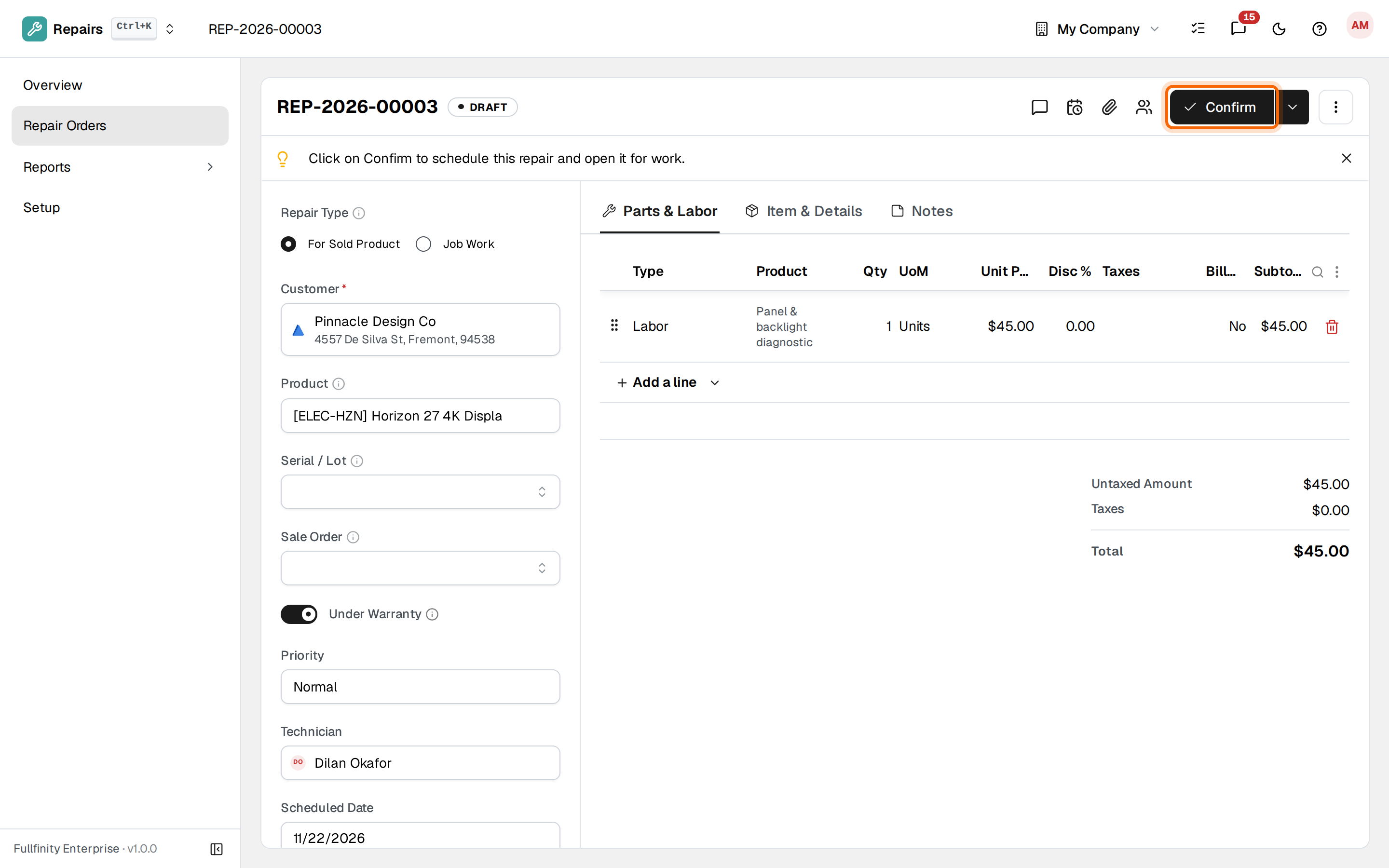
How do I log a repair order?
Record the customer, the item that came in and what is wrong with it, then confirm the repair so work can start.
Create a repair order when a customer brings in something to fix. It records whose item it is, what is wrong, who is working on it, and — as the work goes on — the parts and labor it takes.
Record the item
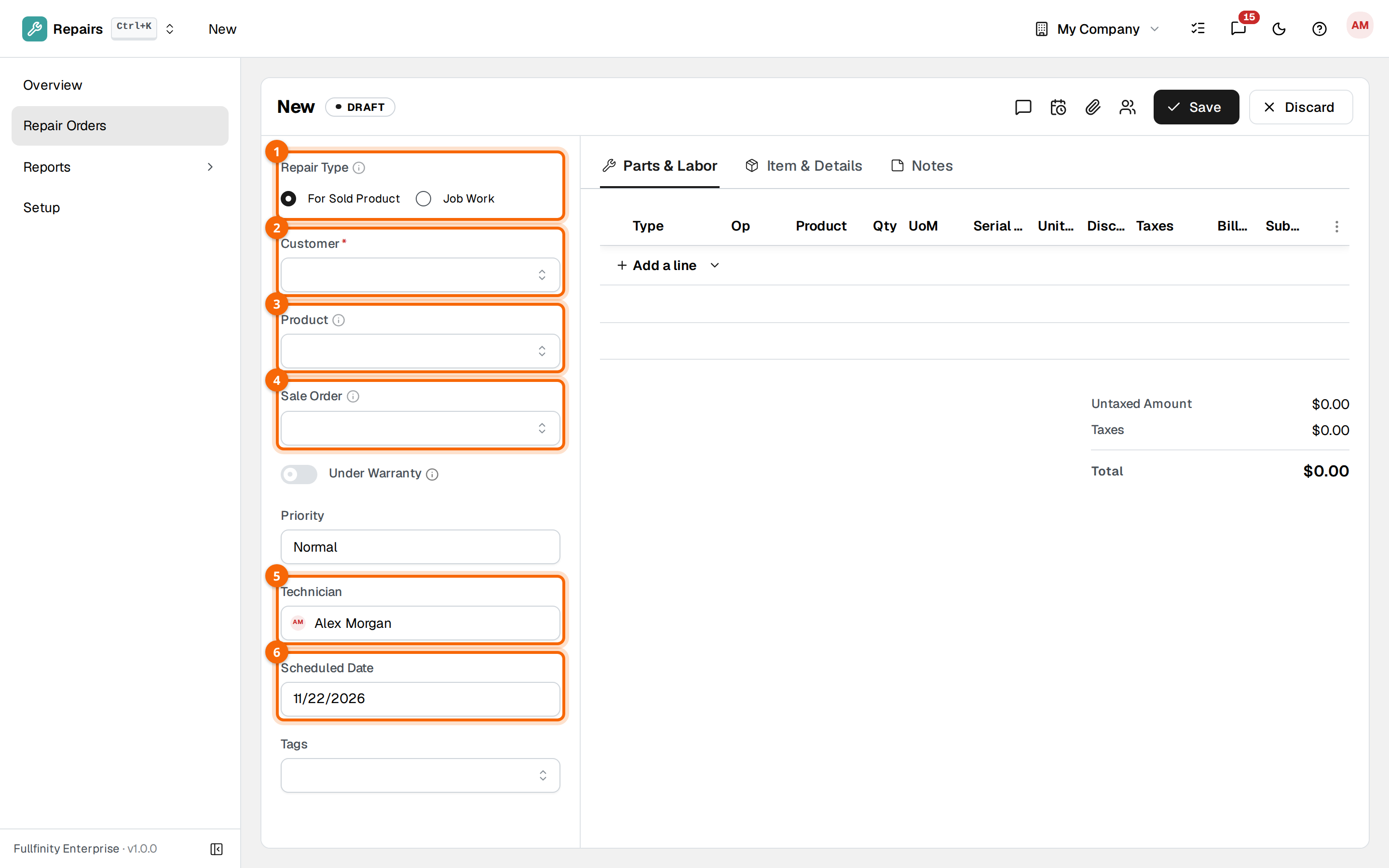
- Go to Repairs → Repair Orders and click New.
- Choose the Repair Type (1):
- For Sold Product — an item you sold. Choose the Product (3), and its Serial / Lot if you track serial numbers. Pick the Sale Order (4) it was sold on to keep the history together — View Sale Order then opens it from the repair.
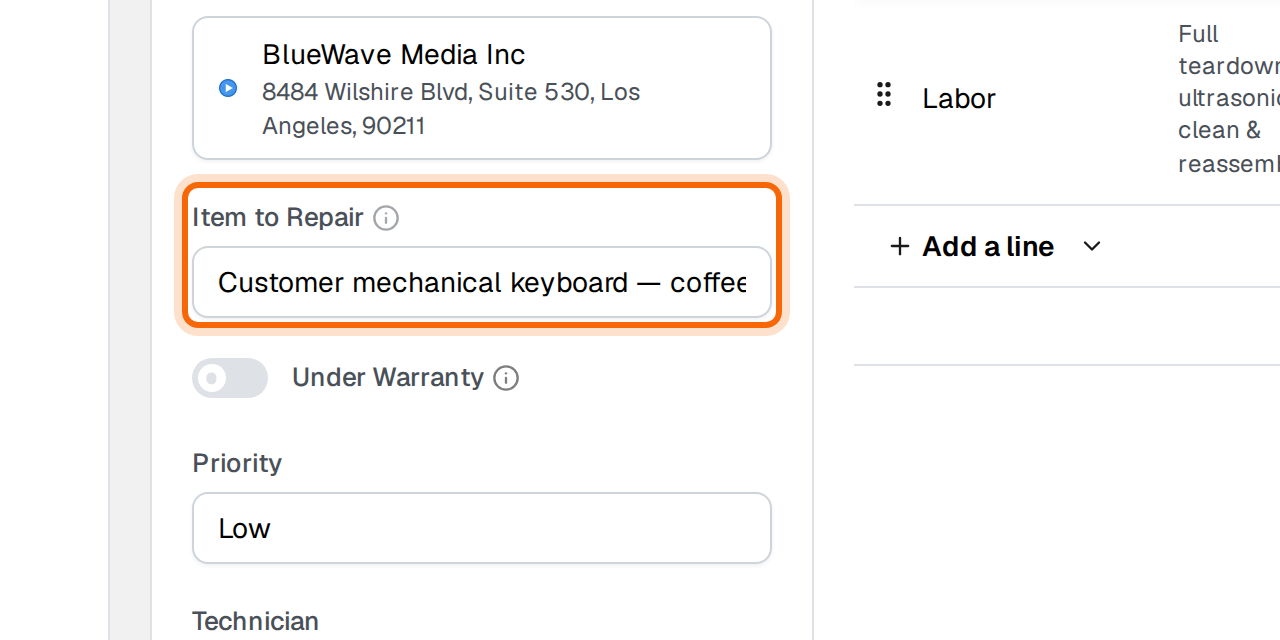
- Job Work — the customer's own item that you never sold. Describe it in Item to Repair, for example Customer laptop — no power.
- Choose the Customer (2).
- Set the Technician (5) who will do the work and the Scheduled Date (6) it is planned for. Set Priority to High or Urgent for a rush job.
A job-work repair names the item in words instead of picking a product:
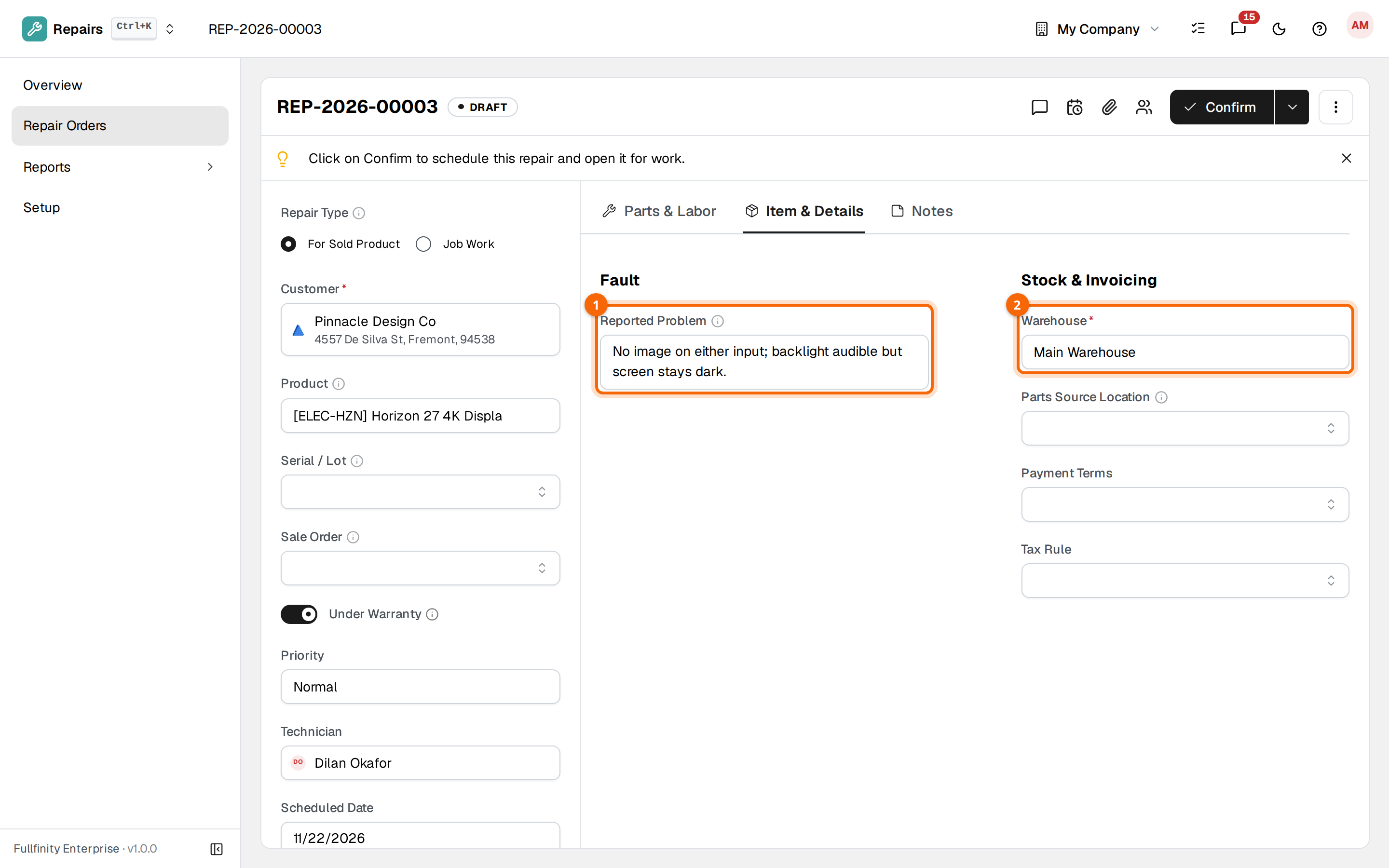
Describe the fault
On the Item & Details tab, write what the customer reports in Reported Problem. With more than one warehouse, the Warehouse and Parts Source Location here say where spare parts are taken from.
Confirm it
Click Save, then Confirm. The repair moves from Draft to Confirmed and waits for the technician to start it. A For Sold Product repair can't be confirmed without its Product, and a Job Work repair needs its Item to Repair.