How do I dispatch jobs on the board, calendar and map?
See every technician's day, move jobs between people and times by dragging, and follow the team on a map.
Open Field Service → Field Service Orders and use the view switcher at the top right to change how jobs are laid out.
The board
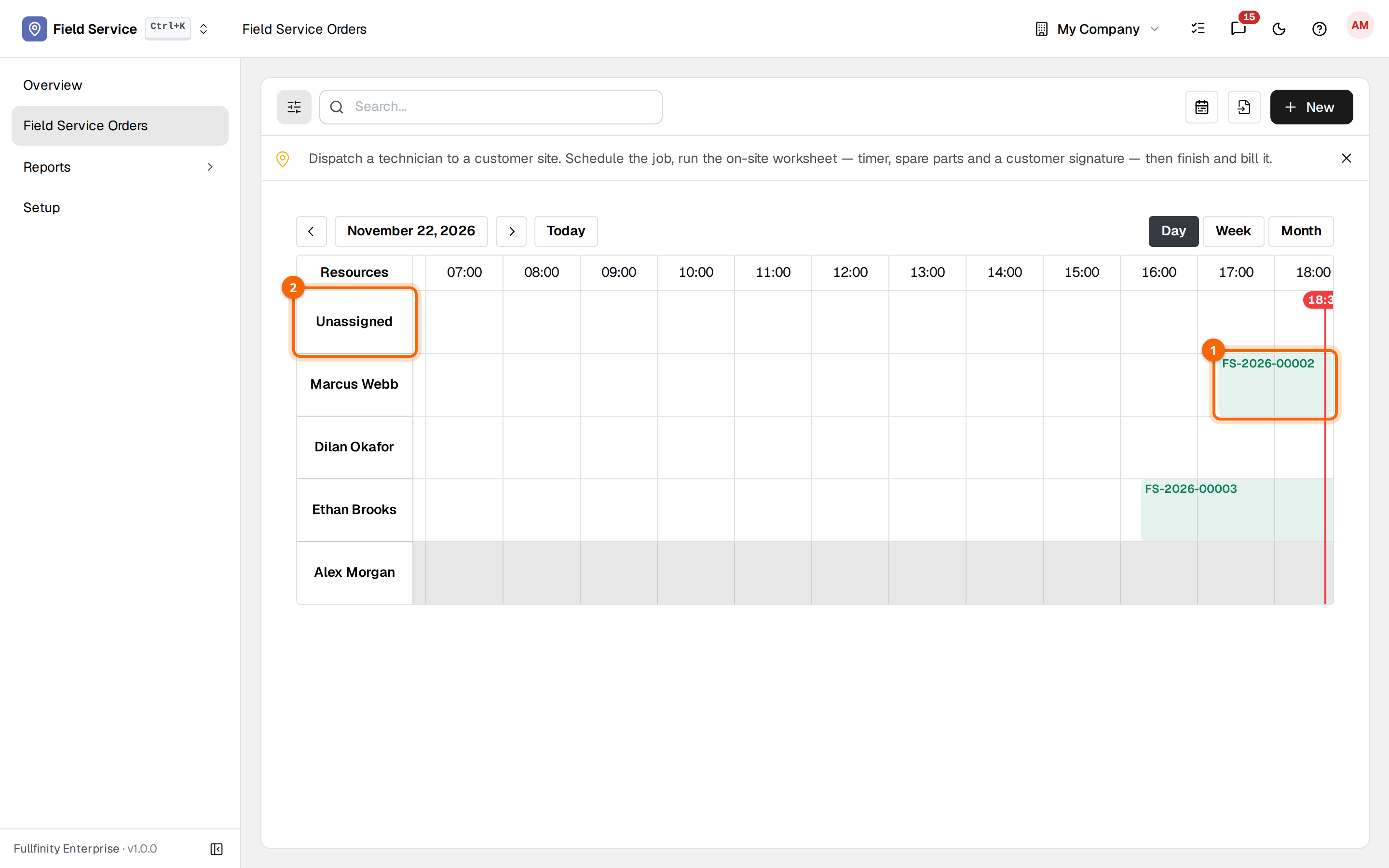
The Board view has one row per technician, plus Unassigned for jobs nobody has yet. Each job is a bar (1) as long as its duration. Days off, holidays, leave and hours outside a technician's work schedule are shaded.
- Drag a bar along its row to move the job to another time.
- Drag it onto another row to give it to that technician — or out of Unassigned (2) to dispatch it.
- Drag the end of a bar to change how long the job is expected to take.
Two jobs can't overlap on one technician's row. Use Day, Week and Month to change the span, and Today to come back to now.
The calendar
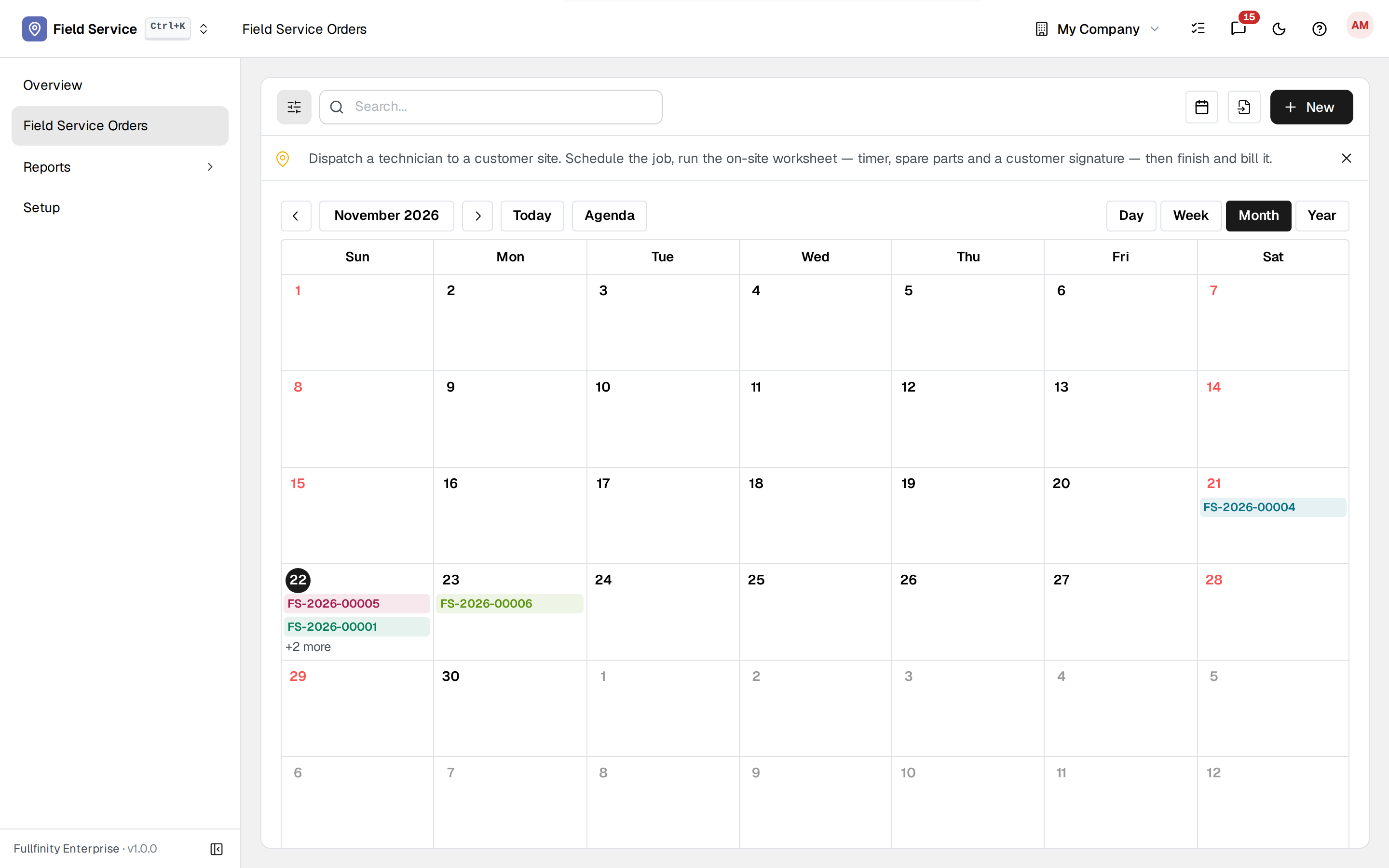
The Calendar view shows jobs by day, week or month. Click a job to see its customer, technician, priority and status.
The map
The Map view puts every job with a map position on a map, coloured by status — scheduled, on the way, on site, done. Click a pin to see who is going and when. Dispatch Map on the overview opens it too.
While a technician shares their live location from the On-Site app, their position moves on the map for everyone with Field Service access who has it open.