How do technicians work a job in the On-Site app?
The technician's phone or tablet app — get directions, check in, time the work, record parts, and have the customer sign.
The On-Site app is what technicians use in the field. It lists their scheduled jobs and walks them through each visit, and it keeps working without a signal: what they record is sent as soon as the connection is back.
Open a job
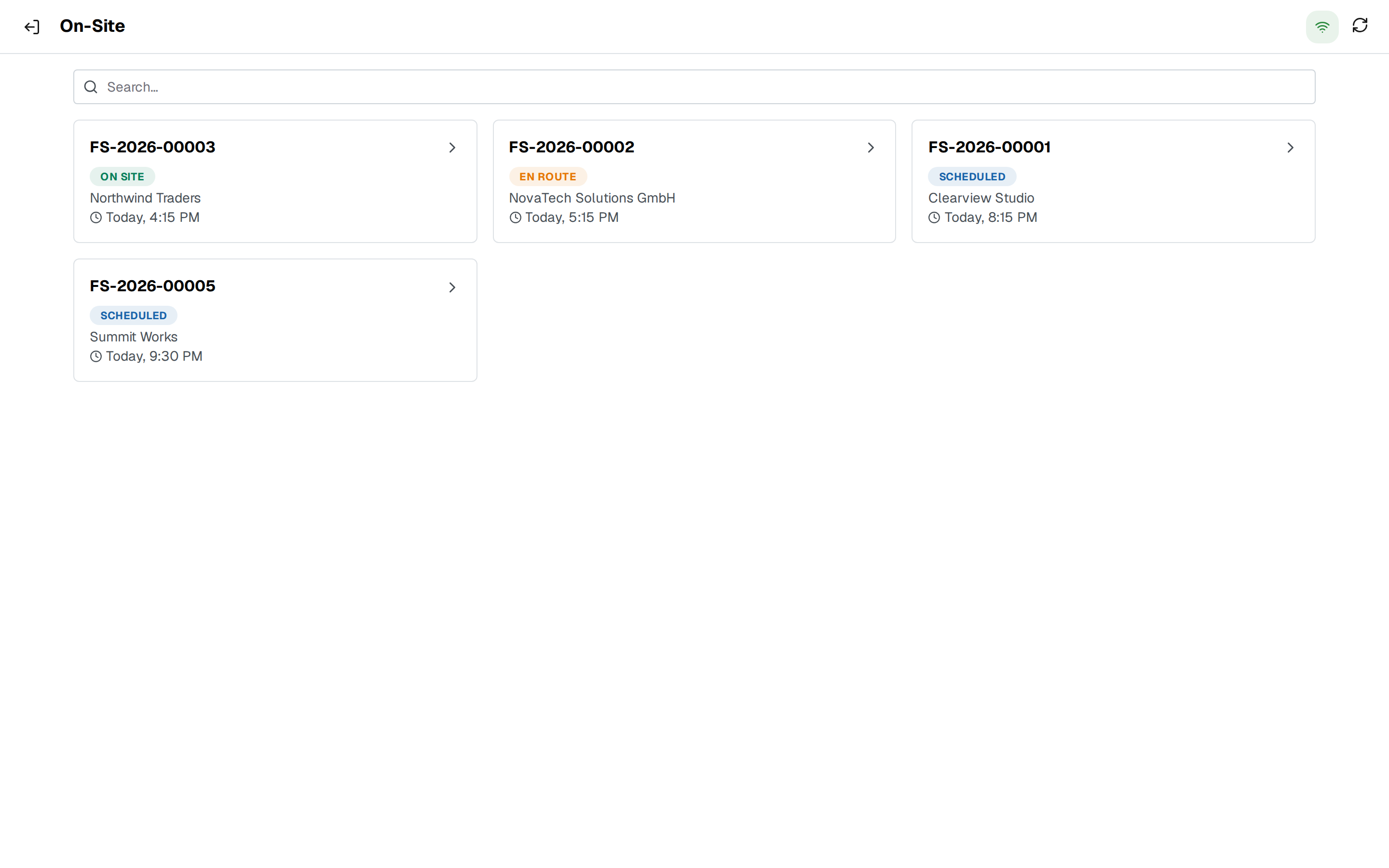
Open the On-Site app from the home screen. Each card is one of your open jobs with its status, customer and time; tap one to open it.
Travel to the site
- Read the Work Requested. Tap Directions (1) to open the route in your maps app.
- Tap Start Driving (2) as you leave. The job shows as En Route to the office.
- On arrival, tap Arrive On Site. Both taps record where and when you were, if your device shares its location.
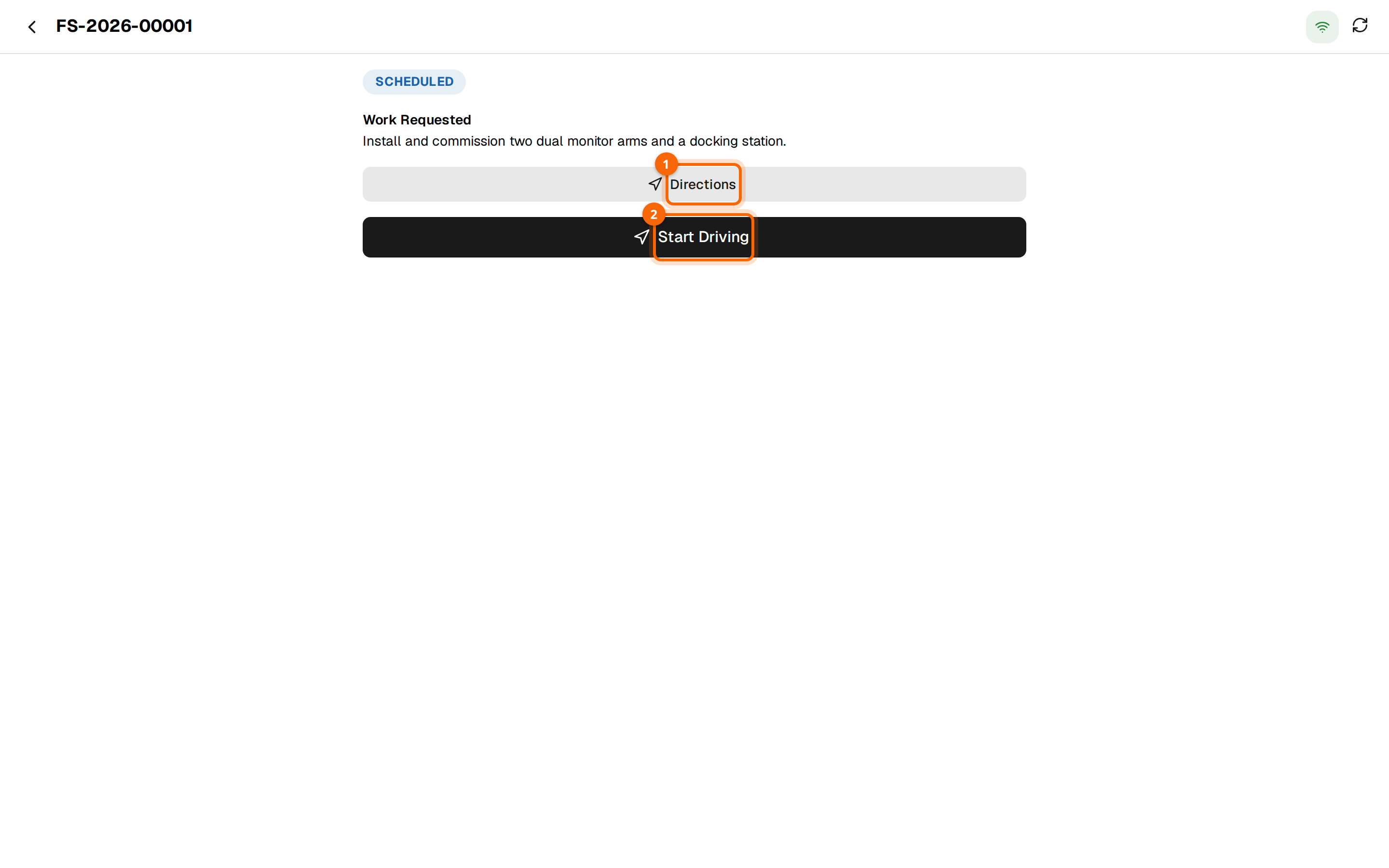
Tap Share Live Location to let the office follow you on the map for a while; it stops by itself after the time set in the settings.
Do the work
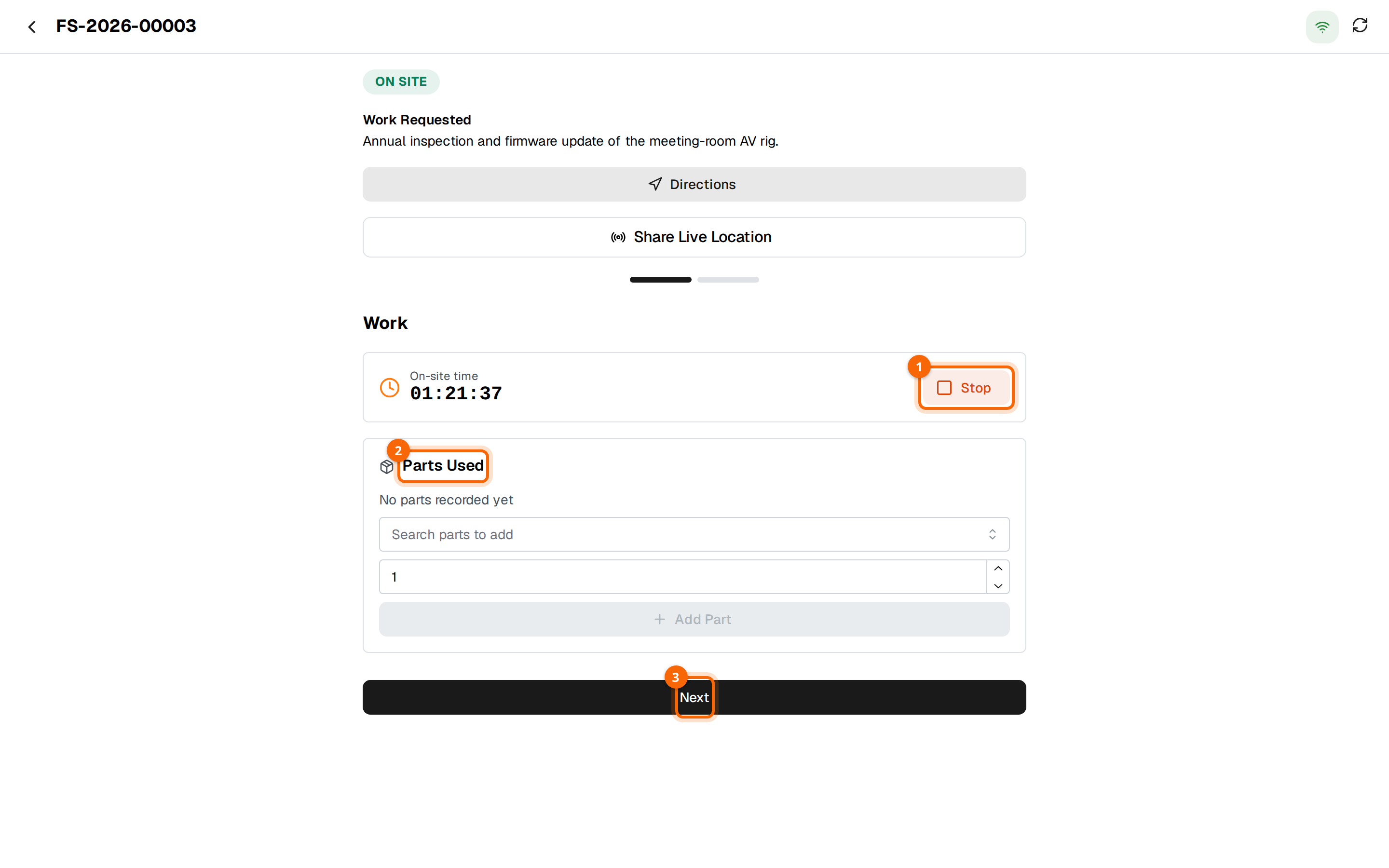
- Start the on-site timer when you begin and tap Stop (1) when you finish. The time becomes a labor line on the job.
- Under Parts Used (2), search for each part you fit, choose its lot or serial number if it has one, enter the quantity and tap Add Part.
- Tap Next (3).
Sign off
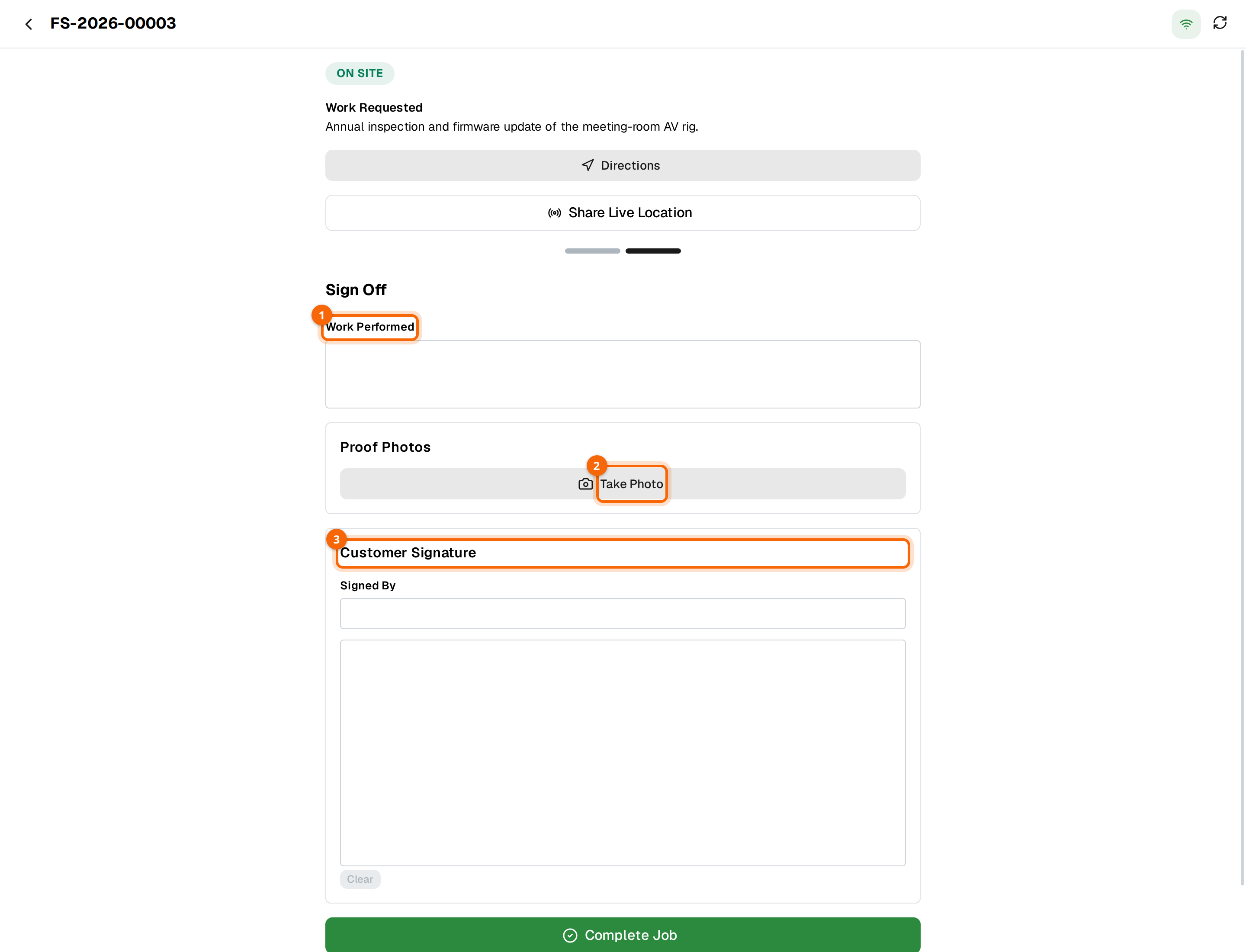
- Describe what you did under Work Performed (1).
- Tap Take Photo (2) to add proof photos of the finished work.
- Have the customer type their name in Signed By and sign under Customer Signature (3).
- Tap Complete Job. The parts are taken from stock and the job is Done.
Related: How do I use Fullfinity on my phone?
Was this article helpful?