How do I create and schedule a field service job?
Record where the work is and what needs doing, assign a technician and a time, and put the job on the schedule.
A field service job is one visit to a customer's site.
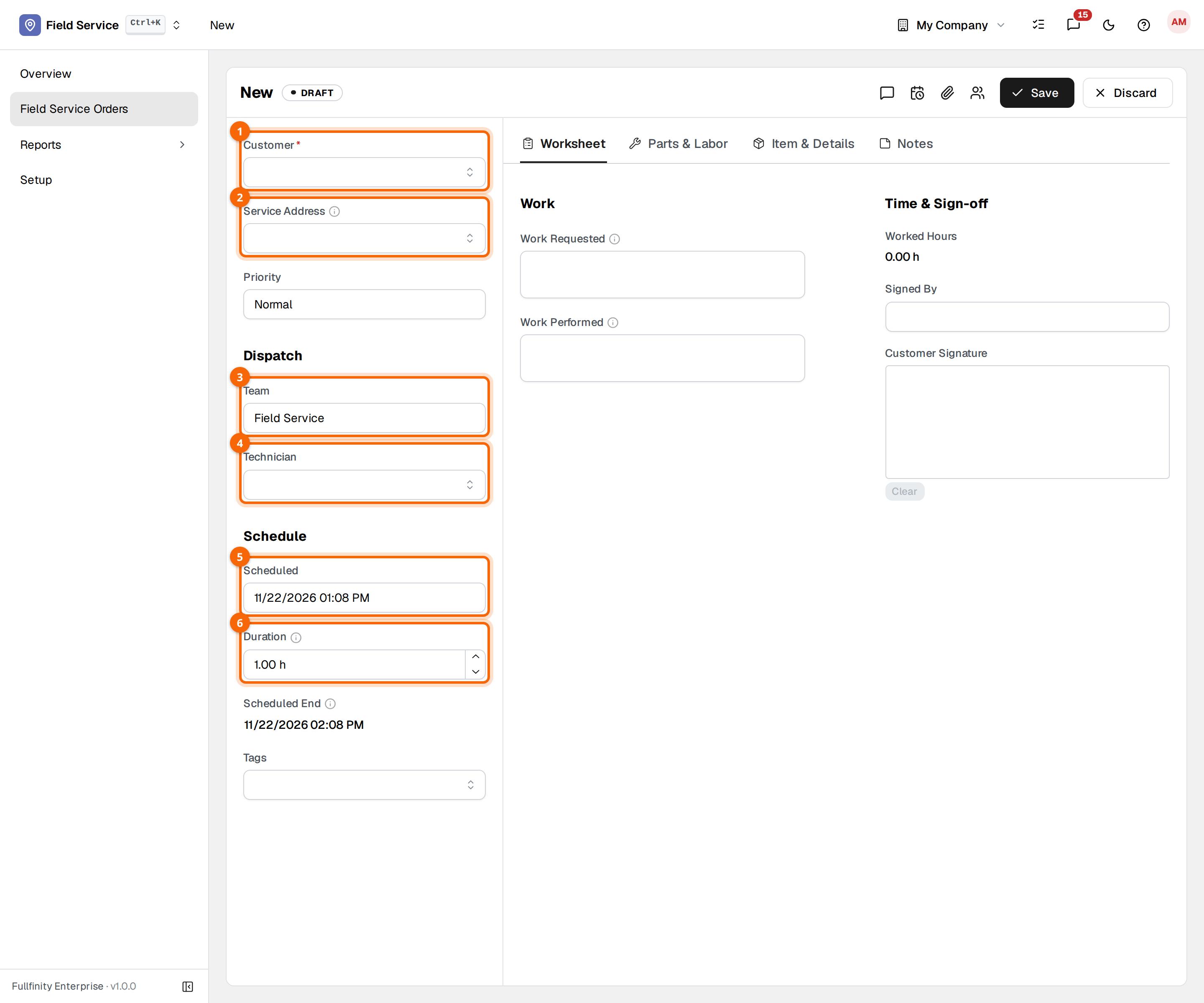
- Go to Field Service → Field Service Orders and click New.
- Choose the Customer (1). The Service Address (2) — where the technician goes — fills in with the customer's address; choose another of their addresses if the work is elsewhere.
- Under Dispatch, the Team (3) comes from your settings. Choose the Technician (4).
- Under Schedule, set when the visit is Scheduled (5) and its Duration (6) in hours. The Scheduled End follows from the two.
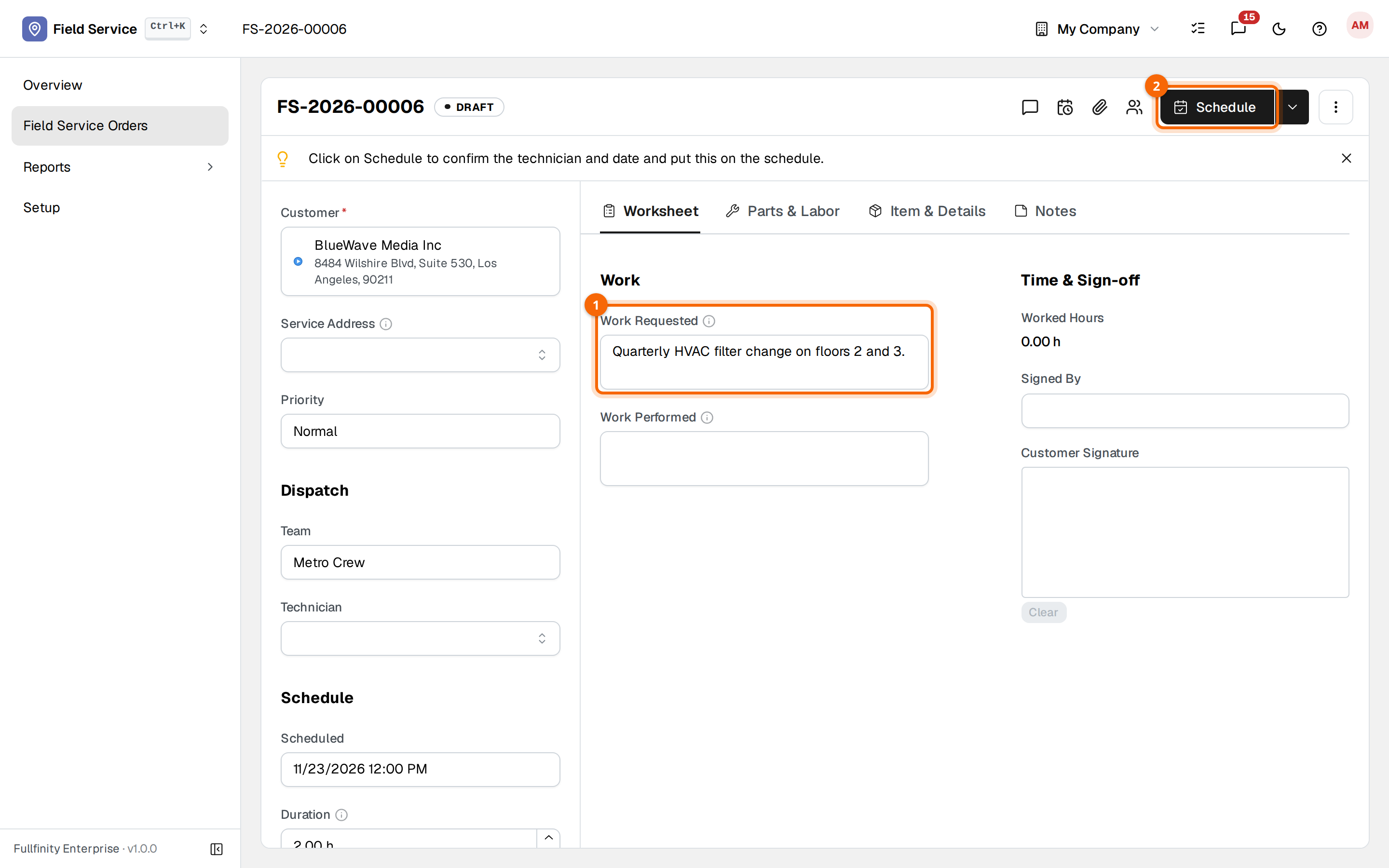
- On the Worksheet tab, describe the Work Requested — the technician reads it on site. If the job is about something you sold, choose it as the Serviced Product on the Item & Details tab, with the Sale Order it came from (View Sale Order opens it).
- Click Save.
Put it on the schedule
A new job is a Draft. Click Schedule to confirm the technician and time: the job moves to Scheduled and appears in that technician's On-Site app. A job needs a Technician and a Scheduled time before it can be scheduled.
Related: How do I dispatch jobs on the board, calendar and map?
Was this article helpful?