How do I replace a file and see its earlier versions?
Upload a new version of a document without losing the old one, and download any earlier version.
When a document changes — a contract is revised, a policy is updated — upload the new file onto the same document. The old file is kept as an earlier version; nothing is overwritten.
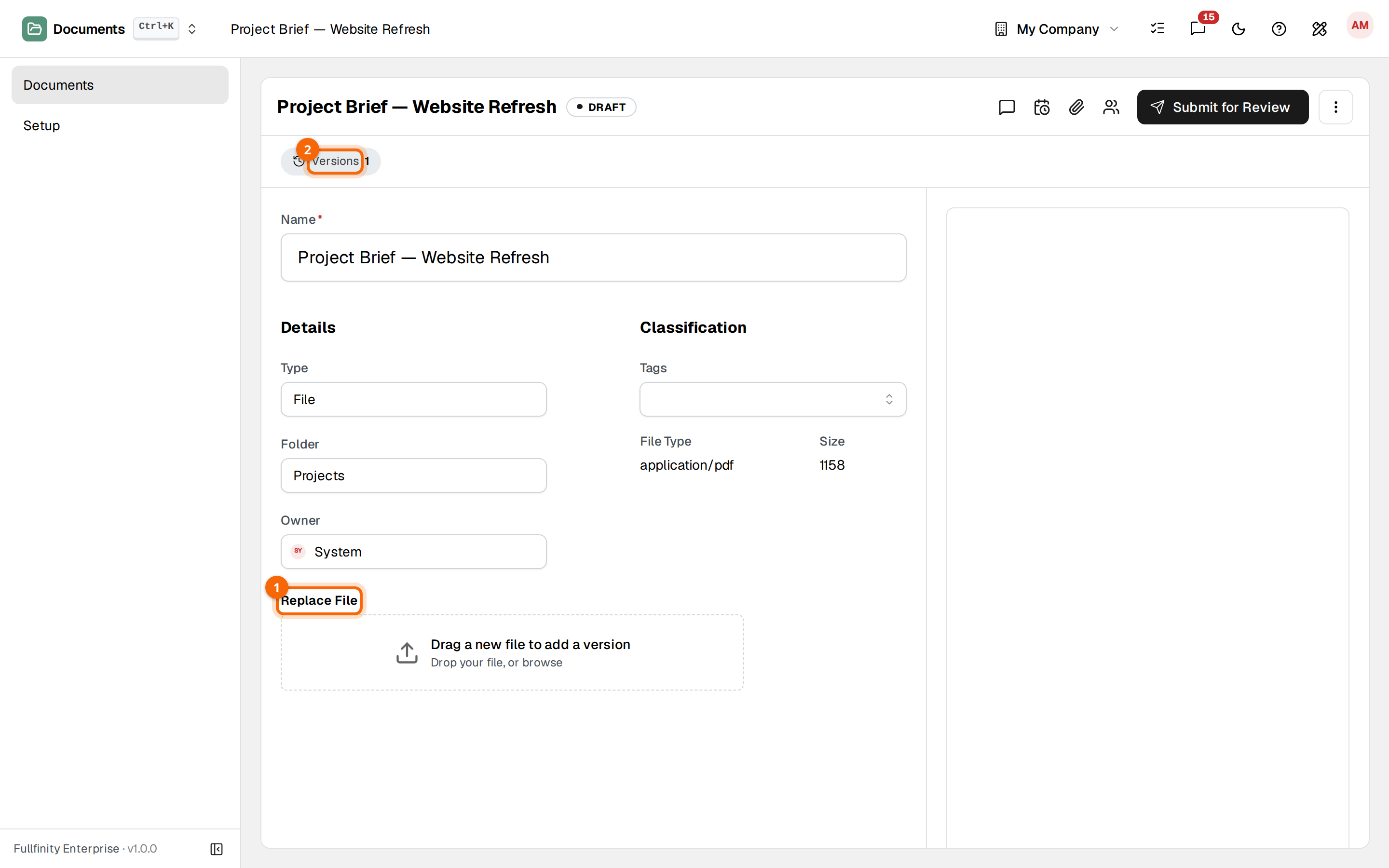
Upload a new version
- Open the document.
- Drop the new file onto Replace File (or click it and choose the file).
- The new file becomes the current one: the preview, the size and the download all switch to it.
See and download earlier versions
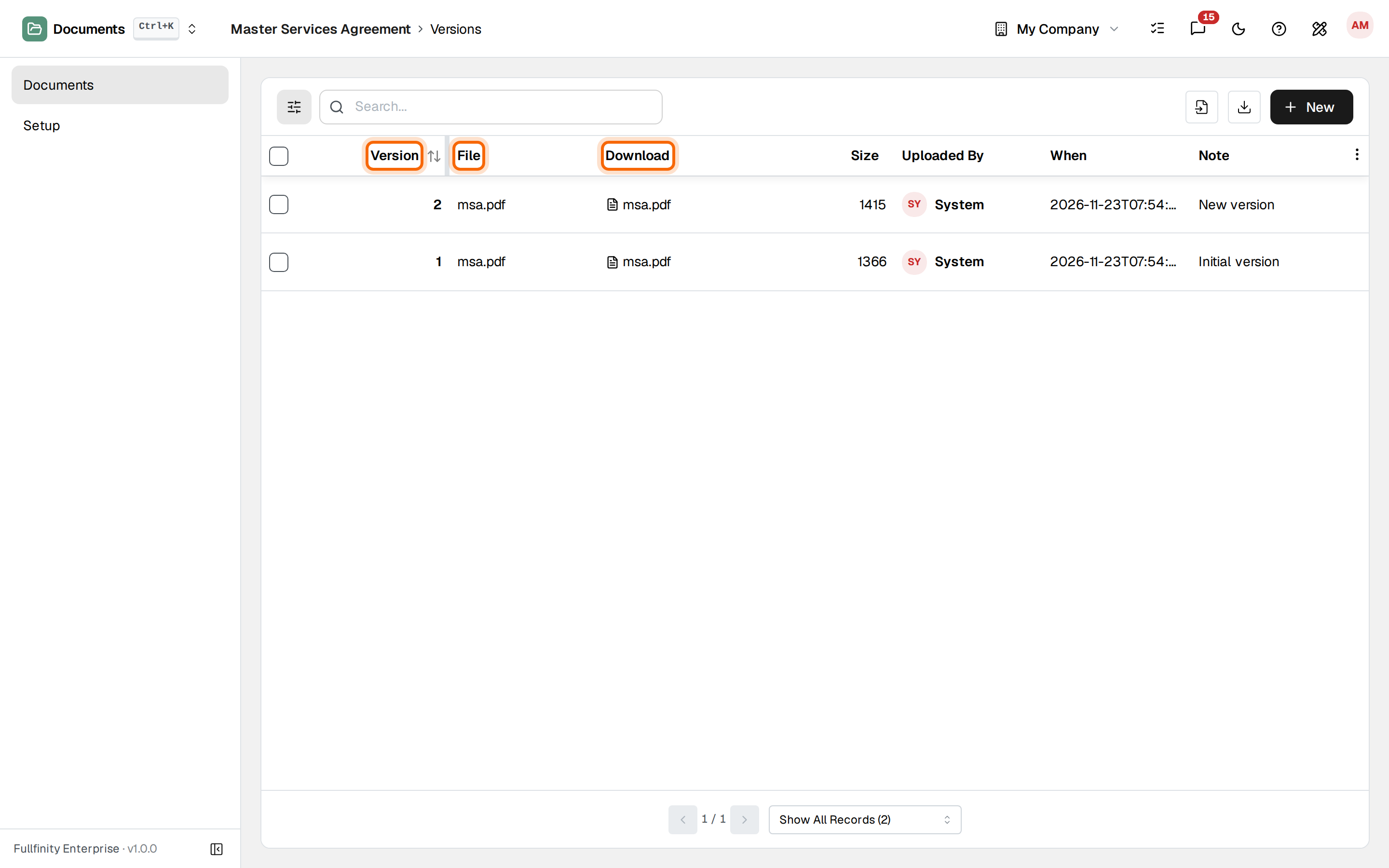
Click Versions at the top of the document. The list shows every version, newest first:
| Column | What it shows |
|---|---|
| Version | 1 for the first upload, then 2, 3 … |
| File | The file's name at the time. |
| Download | That version's file — click to save it. |
| Uploaded By and When | Who uploaded it, and when. |
Versions can't be edited. Only a Documents manager can delete one.
Was this article helpful?