How do I set up folders, access, tags and retention?
Restrict a folder to certain groups, share it with customers in their portal, tag its documents automatically, archive old documents, and set the upload size limit.
Folders decide who sees a document, which tags it gets and how long it stays. Documents managers set them up.
Folder settings
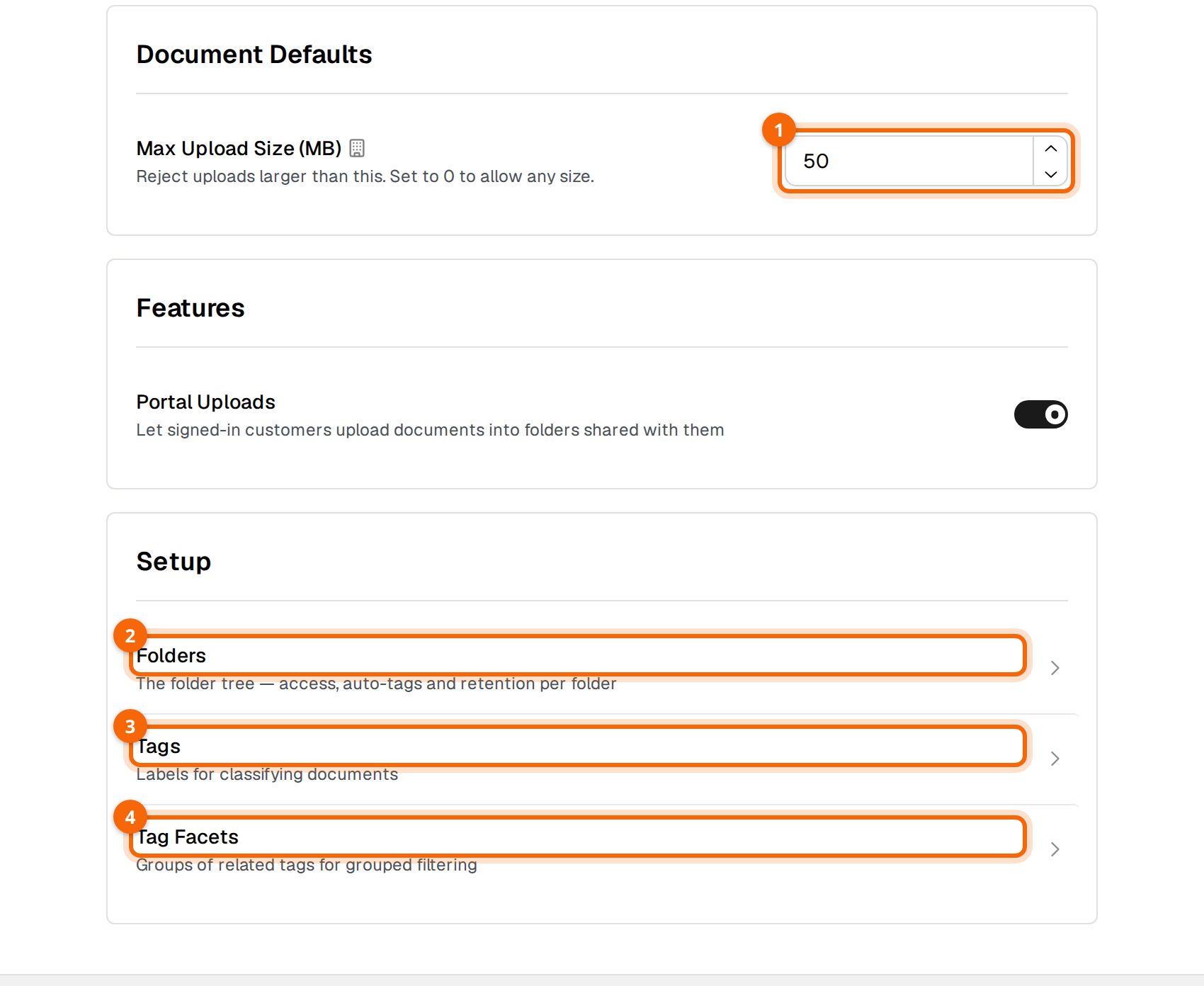
Go to Documents → Setup and click Folders, then open a folder (or click New).
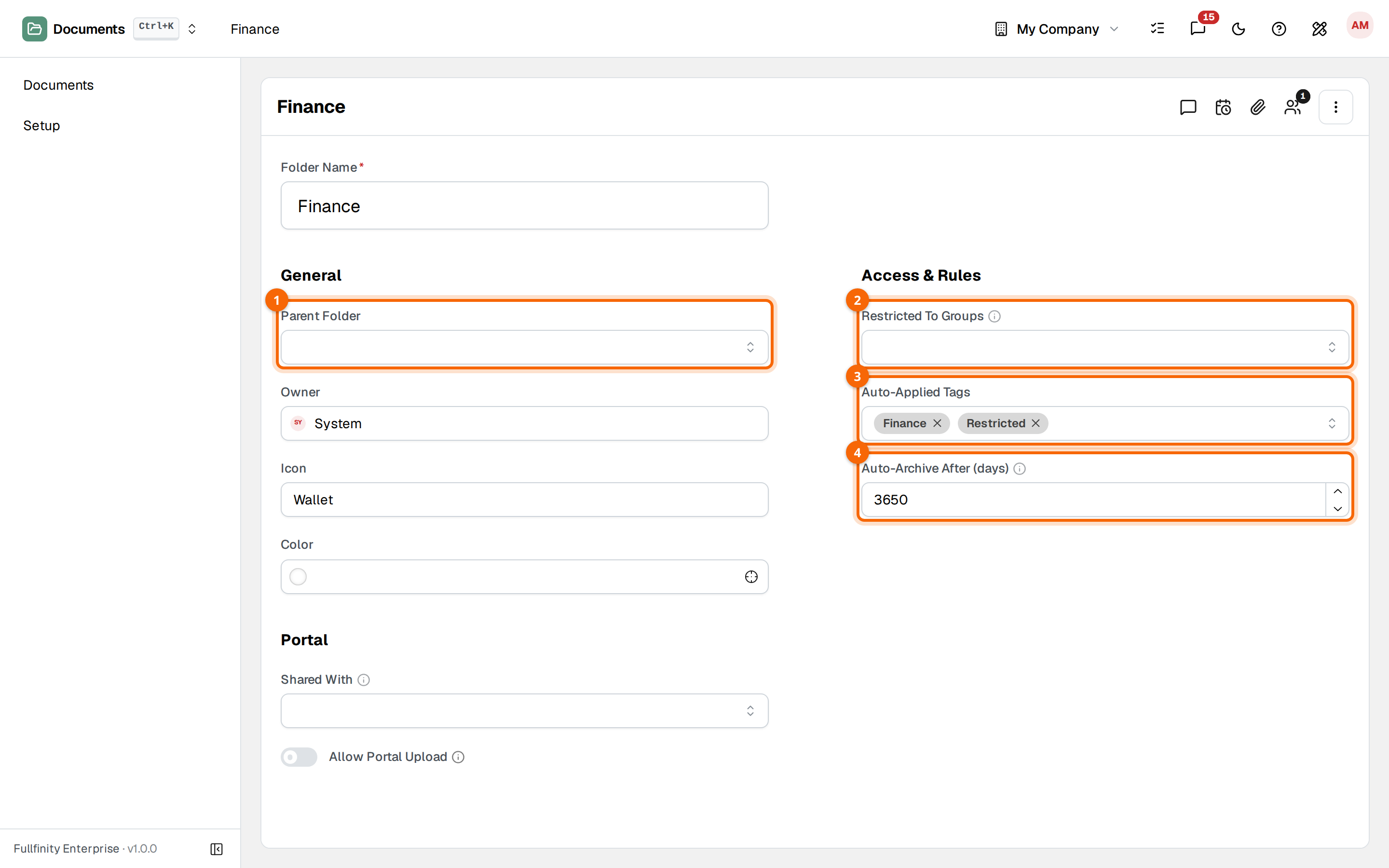
- Parent Folder — the folder it sits in. Leave it empty for a top-level folder.
- Restricted To Groups — only members of these groups see the folder and its documents. Leave it empty and every Documents user sees it.
- Auto-Applied Tags — added to every document uploaded into the folder.
- Auto-Archive After (days) — a document nobody has changed for this many days is archived automatically, once a day. 0 keeps documents forever. An archived document is not deleted: switch the list's filter to show archived records to find it and restore it.
Icon and Color change how the folder looks in the tree.
Share a folder with customers
In the folder's Portal section, choose the customer or vendor in Shared With. They see the folder under Shared Folders in their portal and can download its files and open its links. Sharing with a company shares the folder with everyone at that company. A folder is shared with one customer: give each customer their own folder. Subfolders are not shared along with it: share each one you want them to see.
To let them send files back, turn on Allow Portal Upload on the folder and Portal Uploads under Features in Documents → Setup. Both must be on. The folder's page in the portal then has an Upload button. An uploaded file lands in the folder as a new document, with a note saying who uploaded it. Files over Max Upload Size (MB) are refused.
Tags and tag facets
In Documents → Setup, Tags lists the labels you can put on documents, each with a colour. Tag Facets groups them — Department, Confidentiality — and the browser shows each facet as its own group under the folder tree.
Upload size limit
Max Upload Size (MB) on the same Setup screen refuses any file larger than this. Set it to 0 to allow any size.