How do I find my way around Documents?
Browse documents by folder and tag, preview and download them, and search inside their text.
Documents is where your company keeps its files: contracts, policies, reports, scans. Each file lives in a folder, can carry tags, keeps every earlier version, and goes through a short review before it is final.
The document browser
Go to Documents → Documents. The screen has three parts:
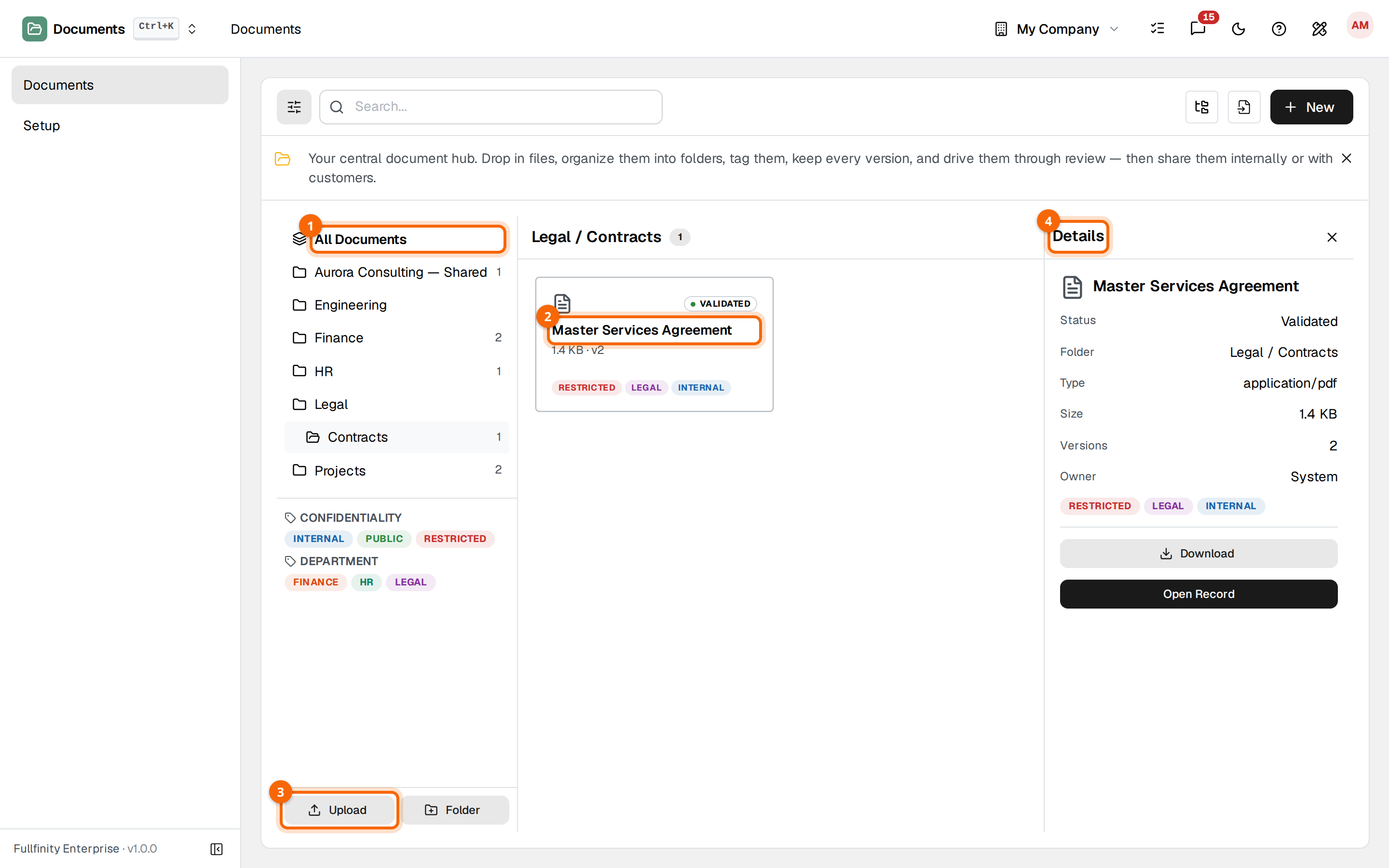
- All Documents and the folder tree on the left. Click a folder to see what is in it; folders can sit inside folders. Below the tree, tags are grouped (for example Confidentiality and Department) — click one to show only the documents that carry it.
- The documents themselves, as cards. Each shows its type, name, tags and status.
- Upload and Folder — see How do I upload and organize documents?
- Click a card to open its Details beside the grid: Preview shows a PDF or image without leaving the page, Download saves the file, Open Link opens a link document, and Open Record opens the full document — its versions, review and discussion.
The view switcher at the top right turns the browser into a plain list, which is handy for sorting by size, owner or status.
Find a document
Type in the search bar to look for a name. To look inside files, choose Content from the search suggestions: it finds PDFs and text files that contain the words you typed. A scanned PDF that is only a picture of a page has no text to search.
The filters My Documents, In Review and Validated narrow the list, and you can group it by Folder or Status.
Who sees what: Documents users see every document of their companies, except documents in folders that are restricted to certain groups. See How do I set up folders, access, tags and retention?