How do I send a campaign to filtered records, such as leads?
Send to every record that matches a filter instead of a list, and tag the leads a campaign reaches with its UTM source.
Instead of an audience list, a campaign can go to records that match a filter — contacts in one country, CRM leads at a certain stage. The match is worked out when the campaign is sent.
1. Choose the records
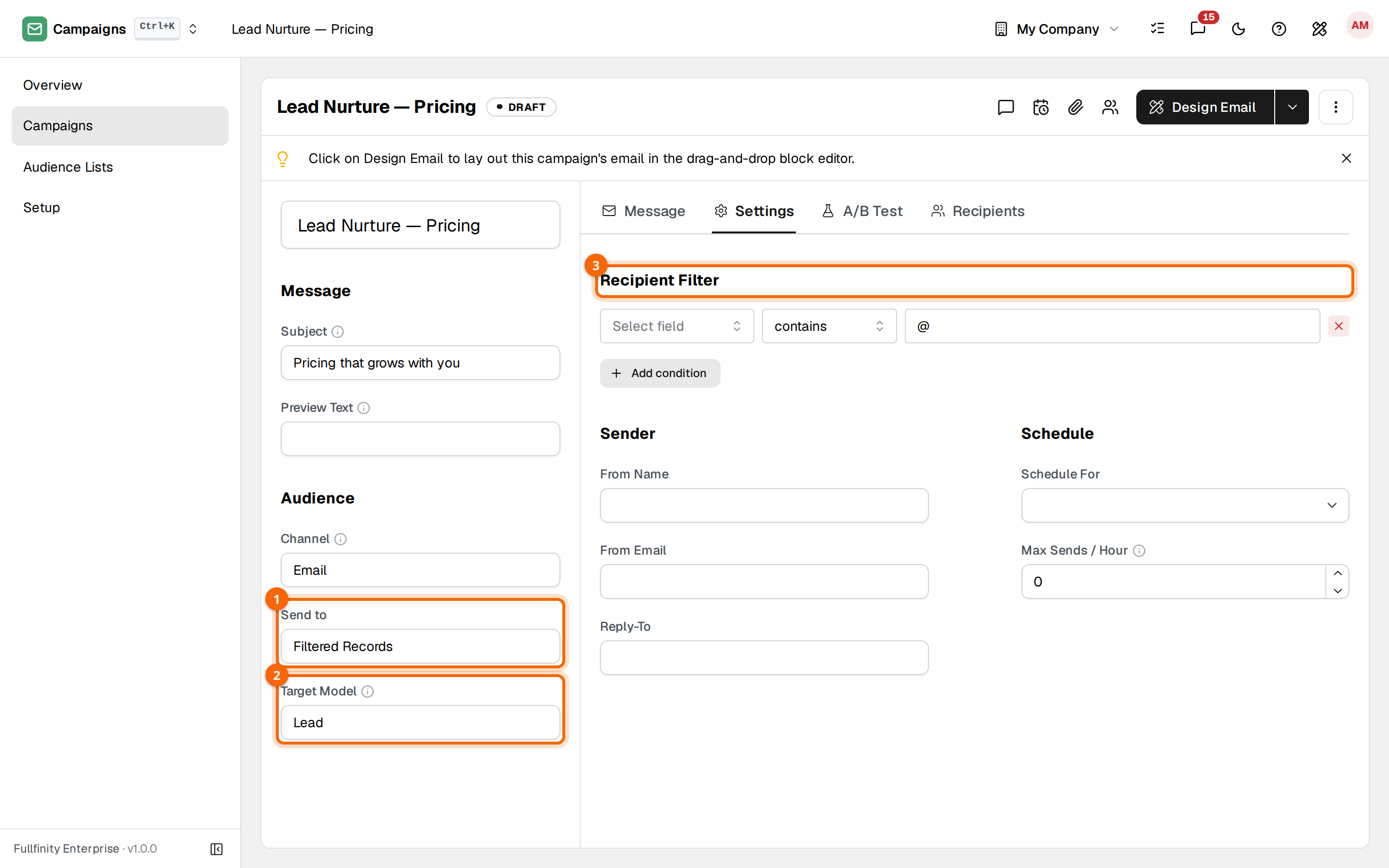
- Set Send to to Filtered Records.
- Target Model — what you send to: Contact unless you change it, or for example Lead.
- Open the Settings tab and build the Recipient Filter: add conditions such as Country is Germany. Leave it empty to send to every record of that kind.
An email campaign goes to each record's own email address, or that of its contact; a lead uses its email. Suppressed addresses and duplicates are skipped exactly as for lists — but a filter doesn't check list consent, so only filter on people you may email.
2. Tag the leads it reaches (with CRM)
With the CRM app installed, the campaign's Message tab has an Attribution (UTM) section:
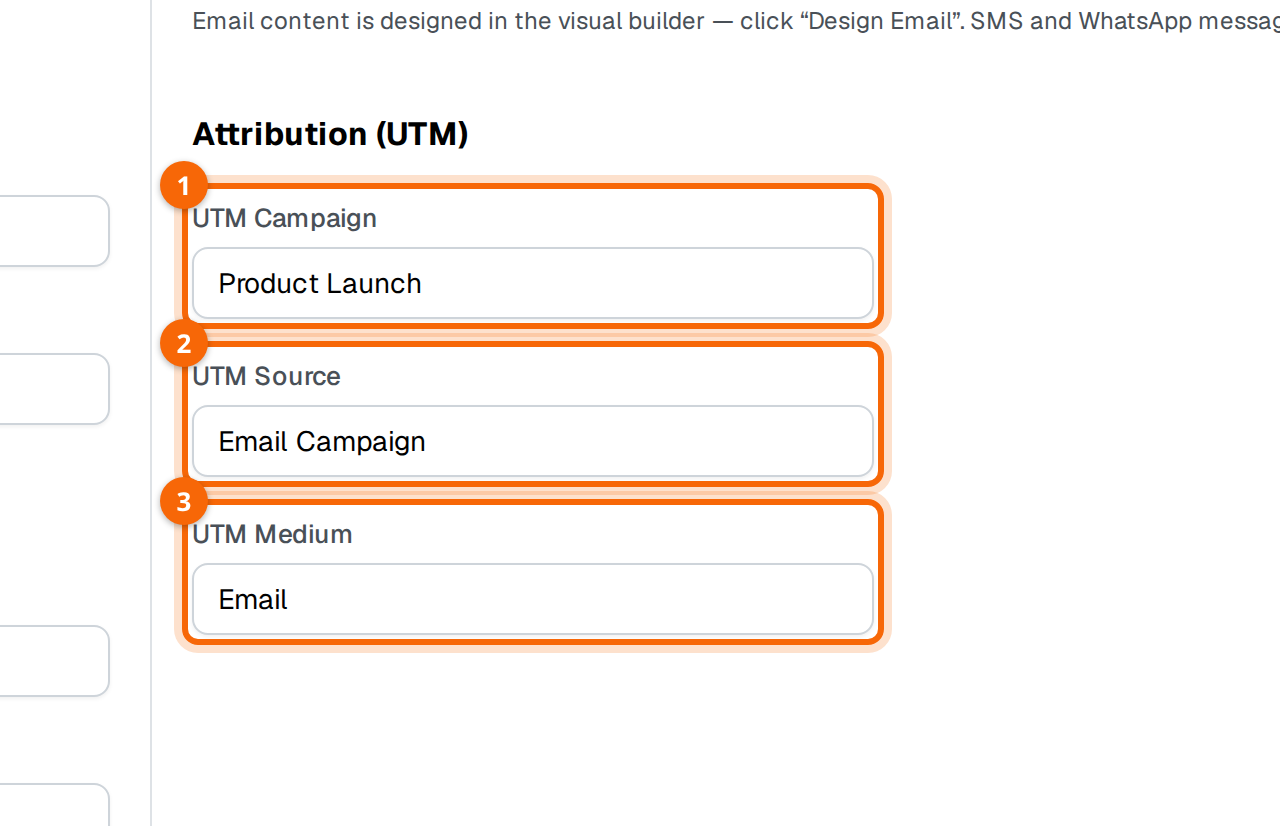
- UTM Campaign
- UTM Source
- UTM Medium
When a campaign sent to leads reaches a lead, these are written onto the lead — unless the lead already has its own — so you can see which campaign each lead came through.
Tracked links
For a link you share outside an email (on social media, a printed flyer), go to Campaigns → Setup and click Tracked Links. A tracked link has a Destination URL, a UTM Campaign, UTM Source and UTM Medium, and a Short Code: share your site address followed by /r/ and the code. Each visit counts in Clicks and lands on the destination with the UTM tags added. UTM Mediums, next to it, holds the mediums you choose from.