How do I create a new kind of record?
Create a model of your own — its fields, its menu and its screens — in one wizard.
When you need to track something Fullfinity has no app for — equipment loans, site inspections, member cards — create your own kind of record (a model). The wizard sets up its fields, a menu and screens in one go.
Click Builder → Open Builder… → Customize a screen, then Create New Model. The wizard has four steps:
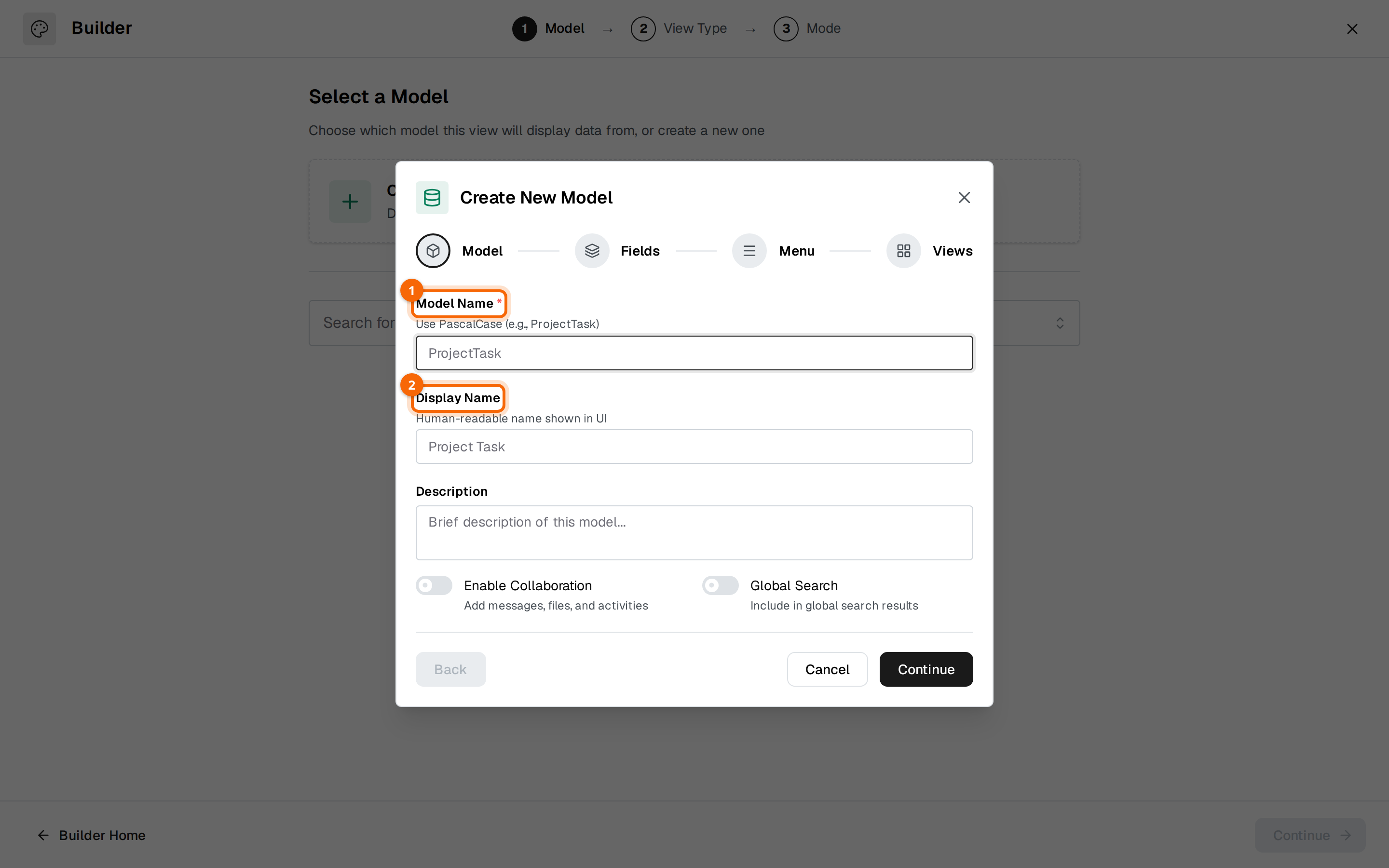
- Model — Model Name is the internal name, one word starting with a capital letter (EquipmentLoan). Display Name is what people see (Equipment Loan). Enable Collaboration gives each record a discussion and activities underneath; Global Search makes the records findable from the search at the top.
- Fields — a name field is already there. Add Field for each piece of information, with its Label, Type and whether it is Required. Each field name must be unique, a link field needs its Related Model, and a Selection field needs its options, entered in the Related Model / Options column. The date it was created and last changed are added by themselves.
- Menu — the Parent Menu to put it under, or none to make it an app of its own on the home screen, with a Menu Icon and Menu Color.
- Views — the screens to create: List View, Form View and Search View, plus the Window Action and Menu Item that open them. Leave them all ticked unless you know you want to build them yourself.
Click Create Model. The new menu appears straight away. Administrators and internal users get full access to the records — change that with Access Rights.
To remove a model you created, open its Manage Model window, go to Settings → Danger Zone → Delete Model. This deletes every record of it and can't be undone.
Was this article helpful?