How do I create a new screen for a kind of record?
Build a new form, list, board, calendar or chart from a blank canvas, and manage a record's screens.
Besides changing a standard screen, you can build an extra one from scratch — a second, simpler form, a calendar of a date field, a chart.
- Click Builder → Open Builder… → Customize a screen.
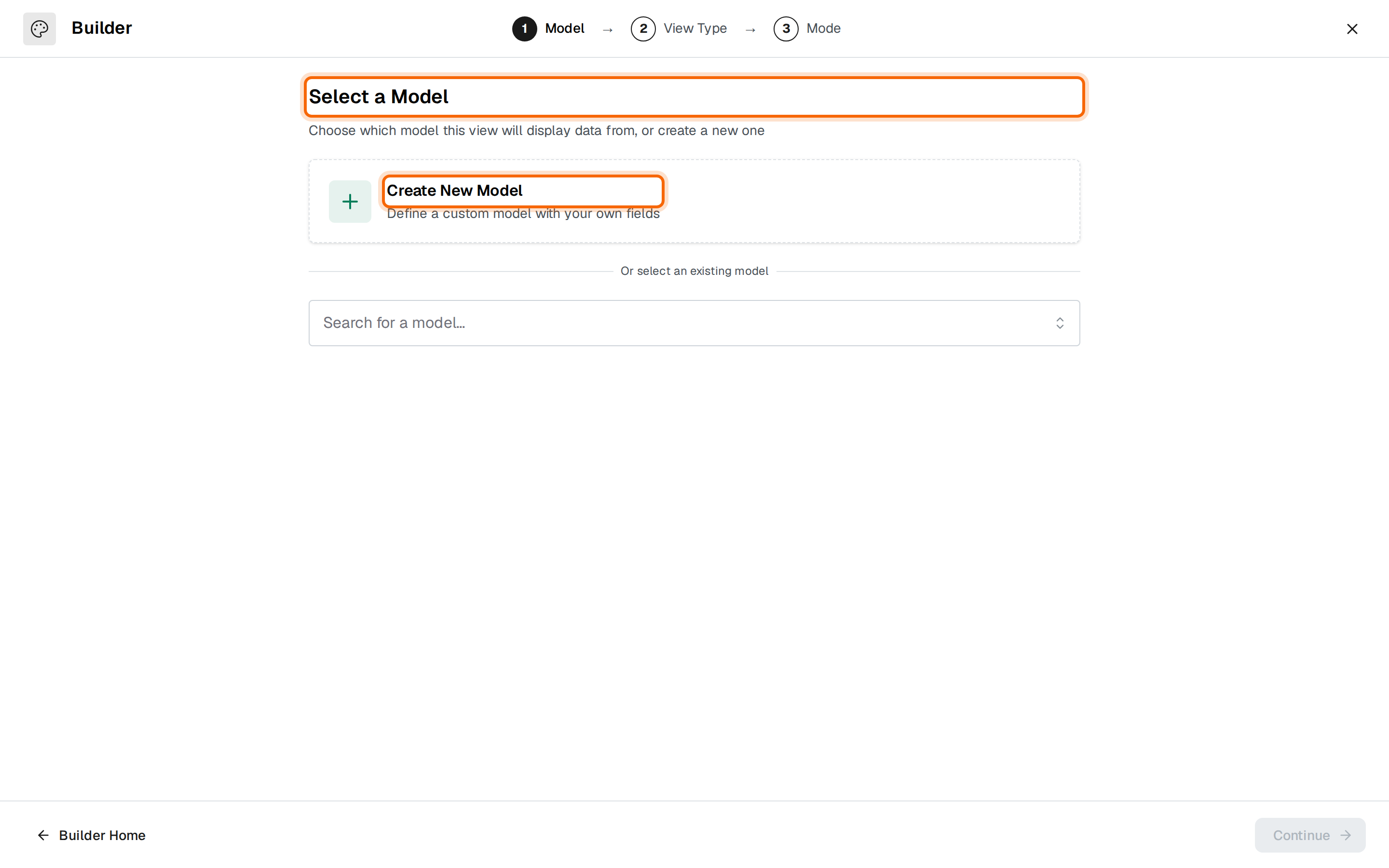
- Select a Model — search for the kind of record and pick it.
- Choose View Type: Form, List, Kanban, Search, Calendar, Chart or Pivot.
- Create or Extend? — choose Create New, and click Start Building.
- Drag fields and layout blocks onto the empty canvas, then click Save. Give the screen a View Name and save it.
A new screen is shown wherever an action or menu uses it — add one in How do I add menus and actions?
See all of a record's screens
On the Choose View Type step, Manage Views opens the View Manager: every screen of that kind of record, marked Custom (made in the Builder) or Inherited (a layer of changes on a standard screen). Edit in Builder opens one; Delete view removes one you made. The product's own screens can't be deleted.
Was this article helpful?