How do I break a task into sub-tasks?
Split a large task into smaller ones under it, each with its own person, dates and stage.
When a task is too big for one person or one sitting, split it into sub-tasks. Each sub-task is a full task — its own assignee, dates, stage and timesheets — that stays linked to its parent.
Add sub-tasks to a task
- Open the task and click the Sub-tasks button at the top. It shows how many it already has.
- The board that opens lists only this task's sub-tasks. Click New: the new task is already under this one, in the same project.
- Name it, assign it and click Save.
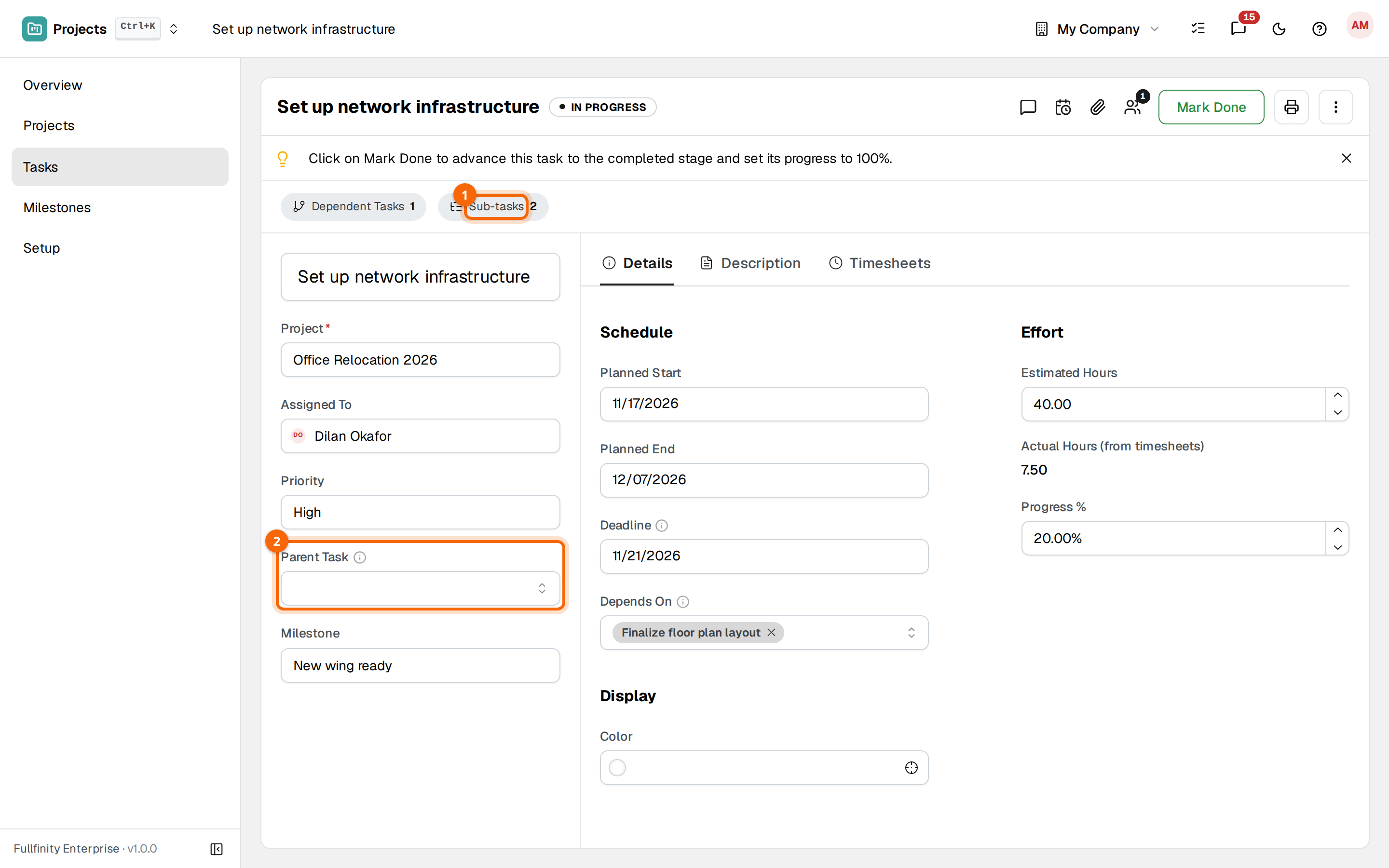
You can also turn an existing task into a sub-task: open it and pick the task it belongs under in Parent Task. Only tasks of the same project are offered.
See the whole picture
On the task list, group by Parent Task to see each task with its sub-tasks underneath.
Was this article helpful?