How do I create a board?
Create a board, choose who can see it, and open it.
A board is a place for any work you want to see at a glance — an office move, a hiring round, a launch checklist — as cards under columns you name yourself.
- Go to Boards → Boards and click New.
- Type what the board is for and choose its Visibility: Private (only you and the members you add) or Team (every internal user can open it).
- Save, then click the board to open it. A new board starts with three columns — To Do, Doing and Done — that you can rename, add to or remove.
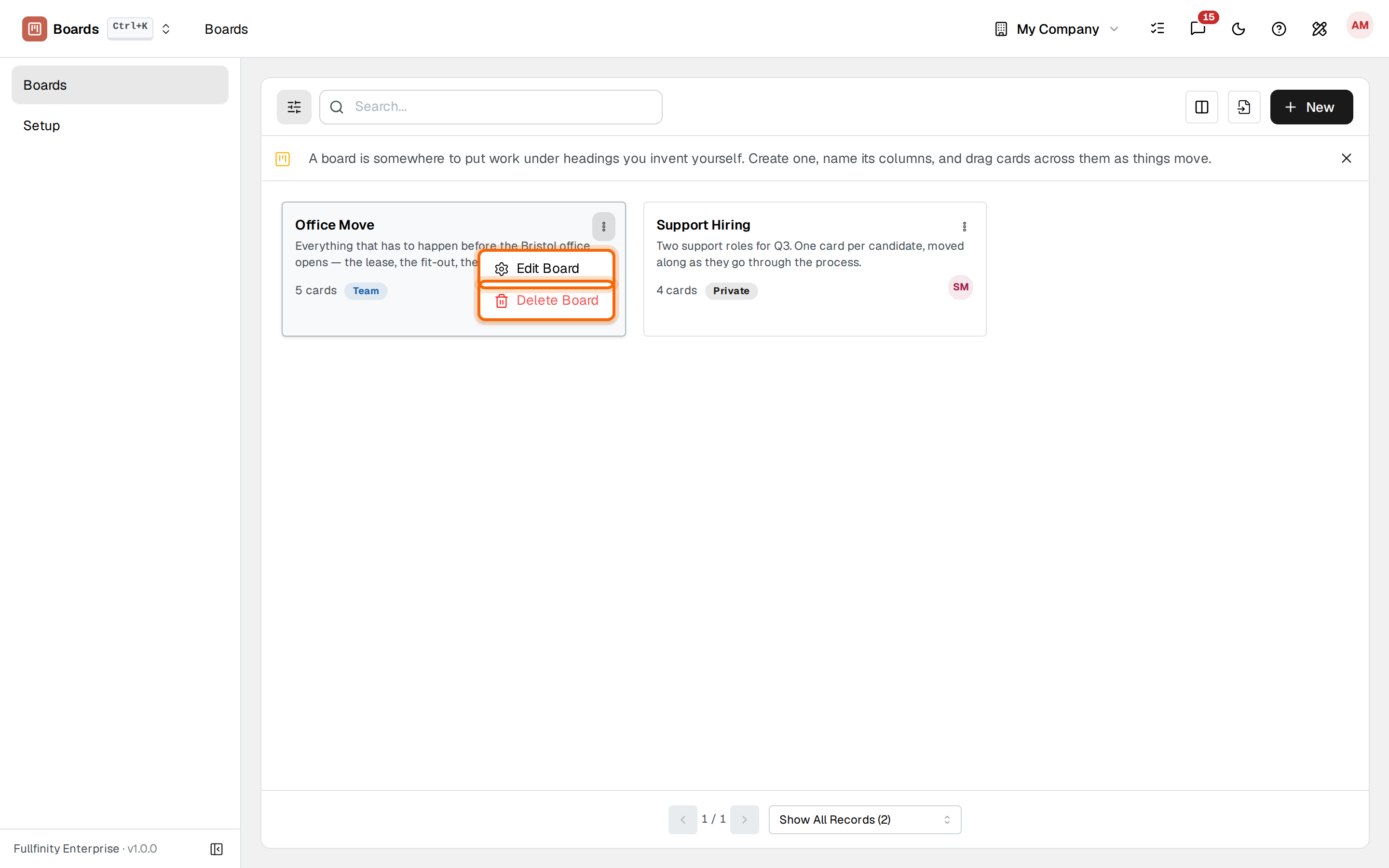
Board settings
Open a board's ⋮ menu and click Edit Board:
- Members — who can open a private board and work its cards.
- Owner, Colour and a Description shown on the board's card.
- The Columns and Labels tabs — see How do I set up a board's columns?
- Open Board takes you to the cards.
Delete Board in the same menu deletes the board with every card on it, after asking. Only Boards managers can delete.
Was this article helpful?