How do I add and work with cards?
Add cards, assign them, give them due dates, labels and colours, and move them across the board.
A card is one thing to do. Add it to a column, give it a due date and someone to do it, then drag it along as it progresses.
Add a card
Click the + at the top of a column, type the title and press Enter. The card is created in that column.
Fill it in
Click a card to open it beside the board:
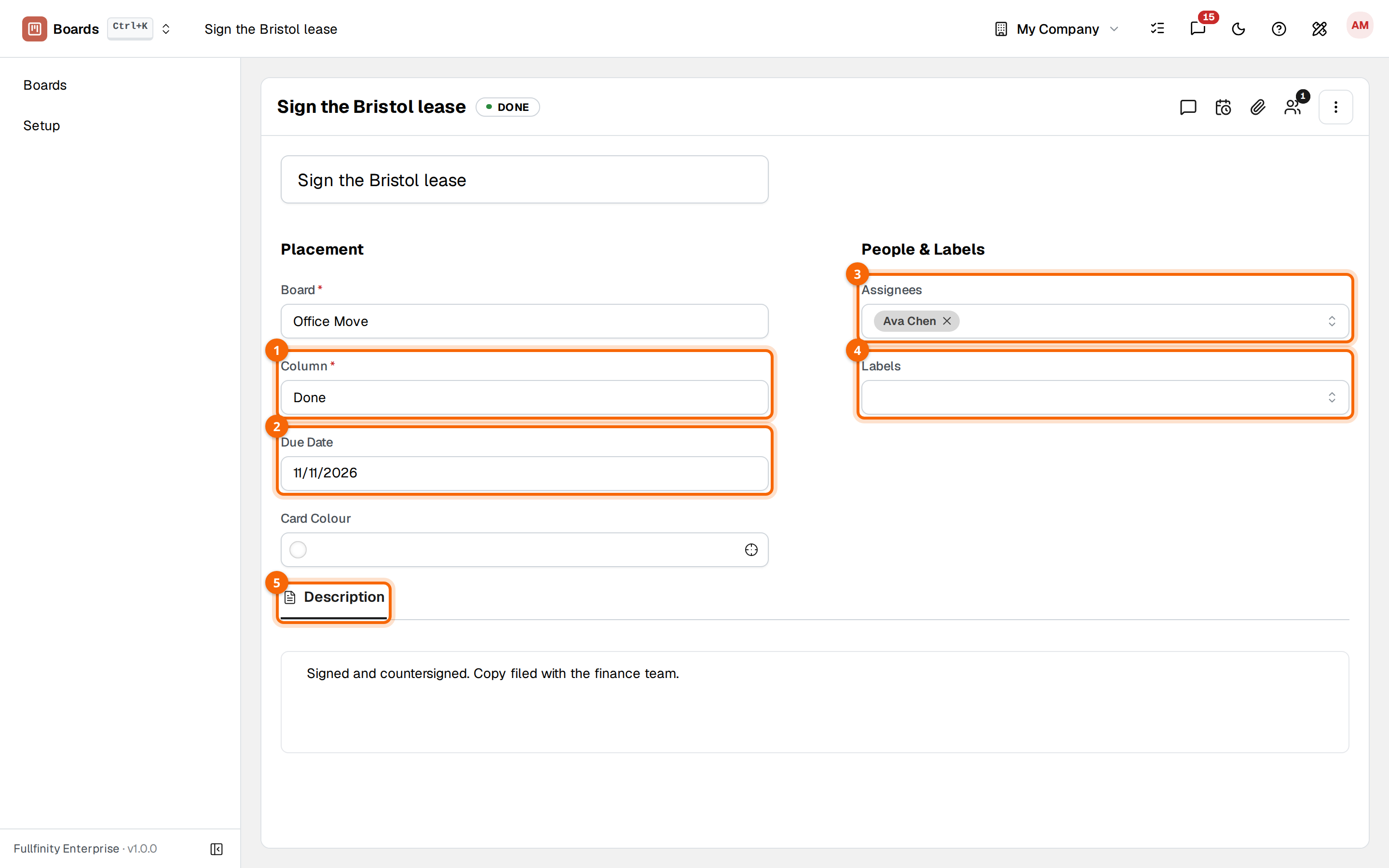
- Column — where it is. Changing it moves the card.
- Due Date — shown on the card as in 5 days or 2 days ago. A card past its date and not in a finishing column is marked Overdue.
- Assignees — who is on it. They follow the card and are told about its messages.
- Labels — coloured tags from this board's own list. Type a new one to create it; click a label to change its colour.
- Description — the details. Underneath, discuss the card, attach files and plan activities as on any record.
Cover Color in a card's ⋮ menu (or the colour field on the card) paints a band across the top of the card, so you can spot a kind of card on a crowded board.
Move and remove cards
Drag a card to another column or up and down within one. Delete Card in its ⋮ menu removes it after asking (Boards managers).
Was this article helpful?