How do I set up a board's columns?
Add, rename, reorder and remove columns, and mark the columns that mean a card is finished.
A board's columns are its steps. Each board has its own — Screening on the hiring board has nothing to do with the office move.
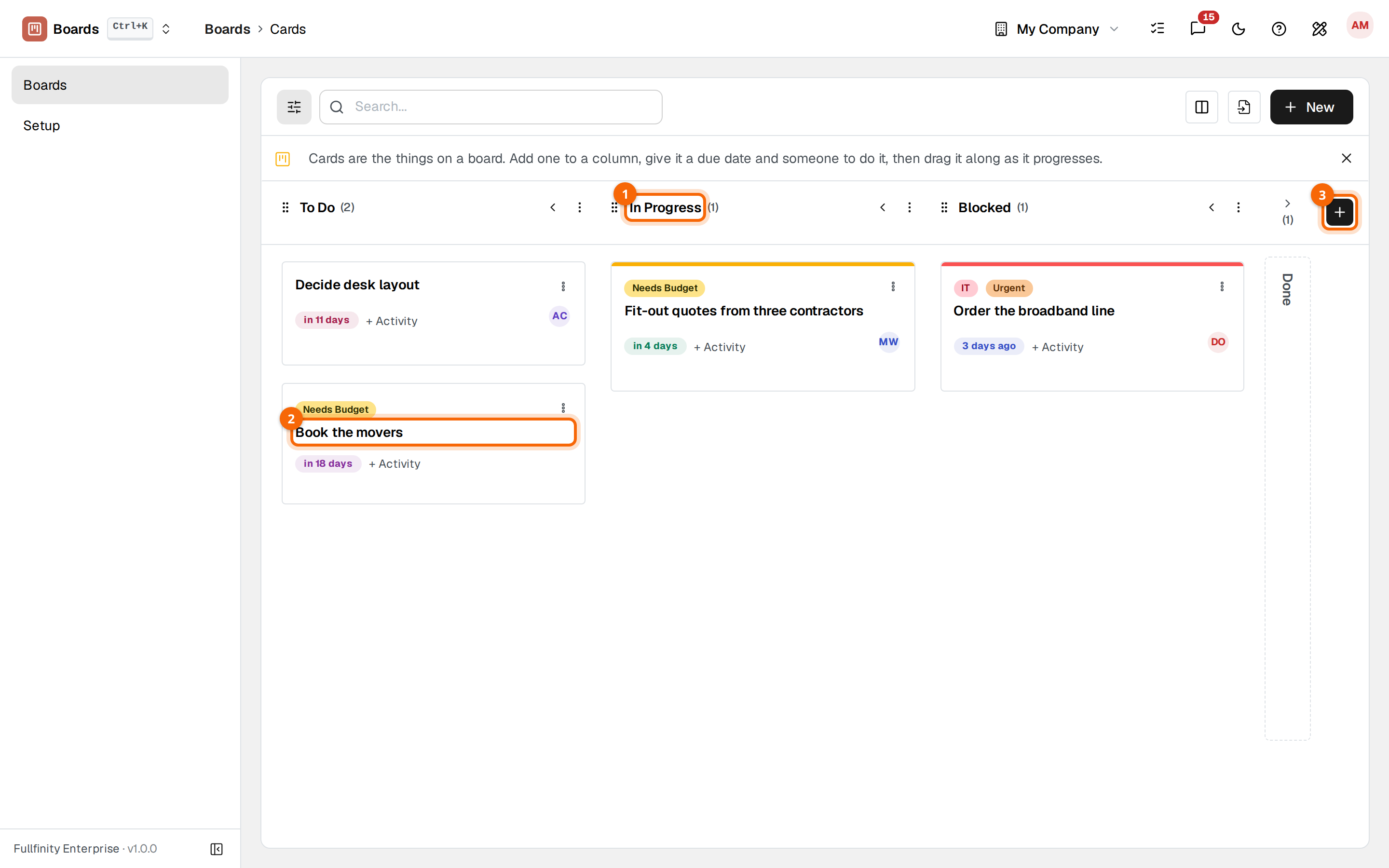
On the board
- Add column — the + after the last column. Type the name and press Enter.
- Rename a column by clicking its name.
- Drag a column by its header to move it.
- Delete column is in the column's menu. A column must be empty first: move its cards out.
- Collapse column folds a column you rarely look at into a narrow strip.
In the board's settings
The Columns tab of Edit Board lists them with two more settings:
- Completes the Card — a card in this column counts as done: it is marked Done and is no longer overdue. A board can have more than one such column (Done, Cancelled).
- Collapsed by Default — the column starts folded.
- Card Limit — how many cards the column should hold at most (0 means no limit). Shown only when Column Card Limits is on in Boards → Setup.
Column card limits
A column with a limit shows how many cards it holds against it in its header, for example (4 / 3). Once it holds more than its limit, the count turns red and the column is shaded red. The count includes every card in the column, even ones your current filter hides.
A limit warns, it doesn't block: you can still move a card into a full column, and the board tells you it is now over its limit (“Doing” now holds 4 cards, over its limit of 3.). A pile-up is a signal to finish work before starting more — blocking the move would mostly stop the person trying to move work along.