How do I set up Barcode Picking?
Turn on the scanner app, give products barcodes, decide what each kind of transfer asks the picker to scan, and give warehouse staff access.
Barcode Picking is a full-screen app for a phone, tablet or handheld scanner. Pickers open a receipt, delivery or internal transfer, scan what they handle, and validate it — no typing. Everything a scan records is exactly what you would have entered on the transfer by hand.
1. Turn it on
- Go to Inventory → Setup.
- Switch on Barcode Picking (1) and click Save. The Barcode Picking app appears on the home screen.
- Camera Scanning (2) lets the device's camera read barcodes as well as a hardware scanner. It is on to start with; switch it off on shared handhelds that have a built-in scanner.
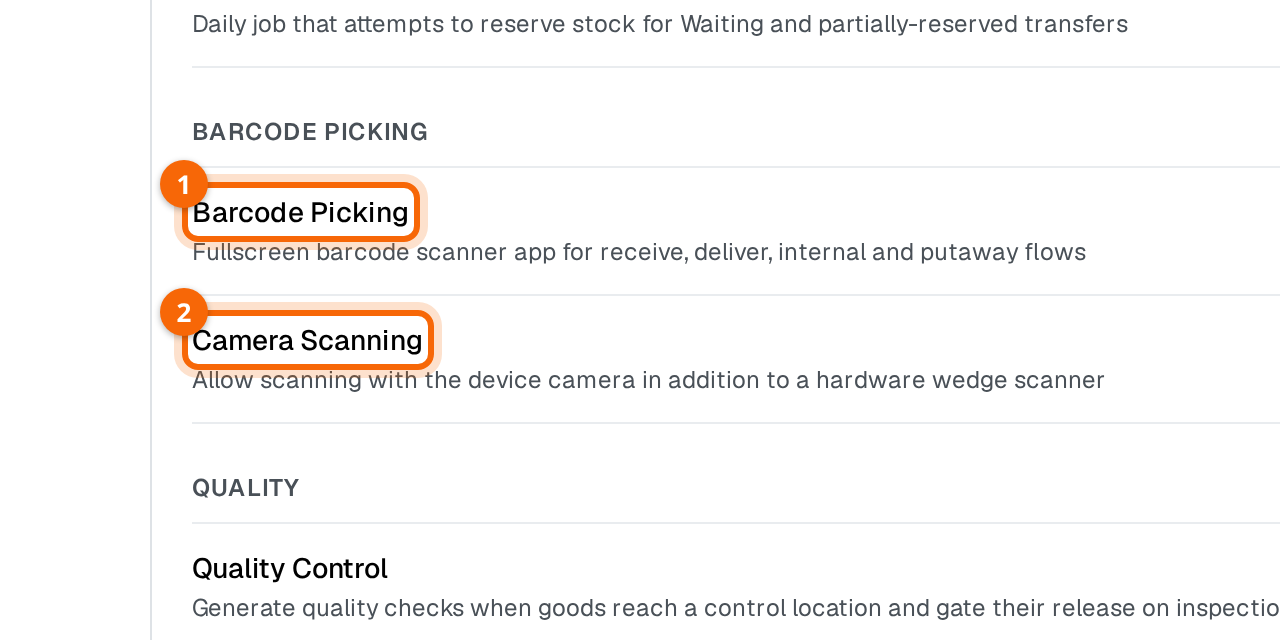
Further down the same tab, Barcode Rule Set decides how a scanned code is read. Left blank it uses the standard GS1 rules, which understand the product, lot, expiry and quantity codes printed on most supplier labels — you rarely need to change it.
2. Give products a barcode
Open a product and fill in its Barcode with the code printed on the item. Each barcode can belong to one product only; a duplicate is refused when you save. Locations and packages have a Barcode too, for scanning a shelf or a whole pallet.
3. Decide what each kind of transfer asks for
Each transfer type can ask the picker for more than the product. Go to Inventory → Setup, click Transfer Types and open one, for example Receipts. Under Policies:
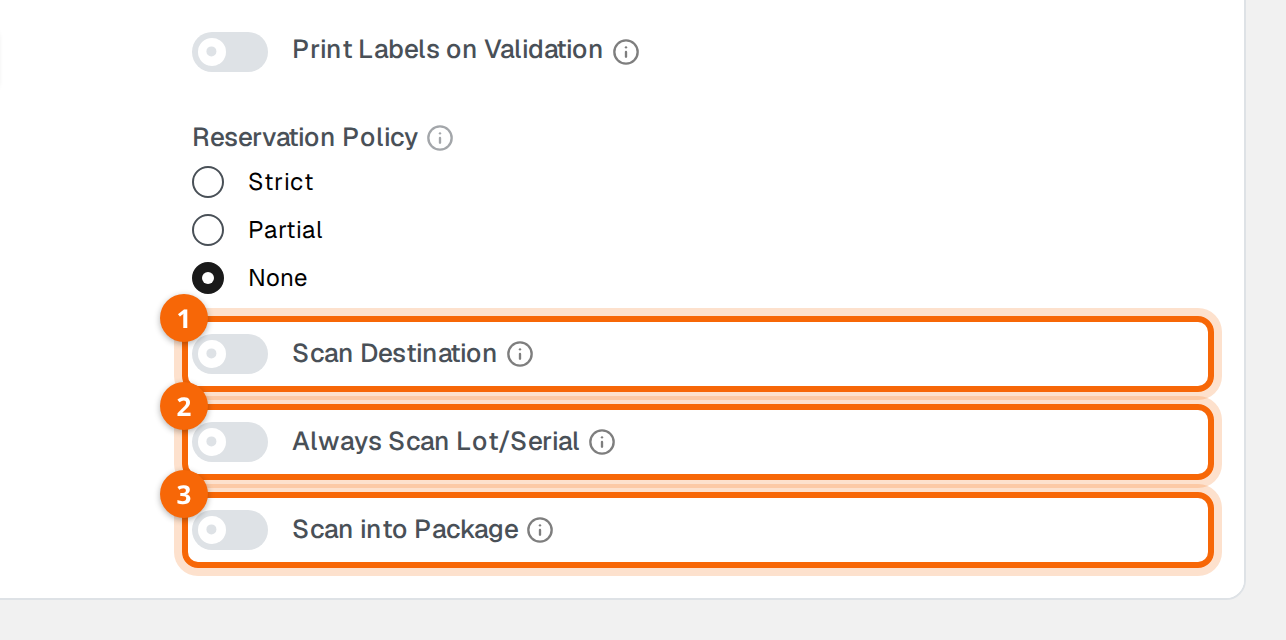
- Scan Destination — after each product, the picker scans the shelf it goes to (for putting goods away).
- Always Scan Lot/Serial — ask for a lot or serial number even for products that aren't tracked. Tracked products always ask for one.
- Scan into Package — the picker scans a package first and everything scanned after it is packed into that package.
Scan Destination shows once storage locations are switched on, and Scan into Package once packages are.
4. Give warehouse staff access
In the user's access rights, give the Inventory role Picker to someone who only scans: they see the Barcode Picking app and nothing else. Inventory users and managers can use the scanner too. See How do I add users and choose what they can access?
➡️ Related: How do I receive, ship or move goods with the scanner?