How do I pick a batch with the scanner?
Walk a batch or wave pick list in shelf order, scanning each item into the right tote and skipping what you can't find.
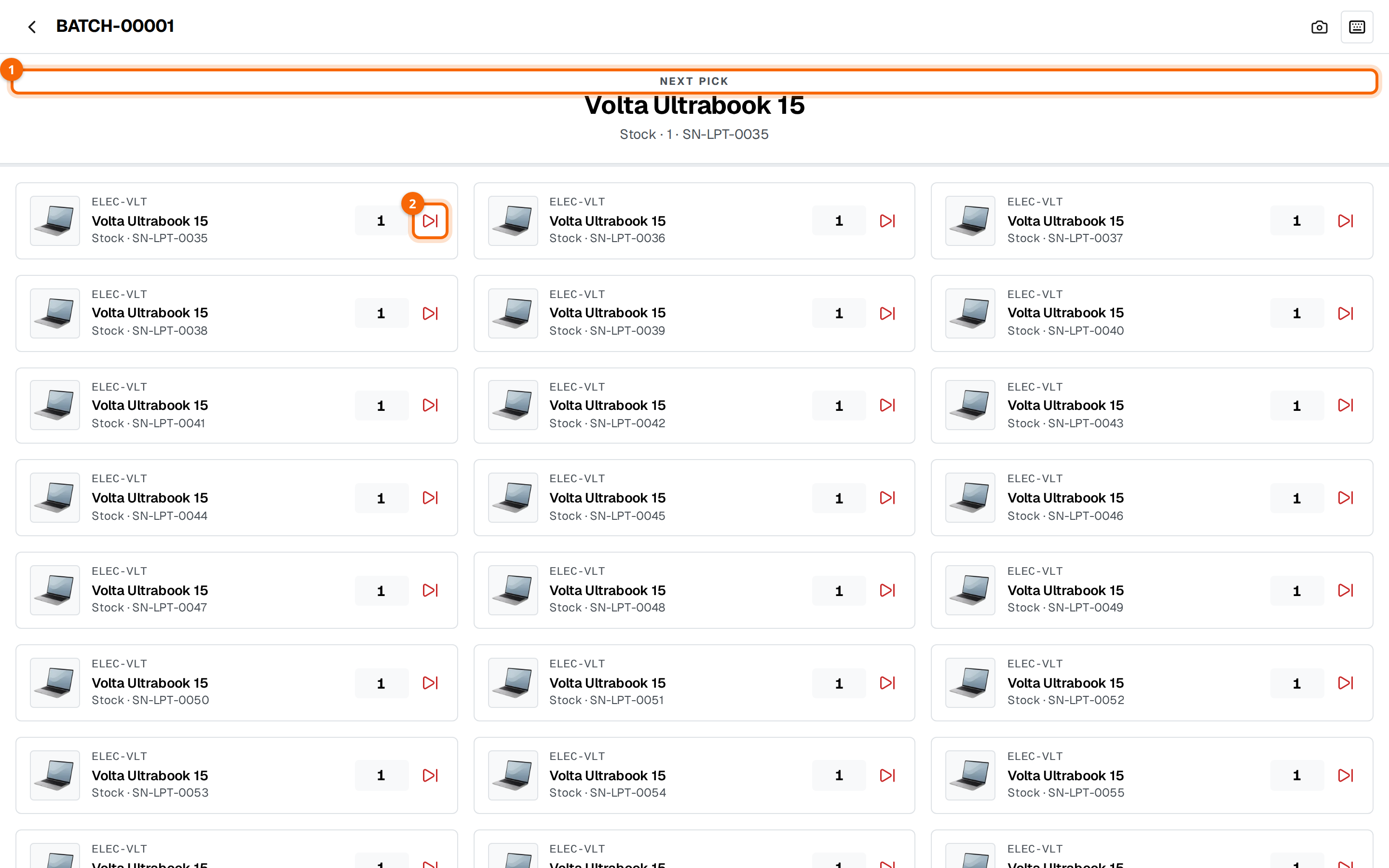
A batch groups several orders into one walk through the warehouse. On the scanner you see one pick at a time, in the order you pass the shelves.
Pick the batch
- Open Barcode Picking and tap Batches. Tap the batch you've been given; it starts as you open it.
- Next pick shows the shelf, the product and how many to take. Go to the shelf and scan the product: the whole quantity for that pick is taken.
- When the batch sorts into totes, scan the tote you are filling first. Every item you scan after that goes into that tote; scan another tote to switch.
- If a product isn't on the shelf, tap Skip. The pick is recorded as not found and you move on.
When the last pick is done the scanner shows Batch complete. Finish the batch in Inventory → Batch Picking → Batches, which validates its transfers — see How do I pick in batches and waves?
Was this article helpful?