How do I receive, ship or move goods with the scanner?
Open a receipt, delivery or internal transfer on the scanner, scan each item, lot and shelf it asks for, and validate.
The same screen handles every kind of transfer: a receipt from a vendor, a delivery to a customer, a move between shelves. It tells you what to scan next and beeps for each good scan.
1. Open the transfer
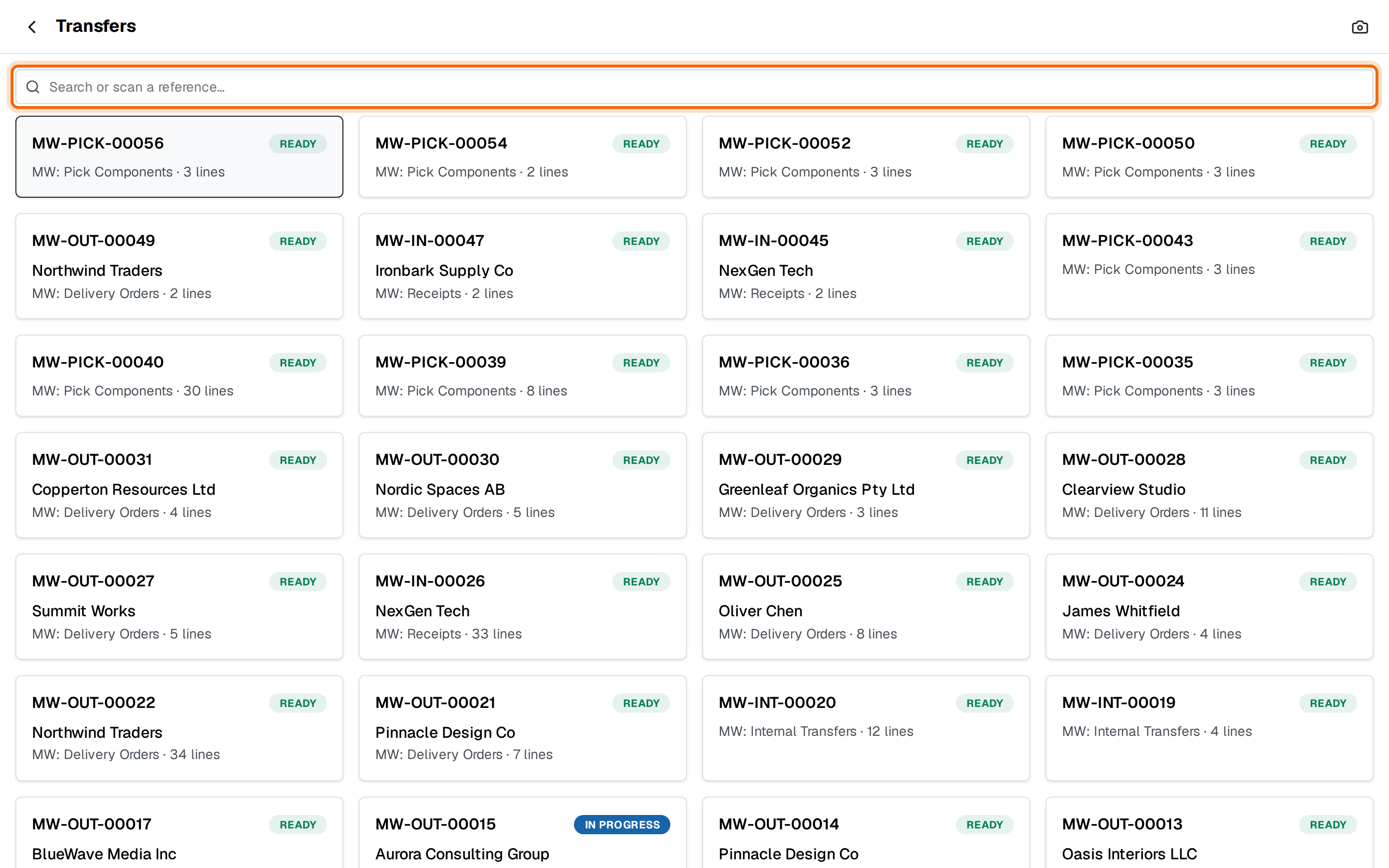
- Open Barcode Picking and tap Transfers.
- The list shows every transfer that is ready to work, newest first, with its type and number of lines. Scan the barcode printed on the picking slip or delivery note to jump straight to it, or tap it in the list. You can also type part of its reference into Search or scan a reference….
A transfer that is still a draft, or already done, can't be opened here — the scanner says why when you scan it.
2. Scan the goods
The banner at the top says what to scan Next.
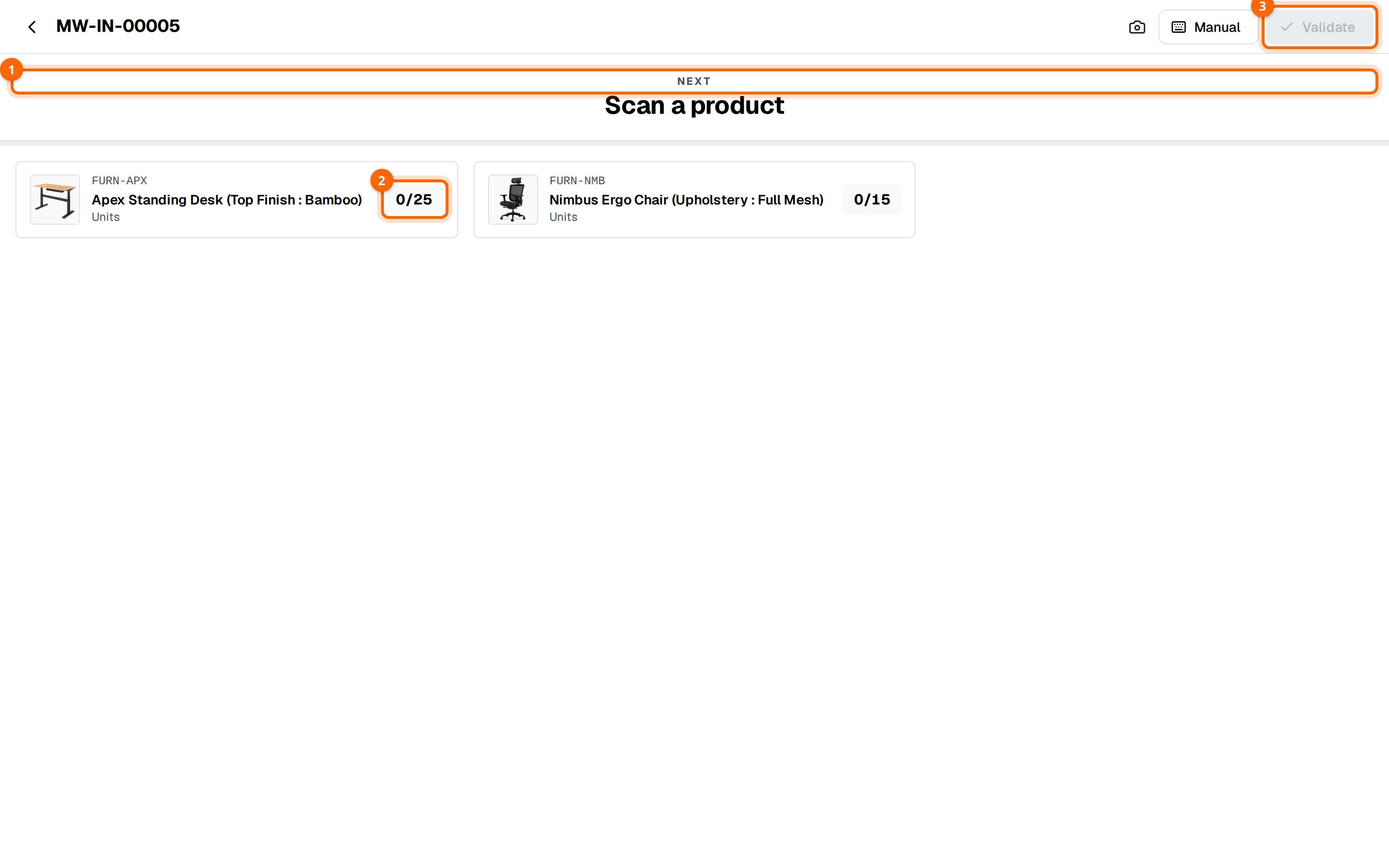
- Scan a product — each scan adds one to that product's line. A pack's barcode adds the whole pack.
- For a lot- or serial-tracked product the scanner asks you to Scan lot / serial next; the unit is recorded with it. A serial can only be scanned once per transfer.
- If the transfer type asks for it, Scan destination location — scan the shelf the goods went to.
For goods you weigh or measure rather than count, tap the line's quantity and use Set quantity to enter the amount. If a barcode won't scan, tap Manual and type it in.
Scanning a package moves everything in it in one go. When the transfer type uses Scan into Package, scan the package to pack into first, then the goods.
3. Validate
When everything is scanned, tap Validate. The transfer is done and stock moves, exactly as if you had validated it in Inventory. If you scanned less than was planned, the rest is moved to a backorder to finish later (unless the transfer type is set never to make one).
➡️ Related: Why won't the scanner accept this barcode?